
Felix works each contact across calls, texts, and emails until they are ready for a teammate. A handoff is the moment Felix flags a contact as ready for human follow-up: Felix stops its own outreach and brings in a teammate to take it from there.
Two settings decide what happens. A handoff reason describes when Felix should hand off. A routing rule decides who receives it. Both are managed under Felix AI ->Train.
In this guide:
- How a handoff works
- Add a handoff reason
- Add a routing rule
- How Felix picks a routing rule
- Get notified when Felix hands off
- Take over from Felix manually
- FAQs
How a handoff works
As Felix works a contact through Sales Agent, the contact moves through these stages:
- Attempting: Felix is reaching out and has not had a response yet.
- Engaging: The contact has responded and is in an active conversation.
- Handoff: The contact is ready for a teammate, and Felix has stepped back.
- Pending: Felix is holding the contact rather than actively working them, with the reason recorded. Felix brings them back into rotation on its own when it is time to reach out again. Learn more about Pending contacts.
When a contact reaches the Handoff stage, Felix notifies your team and the conversation appears in the Handoff inbox in Conversations for a teammate to pick up. A handoff is not permanent. You can enroll the contact in Sales Agent again at any time. A workflow re-enrolls them only if its Enroll contacts with Sales Agent step has Include contacts in Handoff selected. Learn more about enrolling contacts in Sales Agent.
On calls and texts
In a text conversation, Felix finishes the conversation as usual, then checks it against your handoff reasons. If a reason fits, the contact is handed off and a routing rule decides who picks it up.
On a call, a handoff reason can trigger a live transfer while the contact is still on the line. Felix introduces the contact with a brief handoff message and then connects them, so your teammate picks up with context instead of starting cold. Someone still has to answer for the transfer to complete. If the contact says they cannot talk in the moment, Felix arranges to reach them another time.
🗒️ Note: How a teammate accepts a transfer depends on where it goes. A specific user confirms verbally when Felix asks. A shared inbox member presses 1 when prompted: the call rings more than one person, so pressing 1 confirms it's taken and stops it from ringing for everyone else.
Transfers come from Felix's direct line, the dedicated number on your team's contact card, not from the rotating numbers Felix uses for outreach. Share Felix's contact card so your team recognizes the number when a transfer comes in. Learn more about phone numbers and Copilot seats.
Add a handoff reason
A handoff reason describes the situation in which you want your team to take over. Here's how to add one:
- Go to Felix AI from the left sidebar.
- Select Train, then open the Handoffs tab.
- Click Add Handoff in the top-right corner.
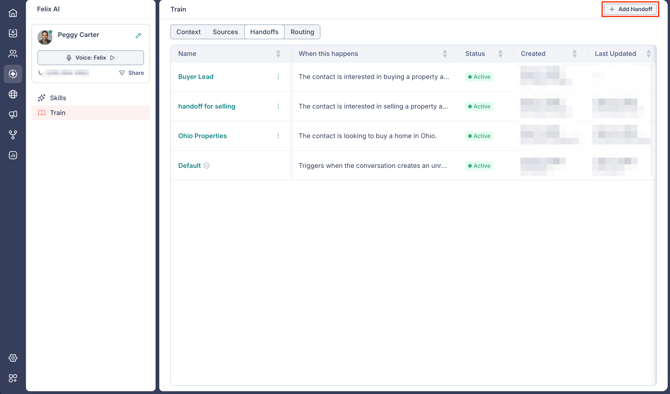
- Enter a Name that describes one situation, such as Interested in buying.
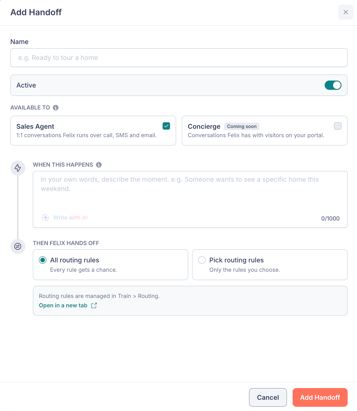
- Under Available to, select Sales Agent.
- In When this happens, describe the moment in your own words. Click Write with AI to draft it for you.
- Under Then Felix hands off, choose All routing rules to check every rule you have, or Pick routing rules to select specific ones.
- Review the Active switch and click Add Handoff.
🗒️ Note: Configuring Felix requires account settings access. Learn more about permissions.
Your wording decides how readily the reason fires. Interested in buying on its own can hand off a contact who never agreed to speak with anyone. Adding and has agreed to speak with a teammate limits it to people who asked. Adding a time frame such as within 90 days leaves out contacts with a later or unknown timeline.
Keep each reason to a single situation. Buying and selling belong in separate reasons rather than one combined reason, so it stays clear which situation each one covers.
🗒️ Note: A handoff reason does not change how Felix talks or make it ask new questions. Describing a time frame, for example, does not prompt Felix to ask about timing.
Handoff reasons are separate from the rest of Felix's setup. Felix's style, call greetings, and the days and hours Felix can call and text are set on the Sales Agent skill. Learn more about configuring Felix Sales Agent.
Manage your handoff reasons
The Handoffs tab lists each reason with its description, status, and who created or last updated it. Click the 3-dot icon on any row to Edit, Turn off, or Delete it. 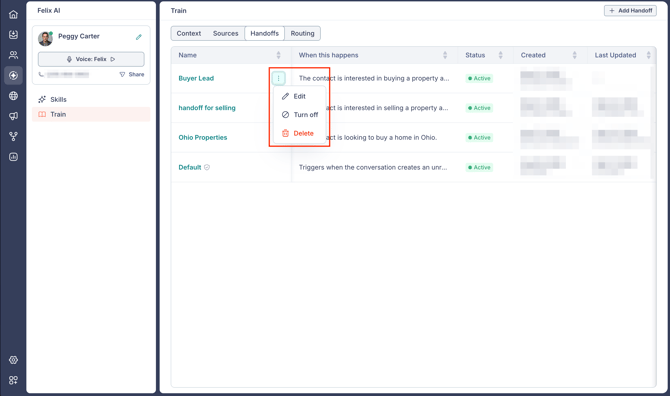
Turning a reason off takes effect immediately.
You can add up to 19 handoff reasons of your own. The built-in Default handoff doesn’t count toward that limit.
The Default handoff
Every account has a built-in Default handoff. 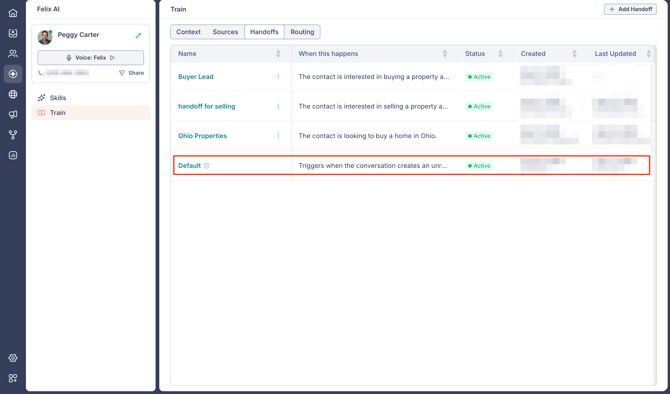
It covers needs Felix cannot meet and commitments that require a teammate, such as a promise that someone will follow up, and it can apply even when none of your own reasons fit. Its details cannot be changed.
Add a routing rule
A routing rule decides who receives a contact once a handoff fires. Here's how to add one:
- Go to Felix AI from the left sidebar.
- Select Train, then open the Routing tab.
- Click Add Routing in the top-right corner.
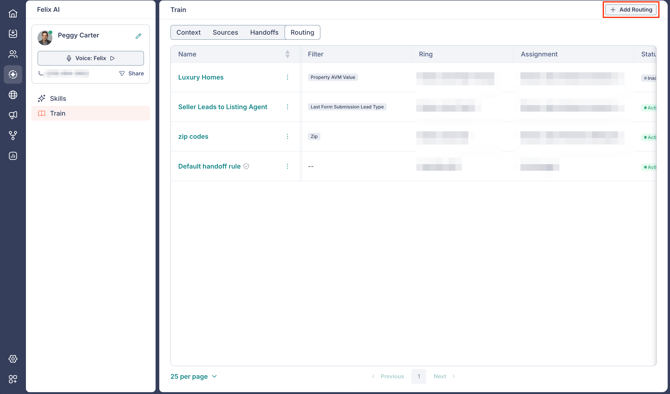
- Enter a Name that describes who the rule sends contacts to, such as Buyer leads to the north team.
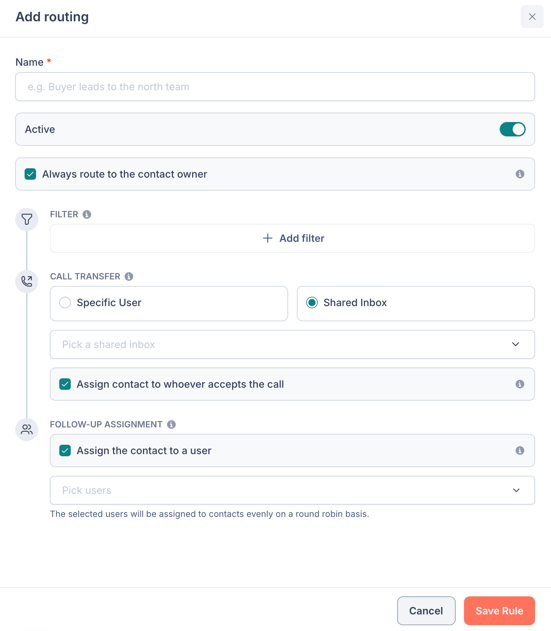
- Choose whether to keep Always route to the contact owner selected.
- Under Filter, click Add filter to narrow which contacts the rule applies to. Leave it empty to apply the rule to everything that reaches it.
- Under Call Transfer, choose Specific User or Shared Inbox, then select where live calls go. A shared inbox rings its members, so the first available teammate takes the call. Learn more about shared inboxes.
- Under Follow-up assignment, select Assign the contact to a user and pick the users who should receive contacts.
- Review the Active switch and click Save Rule.
If a handoff reason uses Pick routing rules, remember to select your new rule in that reason as well.
What each setting controls
- Always route to the contact owner: When selected, a live call tries the contact's owner first and falls back to the person or inbox you picked under Call Transfer for contacts with no owner. When cleared, Felix uses your picks below even when the contact already has an owner, and assignment can change who that is. Learn more about changing a contact's assigned user.
- Filter: One or more conditions describing which contacts the rule applies to. Use Add Filter to add conditions to a group and Add Filter Group to add another group.
- Assign contact to whoever accepts the call: The teammate who takes the transfer becomes the contact owner. When cleared, the contact keeps its current owner.
- Assign the contact to a user: Creates the follow-up action and notifies the assigned user. This also covers the cases where nobody takes the transfer, where the contact asks to be called later, and where the handoff came from a text conversation. Select more than one user and contacts are distributed among them evenly, round robin. When cleared, no follow-up action is created and nobody is notified. Routing a handoff to a team isn't available.
🗒️ Note: Property filters match only the properties mentioned in the conversation, not everything on the contact's record. A contact who owns a $2M home will not match a value filter if the conversation was about a different property, and a conversation that mentions no property at all will not match.
Manage your routing rules
The Routing tab lists each rule with its Filter, its Ring destination for live calls, and its Assignment outcome.
Click the 3-dot icon on any row to Edit or Delete a rule. 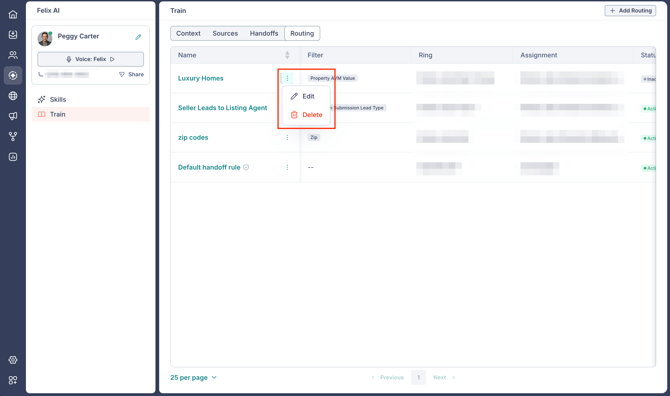
To turn a rule off without removing it, open it and switch Active off. Deleting is permanent, and Felix stops routing calls by that rule.
💡 Tip: Editing a rule affects every handoff reason that uses it, so check which reasons point to a rule before changing where it sends contacts.
The Default handoff rule
Every account has a built-in Default handoff rule. 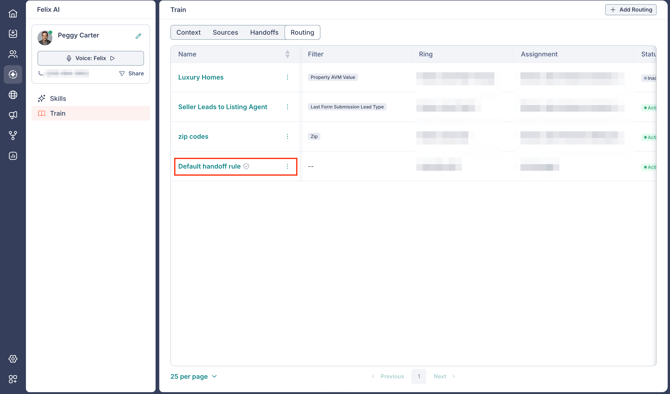
It has no filter, so it applies to every handoff and catches anything your other rules miss. Its settings are read-only, so it cannot be renamed, turned off, deleted, or pointed somewhere else.
How Felix picks a routing rule
- A reason set to All routing rules checks every rule you have. A reason set to Pick routing rules checks only the rules you selected.
- The Default handoff rule is always included either way, as a guaranteed fallback.
- Rules are checked together rather than in list order. When more than one rule matches, Felix uses the rule that was created most recently.
- When nothing else matches, the contact goes through the Default handoff rule.
🗒️ Note: A rule with no filter matches every handoff that reaches it. Because the newest matching rule wins, an unfiltered rule created today will take contacts that your more specific rules were built for. Give every rule a filter unless you intend it as a catch-all.
Get notified when Felix hands off
You choose whether Felix notifies you on just your own handoffs or on every handoff across the account. Each teammate sets their own handoff alerts, so people only hear about the handoffs that matter to them.
To adjust your handoff alerts, go to Settings > Notifications and find the Handoff topic under Felix AI. You can set the scope and turn on In-App, Email, or both. Learn more about notifications.
Take over from Felix manually
You do not have to wait for a handoff. Open the contact in Conversations and click Take over on the Felix activity card, then confirm in the Take over from Sales Agent? prompt.
Sales Agent stops working that contact, and the conversation becomes yours to manage. Learn more about taking over a conversation.
Frequently asked questions
- Can I route contacts by ZIP code, city, or state?
- Yes. Add those conditions under a rule's Filter, and point each rule at the teammate or shared inbox that covers that market. Property conditions match only the property discussed in the conversation.
- Can Felix route buyers and sellers to different shared inboxes?
- Yes. Create a separate handoff reason for each intent, create a routing rule for each inbox, then set each reason to Pick routing rules and select the matching rule.
- Can Felix transfer an inbound call?
- Transfers apply to calls Felix places. Felix answers inbound calls on its own number but cannot transfer an inbound call to a teammate today.
- What happens if nobody picks up a transfer?
- Felix arranges a call back with the contact for later, and the rule's follow-up assignment still applies, so a teammate is assigned and notified.
- Does my team get a call on every handoff?
- No. A teammate is called only on a live transfer, which happens during a call when the contact agrees to be connected. Other handoffs notify your team and appear in the Handoff inbox, but no call is placed. A high handoff count does not mean an equal number of calls.
- Is the call still recorded after a transfer connects?
- Yes. Fello records both sides of the call, including the part after Felix connects you with the contact. Recordings stay in Fello.
- Are call recordings and transcripts synced to my CRM?
- No. Call recordings, transcripts, and Felix's conversation activity stay in Fello.
- Does Felix announce the teammate's name to the contact?
- No. A transfer can route to a shared inbox or through routing logic rather than to one fixed person, so Felix does not announce who the contact is being connected to.
- What should I do when a teammate is away?
- For a week or two, have them set call forwarding to the covering teammate’s number and choose Forwarding number only, so live transfers meant for them ring that teammate instead. Also remove them from any routing rule or shared inbox that sends them handoffs, and add them back when they return. The covering teammate can set their handoff alerts to every handoff so nothing slips. For an absence of months or longer, suspend the user instead. You can then choose whether to keep, reassign, or unassign their contacts.