What is Conversations?
Conversations is the unified inbox in Fello where every call, text, and email lives in one place: both Felix's outreach and the messages your team sends and receives. You can follow what Felix is doing with a contact, step in whenever you want, and take over when a contact is ready for your team.
Go to Conversations from the left sidebar to open it.
In this guide:
- Navigate your inboxes
- Find a conversation
- Start a new message
- Inside a conversation
- The contact panel
- Send a message
- Call details, recordings, and sharing
- Shared inboxes
Navigate your inboxes
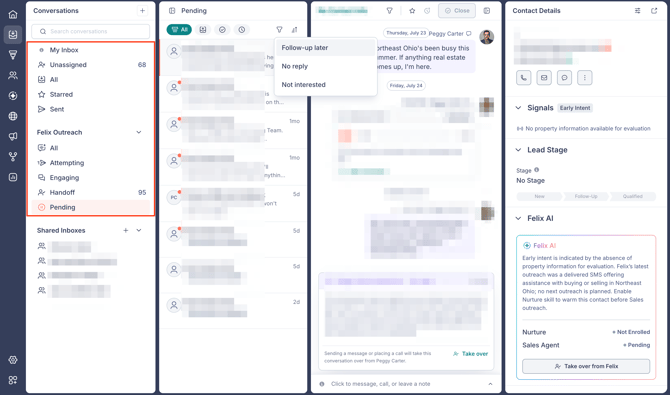
The left column groups your conversations:
- My Inbox: Conversations assigned to you.
- Unassigned: Conversations with contacts who don't have a user assigned to them, with a count.
- All: Every conversation you can access.
- Starred: Conversations you've starred.
- Sent: Conversations where the last activity was something you sent.
Felix Outreach groups the conversations Felix is running, by stage:
- All: Every conversation Felix is working.
- Attempting: Felix has reached out and is waiting for a response.
- Engaging: The contact has responded and is in an active conversation.
- Handoff: Conversations flagged ready for human follow-up, with a count.
- Pending: Contacts Felix is holding rather than actively working, each with the reason Felix parked them. Felix brings them back into rotation automatically when it is time to reach out again. In Pending, you can narrow the list by reason: Follow-up later (the contact asked to reconnect down the line), No reply (Felix's outreach has not had a response), or Not interested (the contact declined). Learn how Pending affects who Felix works.
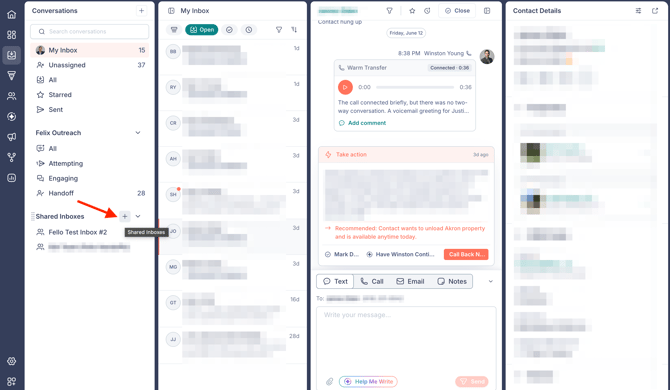
Shared Inboxes lists the team inboxes you belong to. See Shared inboxes below to create or manage them.
Find a conversation
At the top of the conversation list you can:
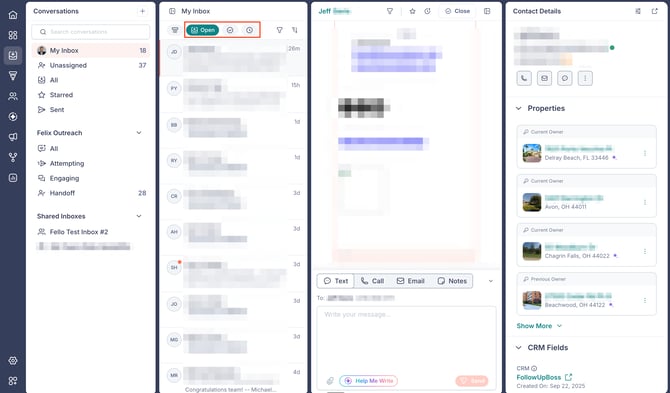
- Switch the view between Open, Closed, and Snoozed.
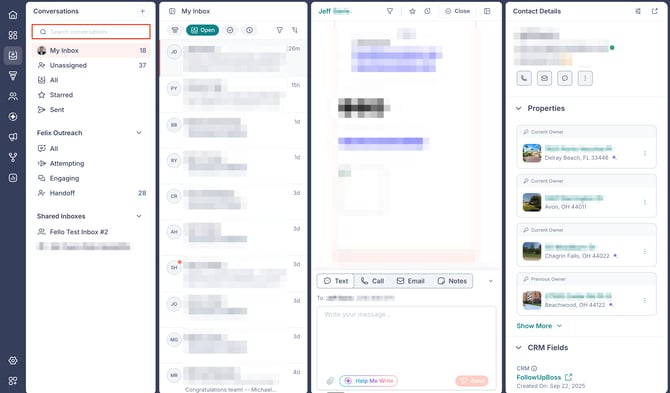
- Search conversations by contact name.
- Filter the list by All, Waiting on reply, Needs response, Sales Agent Handoff, or Unread.
- Sort to reorder the list.
Each item shows the contact's name, the last message, call status, and a relative time.
Start a new message
- Click the + at the top of the Conversations column to open New Message.
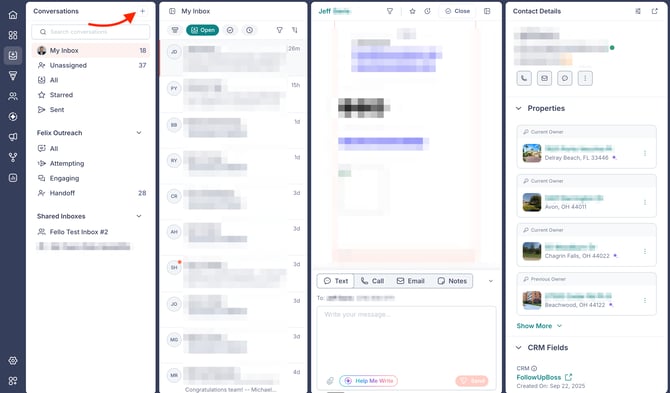
- Use Search contacts to find the person you want.
- Select the contact. Their conversation opens, ready for you to send a call, text, or email.
Inside a conversation
Open a conversation to see its full history, with day separators between activity.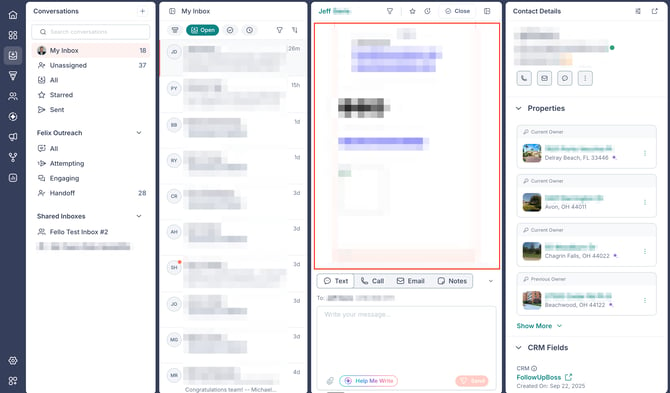
Calls
Call entries show whether the call was Inbound or Outbound, a status chip, and an inline player, along with a one-line AI summary. You can Add comment or click View Details to open the full call details.
Messages
Text and email entries show the message and its delivery state.
Give feedback on Felix's messages
Rate any text or email Felix sent to tell it what worked and what didn't. Your feedback helps refine how Felix approaches future conversations. Anyone who can view Felix conversations can leave feedback, with no extra permission needed.
- Hover over a message from Felix and select the thumbs up or thumbs down icon.
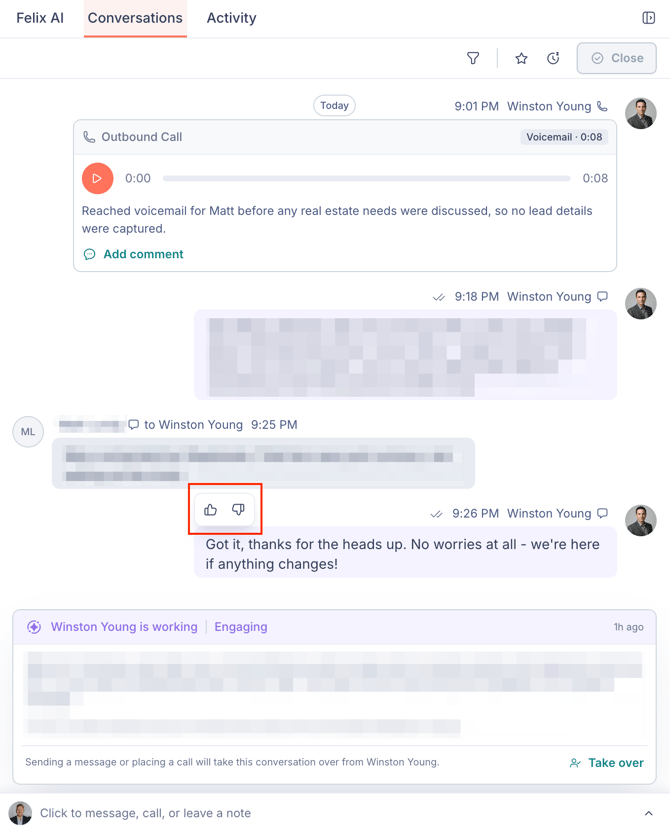
- For thumbs up (What worked well?), pick the option that fits: Great tone, Accurate, On-brand, or Helpful.
- For thumbs down (What was wrong?), pick the option that fits: Too aggressive, Wrong tone, Incorrect info, or Shouldn't have said this.
- Optionally, add more under Additional feedback.
- Select Submit Feedback. A "Feedback submitted" confirmation appears.
What Felix is doing
When Felix is working a contact, a Felix activity card shows the agent's current state, a short summary of what's happening, and the next outreach planned. You don't need to act: Felix keeps the conversation going and hands it off when the contact is ready for a teammate. To step in yourself, click Take over and confirm in the Take over from Sales Agent? prompt.
🗒️ Note: While Felix is managing a conversation through Sales Agent, it can't be closed or reopened manually. Take over first, and the conversation becomes yours to manage. Learn more about handoffs and warm transfers.
Take action card
Some conversations surface a Take action card with a summary of the situation and a Recommended next step. You can:
- Mark Done: Logs an activity entry and clears the card.
- Have [agent] Continue: Hands the contact back to Felix to keep working.
- Call Back Now: Start a call with the contact.
Snooze a conversation
Snooze a conversation to revisit it later: Later today, Tomorrow morning, Tomorrow afternoon, or Next week. Snoozed conversations move to the Snoozed view.
The contact panel
Selecting a conversation opens a Contact Details panel on the right with the contact's email and phone, quick-action icons, and:
- Signals: The contact's intent and the signals behind it. Learn about signals and intent.
- Lead Stage: The contact's stage: New, Follow-Up, Qualified, or Disqualified. Learn more about leads.
- Felix AI: Felix's read on the contact, with one-click enrollment in Nurture or Sales Agent.
Use the icons in the panel header to customize which sections show or open the full contact record.
Send a message
The composer sits at the bottom of a conversation, with a tab for each channel: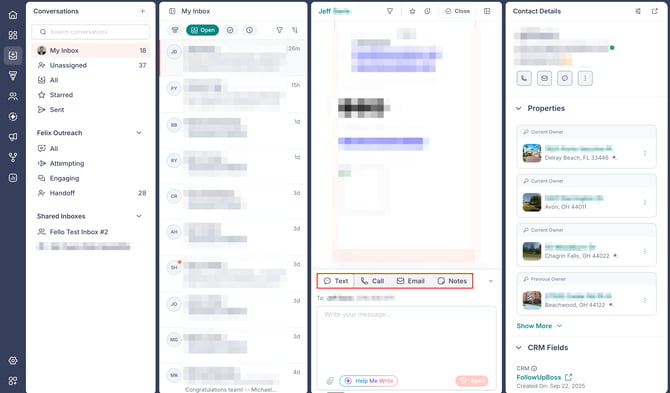
- Text: Send an SMS.
- Call: Place a call.
- Email: Send a one-to-one email. Sending requires a connected Google account and a Copilot seat.
- Notes: Add an internal note your contact doesn't see. Type "@" to mention a teammate, then click Send. Use notes to log activity from outside Fello, such as an in-person visit. Notes appear in the contact's activity log for all users, and can also be added from the Notes section on the contact record.
Use the chevron (⌄) to expand the composer. Other controls:
- Help Me Write: Start from a suggested reply, or tell Felix what to write and let it draft the message.
- Add (+): Attach a Photo / Image or a Contact card. Photos and images are limited to 10 files, 3MB each, in JPG, JPEG, PNG, or GIF.
- Click Send when you're ready.
🗒️ Note: Calling, texting, and email require a Copilot seat. Without one, the composer shows Add Copilot Seat and these actions stay disabled. Learn about phone numbers and Copilot seats.
Send a contact card
A contact card shares a teammate's details as a vCard, a .vcf file your contact can save straight to their phone's contacts.
- Open the Text tab in the composer.
- Click + and select Contact card.
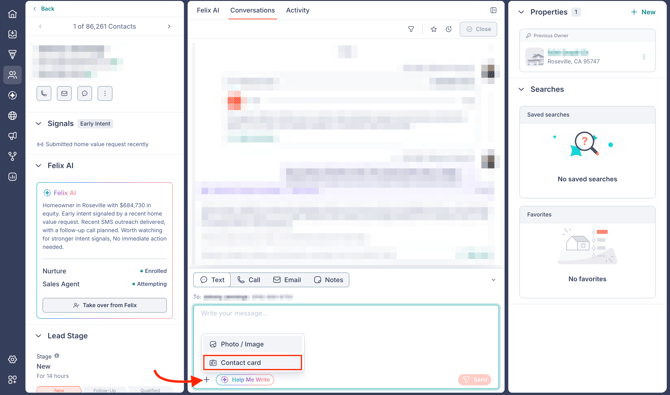
- Search for the user you want to share, then select them. Users without a Copilot seat appear greyed out and can't be selected.
- Add a message if you want one, then click Send.
The card carries the user's profile picture, name, Copilot line, email address in Fello, company name, and company website.
Call details, recordings, and sharing
Click View Details on any call entry to open the full record, where you can play the recording, read the transcript, and share the call.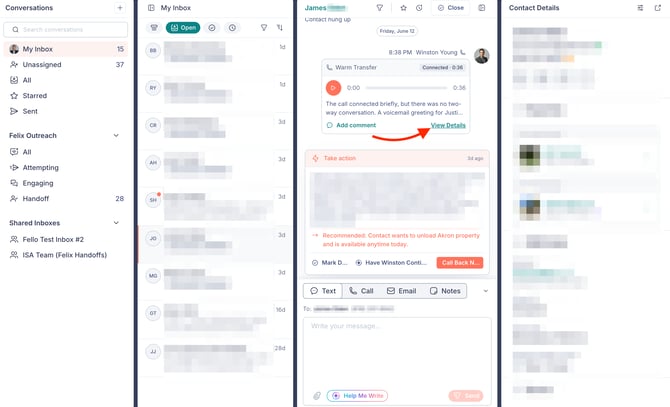
The following details will be available:
- Player: Play the recording, adjust Speed from 0.5x to 2x, skip back 10 seconds, and control volume.
- Talk ratio: Per-speaker bars show how much each side spoke.
- Summary: The AI summary of the call.
- Transcript: The full transcript.
- Comments: Leave a comment and @-mention a teammate.
🗒️ Note: Call recordings and transcripts stay in Fello and are not synced to your CRM.
Share a call
The share icon in the top-right corner of Call Details gives you two ways to send a call to someone else: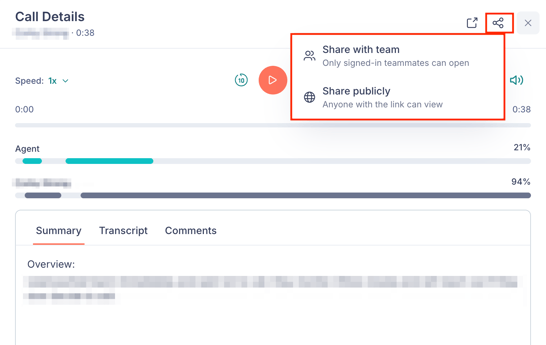
- Share with team: Creates a link only signed-in teammates can open.
- Share publicly: Creates a link anyone can open, with no sign-in required. Use this for marketing, demos, prospects, or anywhere a login would get in the way.
After you select Share publicly, Fello generates the link and shows when it expires. Click the Copy public link (copy) icon to copy it, Open preview to see the page as your recipient will, or Done to close.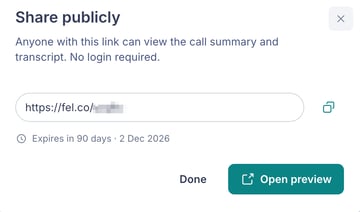
🗒️ Note: A public link expires 90 days after you create it, and it cannot be turned off before then. Share it only with people you're comfortable giving access to the recording, summary, and transcript.
A public link opens a Fello-branded Shared call recording page with the expiry date in the header. It carries the same recording, talk ratio, summary, and searchable transcript, plus an Info tab with the contact, who handled the call, the date, duration, direction, channel, result, and call ID. Comments are not included, so anything your team leaves on the call stays internal.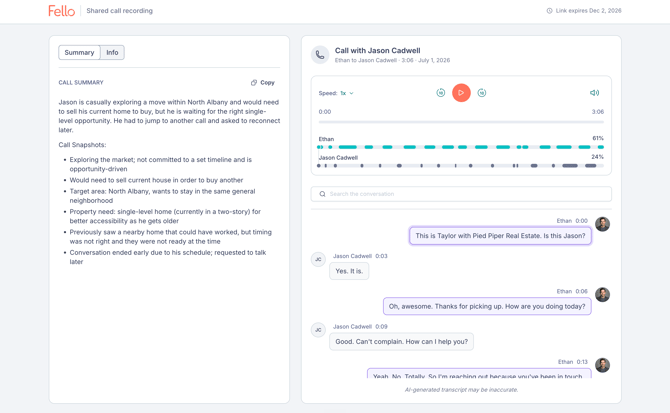
Shared inboxes
A shared inbox routes calls and messages to a group of teammates, so the first available person responds.
🗒️ Note: Every member of a shared inbox has a Copilot seat and their own Copilot number, so the whole team can call, text, and email contacts from Conversations. Learn more about phone numbers and Copilot seats.
Create a shared inbox
- Hover over the Shared Inboxes header in the left column and click the + that appears.
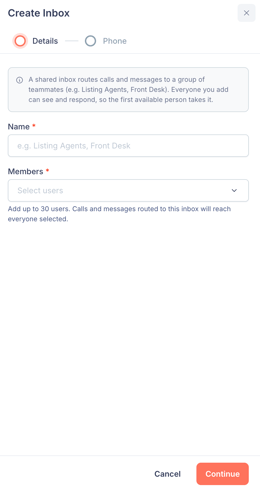
- On the Details step, enter a Name and choose Members from the dropdown. You can add up to 30 users, and everyone selected can see and respond to the inbox. Click Continue.
🗒️ Note: In the picker, teammates who don't have a Copilot seat show a No seat badge. When you select them, a note confirms each one will be assigned a Copilot seat as part of setup.
- On the Phone step, enter an Area Code and click Generate to create a fresh number for the Inbox direct line. A shared inbox needs its own direct line.
- Choose a Ring strategy:
- Ring all at the same time: Calls ring every member at once.
- Ring in order: Ring each member one by one until someone answers.
- Click Create Inbox.
🗒️ Note: If your account doesn't have enough Copilot seats available for the teammates you add, an admin with billing access can add more.
Edit or delete a shared inbox
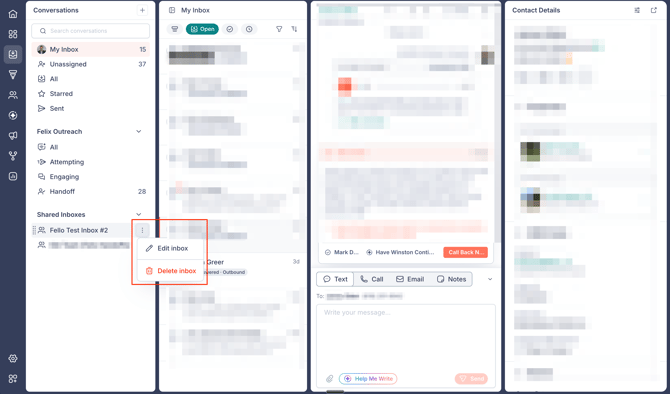
Each inbox in the Shared Inboxes group has a 3-dot menu with Edit inbox and Delete inbox.
Editing an inbox opens the same steps as creating one. Any new members you add who don't have a Copilot seat are assigned one the same way.