
A Copilot seat is a dedicated phone line for a user that lets them call, text, and email a contact one to one inside Fello. It is what makes Felix's work a two-way operation: Felix runs the outreach and hands off, and a teammate with a seat picks up the conversation in Fello.
This guide explains what a seat unlocks, how Felix's own numbers differ from your line, how to request a seat, and how admins provision and assign company phone numbers.
In this guide:
- What a Copilot seat unlocks
- Felix's numbers and your Copilot line
- Request a Copilot seat
- Assign seats and manage numbers (admins)
- FAQs
What a Copilot seat unlocks
A Copilot seat unlocks the actions a teammate takes inside Fello:
- Call, text, and email a contact: Reach a contact one to one from Conversations. Emailing also requires a connected Google account.
- Shared inbox distribution: Receive conversations routed to a team shared inbox you belong to.
🗒️ Note: Texting from your Copilot line depends on your business being registered with carriers (10DLC). Calling and emailing work without it, but texting turns on only after registration is approved. Learn more about business registration and texting
Without a seat, you still receive live transfers from Felix, but these actions are unavailable and the composer prompts you to add a seat. Learn more about Conversations.
Felix's numbers and your Copilot line
Felix's phone numbers are separate from your Copilot line:
- Felix's outreach numbers: Felix reaches out from a pool of rotating numbers, kept consistent for each contact.
- Felix's direct line: Warm transfers and notifications come from Felix's direct line, which is not used for outbound prospecting. Learn more about handoffs and warm transfers.
- Your Copilot line: Your seat gives you your own dedicated number for one-to-one calls and texts in Fello. This number is created when your seat is assigned.
🗒️ Note: These numbers are issued by Fello. This applies to both Copilot seats and Shared Inbox numbers. A number you already use elsewhere, such as one from your CRM or another phone system, cannot be added or transferred in. To have calls reach you on another phone, set up call forwarding on your Copilot line.
Request a Copilot seat
If you do not have a seat yet, you can request one.
- Go to Settings > My Phone.
- Under Copilot Number, use the option to request one from an admin. The status changes to Request Sent to Admin.
- Once an admin assigns your seat, your number appears here as your Copilot Line, ready to use.
After your seat is assigned, you can set up forwarding, incoming-call routing, and your voicemail greeting. Learn more about managing your phone, voicemail, and call settings.
🗒️ Note: You are also assigned a Copilot seat automatically when an admin adds you to a shared inbox. Learn more about shared inboxes.
Assign seats and manage numbers (admins)
🗒️ Note: Assigning seats and managing company numbers requires account settings access. Learn more about roles and permissions.
Manage company phone numbers
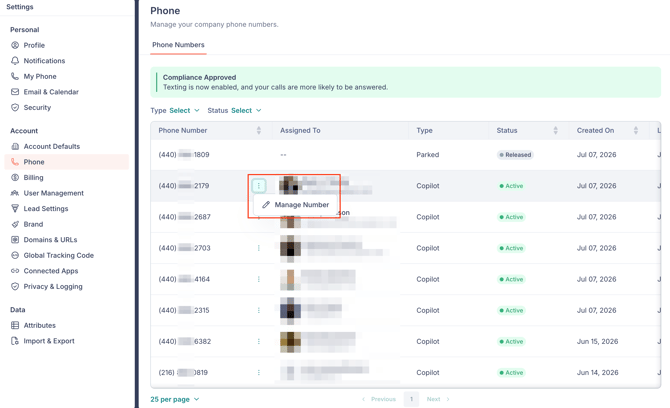
Go to Settings > Phone to manage your company's phone numbers. 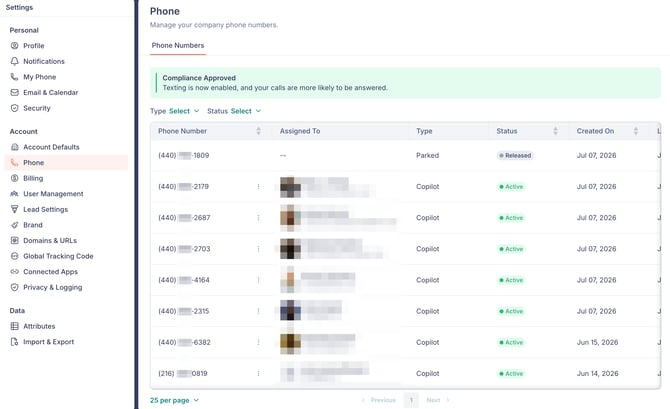
🗒️ Note: The Phone page shows and manages the numbers you already have. New numbers are created when you assign a Copilot seat to a user or set up a Shared Inbox, not from this page.
A green Compliance Approved banner appears once your business is registered with carriers for calling and texting. Learn more about business registration and texting.
Assign a Copilot seat to a user
Assigning a Copilot seat to a user provisions a number for them at the same time. The number is set during assignment, so there is no separate step to get one first.
- Go to Settings > User Management and open the Users tab.
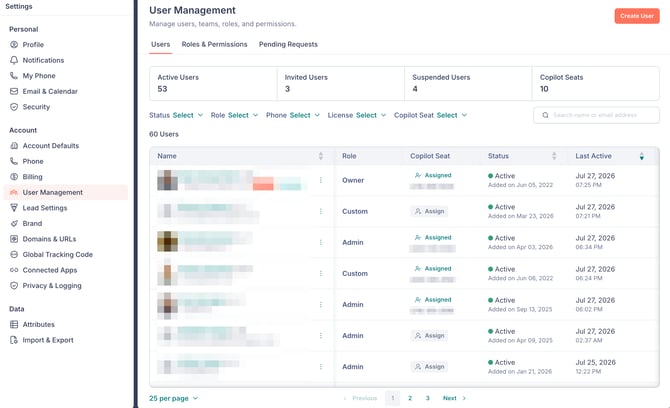
- To fulfill a request, open the Pending Requests tab and click Assign Seat, or Dismiss to decline.
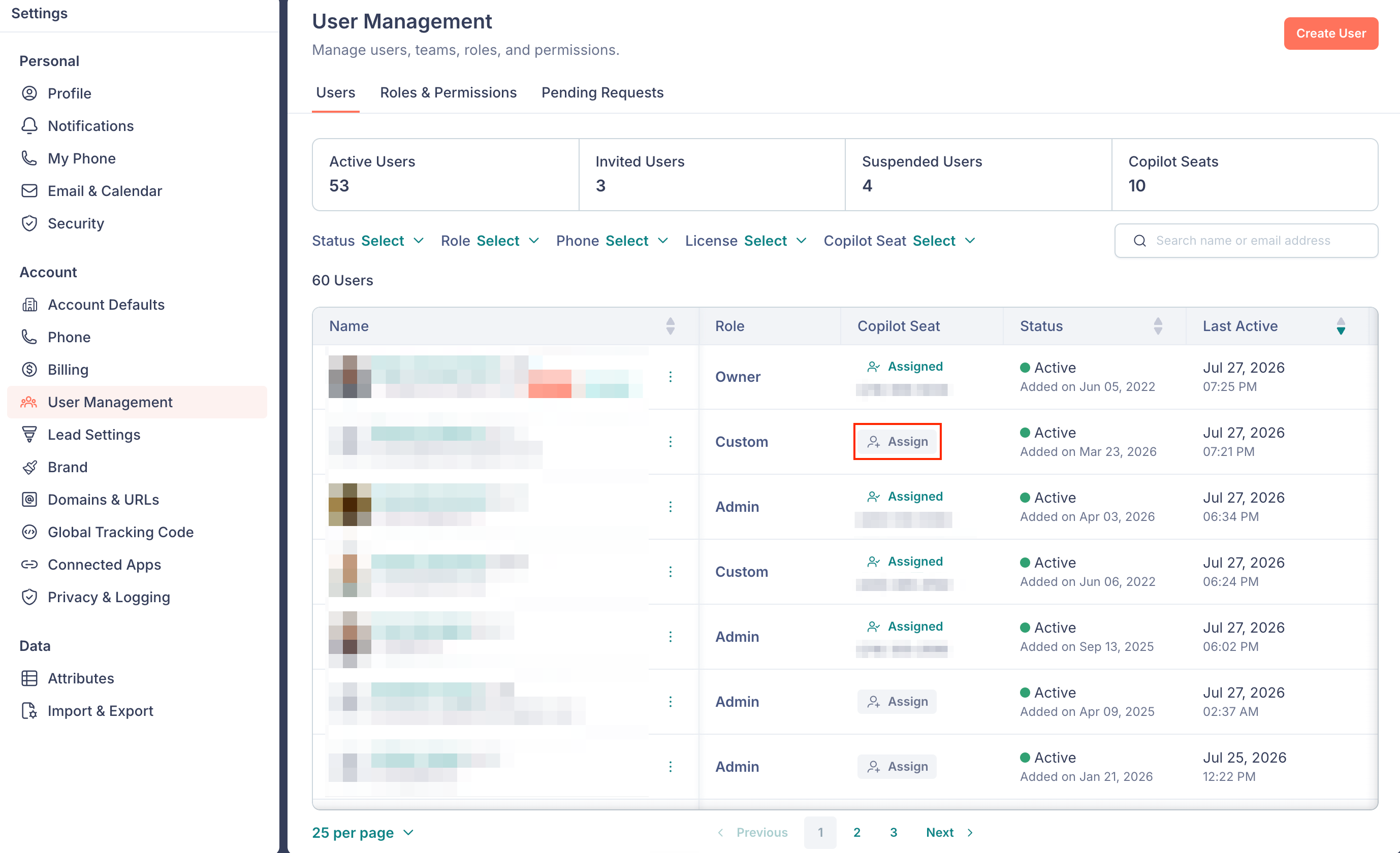
- To assign directly, find the user on the Users tab and click Assign in the Copilot Seat column. You can also use the row's 3-dot menu and select Assign Copilot Seat.
- In the Assign Copilot Seat panel, choose the number:
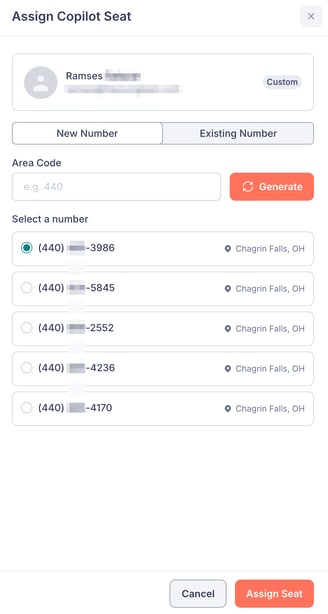
- New Number: enter an Area Code, click Generate, then select a number.
- Existing Number: choose one of your parked numbers.
- Click Assign Seat.
Assign a number to a Shared Inbox
A number can also go to a Shared Inbox instead of an individual. You choose it while setting up the inbox, so these steps sit alongside the rest of shared inbox setup.
- From Conversations, create a new Shared Inbox.
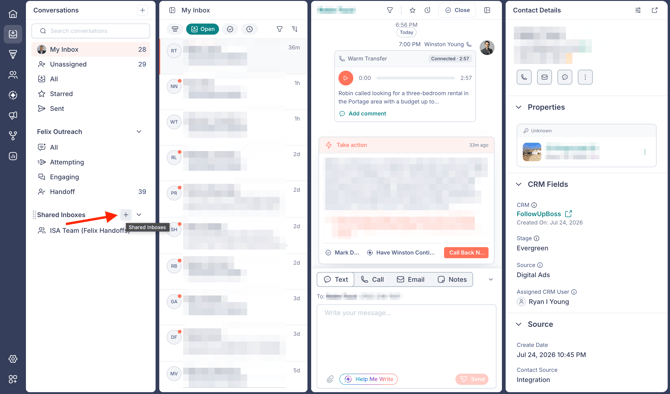
- On the Details step, enter a Name and add Members. Every member needs a Copilot seat.
- On the Phone step, choose the number:
- New Number: enter an Area Code, click Generate, then select a number.
- Existing Number: choose one of your parked numbers.
- Choose a Ring strategy.
- Click Create Inbox.
Reassign or relabel a number
To change a number's assignment or label, go to the Phone page and open the number's 3-dot menu, then select Manage Number. Update the Name, Number Type, or Assign to user in the Manage Number panel.
Frequently asked questions
- Do I need a Copilot seat to receive a handoff?
- No. You receive live transfers from Felix without a seat. Calling, texting, or emailing a contact yourself in Fello requires a seat.
- How do I get a Copilot seat?
- Request one from Settings > My Phone, and an admin assigns it. You are also assigned one automatically when an admin adds you to a shared inbox.
- Does Felix use a Copilot seat?
- No. Felix uses its own numbers: a rotating pool for outreach and a direct line for warm transfers and notifications. Copilot seats are for your team.
- Can I use my existing phone number in Fello?
- No. Copilot seats and Shared Inbox numbers are issued by Fello, and a number you already use elsewhere cannot be added or transferred in. To have calls reach you on another phone, set up call forwarding on your Copilot line. Learn more about managing your phone, voicemail, and call settings.
- Why can't I call or text in Conversations?
- Those actions require a Copilot seat. The composer prompts you to add one. Learn more about Conversations.
- I have a Copilot seat but still can't text. Why?
- Texting also requires your business to be registered with carriers (10DLC). Calling and emailing work right away, but texting turns on only once registration is approved. Learn more about business registration and texting.
- Do I need a Copilot seat just to see conversations?
- No. You can view conversations and receive handoffs and live transfers without a seat. A Copilot seat is required to call, text, or email a contact yourself in Fello. Emailing also requires connecting your Google account.
- No. You can view conversations and receive handoffs and live transfers without a seat. A Copilot seat is required to call, text, or email a contact yourself in Fello. Emailing also requires connecting your Google account.