
Connecting your Google account keeps every contact conversation in one place. Emails from your contacts appear in Conversations alongside their calls and texts, and you can reply to them by email without leaving Fello.
In this article:
- What connecting your email does
- How to connect your Google account
- What shows up in Conversations
- Sending emails from Conversations
- About calendar access
- Disconnecting your account
What connecting your email does
Any user can connect their own Google account. Once connected:
- Contact emails appear in Conversations: When a contact emails your connected address, that email shows up in Conversations, next to their calls and texts.
- You can reply by email: Send one to one emails to a contact from Conversations. Sending requires a Copilot seat. See Sending emails from Conversations below.
How to connect your Google account
- Go to Settings from the bottom-left corner.
- Select Email & Calendar under Personal.
- Click Connect with Google Workspace.
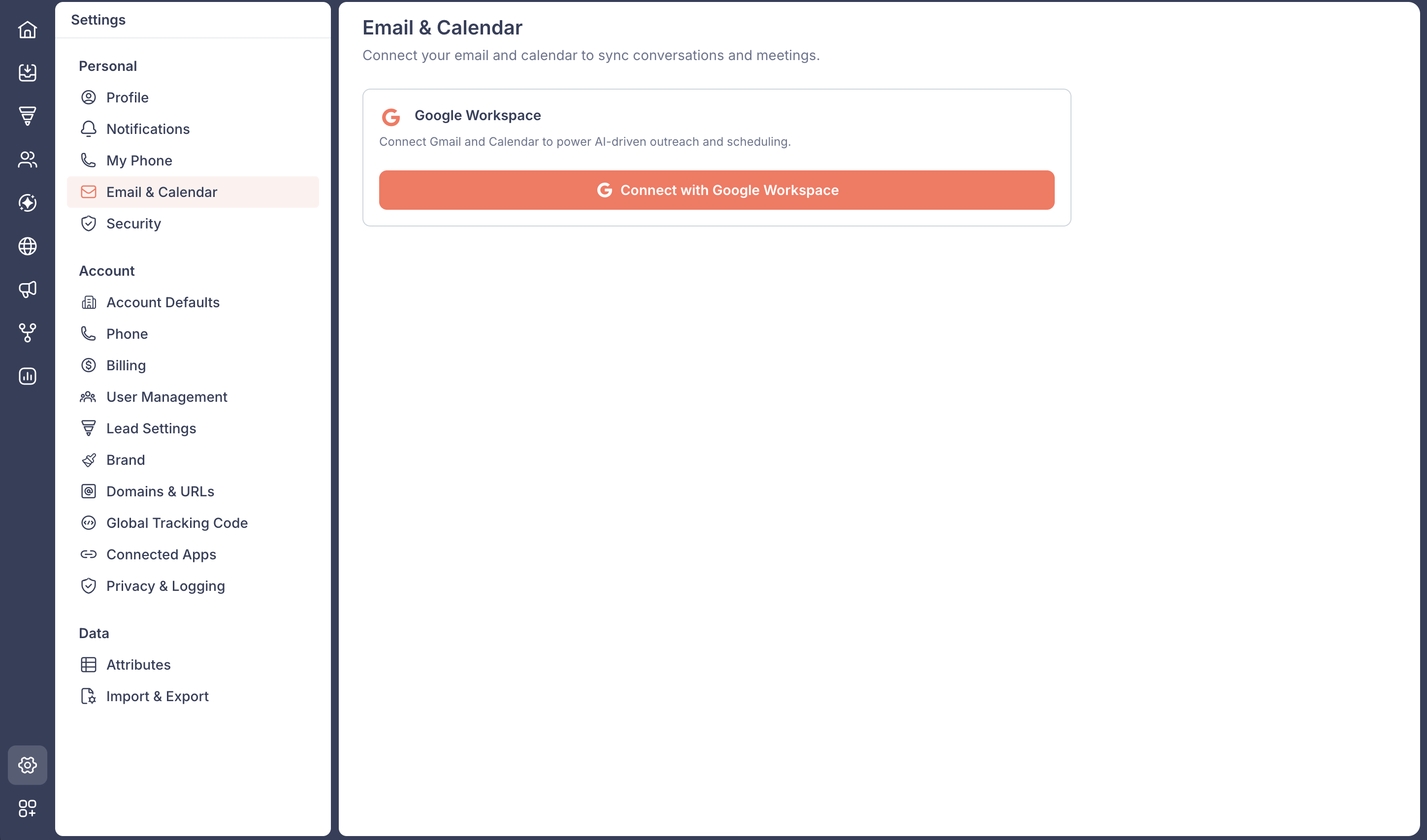
- Choose the Google account you want to connect, then grant the requested access.
Once connected, the page shows a green Connected badge, the account you connected as, and a Disconnect button.
What shows up in Conversations
Only emails from your contacts stream into Fello, not your entire inbox. When a contact emails your connected address, the email appears in Conversations and anywhere the conversation view is shown, such as the contact's Conversations tab. If someone who is not a contact in Fello emails you, that message stays in Gmail and does not appear in Conversations.
🗒️ Note: Only emails received after you connect will appear in Fello. Emails from before you connected your account do not stream in.
Which contact emails get logged is also governed by your account's privacy settings. See Privacy and logging in Fello to learn what is kept out of Conversations.
Sending emails from Conversations
Connecting your account brings your contacts' emails into Fello. To send a one to one email to a contact from Conversations, you also need a Copilot seat.
- Connected account with a Copilot seat: Send and receive one to one emails with contacts in Conversations.
- Connected account without a seat: Contact emails still stream into Conversations. Sending becomes available once an admin assigns you a seat.
About calendar access
When you connect, Fello also requests calendar access.
🗒️ Note: Calendar access supports upcoming Felix scheduling features, such as booking appointments on your behalf. This functionality is not available yet. Granting access now simply prepares your account for when it launches.
Disconnecting your account
To stop syncing, click Disconnect on the Email & Calendar page, then confirm in the dialog. After you disconnect:
- New contact emails no longer appear in Conversations.
- You can no longer send one to one emails from Fello using that account.
You can reconnect at any time to resume.