
Every contact in Fello has a Contact Source, which records how the contact was first added to your database. Use it to see where your contacts come from and to filter your database by how contacts entered it.
In this article:
Where to find a contact's source
Click a contact in the Contacts module. Their source appears under Contact Source, in the Source section of the left panel.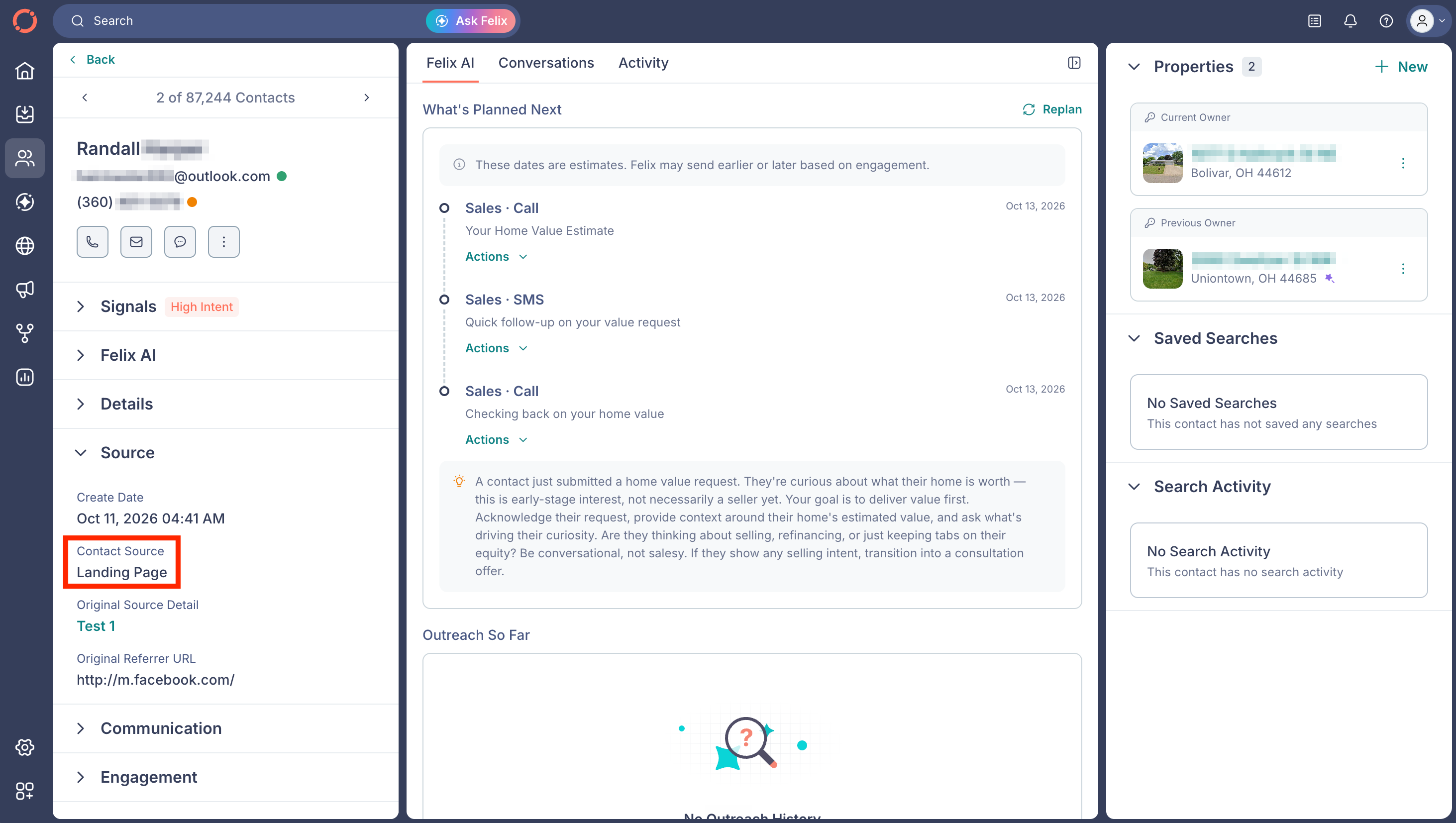
If you use Follow Up Boss, it also appears on Fello's Info tab inside Follow Up Boss. Learn more about viewing Fello data in Follow Up Boss.
To see every contact from one or more sources:
- Go to the Contacts module from the left sidebar.
- Click Filters above the list of contacts.
- Search for Contact Source and select the filter.
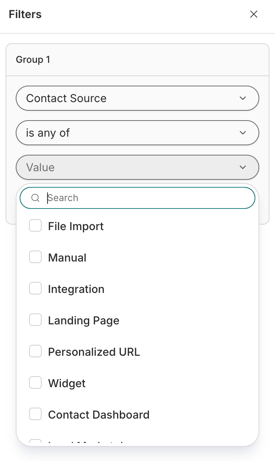
- Set the condition to is any of, then select one or more sources from the Value dropdown.
- Click Apply.
Learn more about filtering your contacts.
What each source means
- File Import: Added when a user uploaded a contact file. Learn how to import contacts.
- Manual: Added by a user, one contact at a time. Learn how to add an individual contact.
- Integration: Synced from a connected CRM or app, such as Follow Up Boss, Sierra, BoldTrail, or Zapier. See which CRMs Fello integrates with.
- Landing Page: Added when someone submitted a form on one of your account landing pages. Learn more about account landing pages.
- Personalized URL: Added when someone submitted a form on a user's personal landing page. These contacts are assigned to that user automatically. Learn more about personal landing pages.
- Widget: Added when someone submitted a form in a Fello widget on a website. Learn more about widgets.
- Postcard: Added when someone scanned a postcard's QR code (or entered its URL) and submitted their details. Learn how postcard QR codes generate leads.
- Direct: Added when someone called or texted a user's Copilot number. Learn more about Copilot numbers.
- Shared Inbox: Added when someone called one of your shared inboxes. Learn more about shared inboxes.
- Sales Agent: Added when someone called or texted Felix's number. Learn more about Felix Sales Agent.
Frequently asked questions
- Does a contact's source change after the contact is created?
- No. Contact Source always shows how the contact was first added. If an existing contact later submits a form, calls, or texts, that activity appears in their contact activity instead. Learn how to view contact activity.
- What's the difference between Contact Source and CRM Source?
- Contact Source shows how a contact entered Fello. CRM Source is the source your connected CRM has recorded for the contact, and it's a separate filter. See the full list of filtering options.
- Is Contact Source the same as a Felix source rule?
- No. A source rule tells Felix how to work contacts that match a CRM source or tag, and it doesn't use Contact Source. Learn more about source rules.