
A source rule tells Felix that contacts arriving from a particular source or tag should be worked a certain way. It sets the posture Felix takes with them, when the first outreach happens, how urgently Felix follows up, whether Felix calls or only texts, and whether Felix can reach them outside your usual hours.
Source rules are managed on the Sources tab under Felix AI > Train.
In this guide:
View your source rules
Go to Felix AI from the left sidebar, select Train, then open the Sources tab.
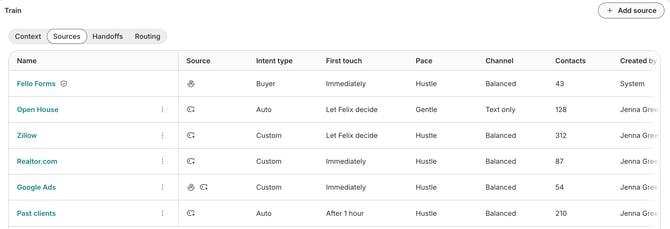
- Name: The label you gave the rule.
- Source: An icon showing whether the rule matches a CRM source, a tag, or both.
- Intent type: The posture Felix takes with these contacts.
- First touch: The delay before Felix reaches out.
- Pace: How much urgency Felix brings to follow-ups.
- Channel: Whether Felix calls and texts, or only texts.
- Contacts: How many contacts currently match.
- Created by: Who added the rule.
- Last updated: When the rule was last changed.
🗒️ Note: Configuring Felix requires account settings access. Learn more about roles and permissions.
Add a source rule
Adding a rule takes three steps. The first tells Felix which contacts the rule covers. Here's how to complete it:
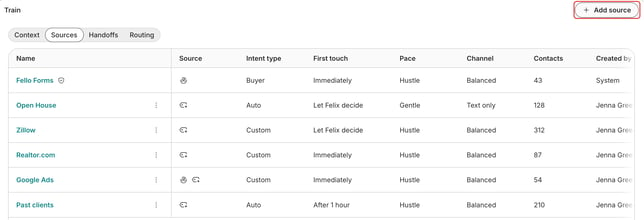
- Click Add source in the top-right corner.
- In the Source or tag field, enter a source or tag name, or select Browse all source and tag names to pick from what is already in your database. This name identifies the rule.
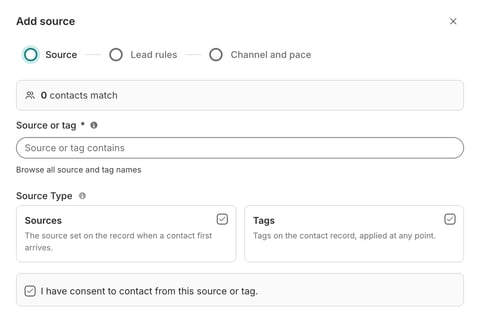
- Under Source Type, choose Sources, Tags, or both. Sources are set on the record when a contact first arrives. Tags are applied to the contact record at any point.
- Select I have consent to contact from this source or tag if you hold permission to contact these people. Felix can then call them even when they match Do Not Call (DNC) data.
- Under Source and Tag Matching, choose Always match or Match what I pick. With Match what I pick, use the search field and tick each name you want covered.
- Click Next.
Always match and Match what I pick behave the same way here as they do on your consent sources. Learn how a source or tag matches.
🗒️ Note: Labels in this step follow your Source Type. For example, with only Tags selected, Source and Tag Matching becomes Tag Matching.
The counter at the top of the panel shows how many contacts currently match, and it updates as you change the rule.
🗒️ Note: Selecting the consent checkbox records the same consent entry that appears in your compliance guardrail. Learn more about the compliance guardrail.
Set the lead rules
The second and third steps tell Felix how to work these contacts: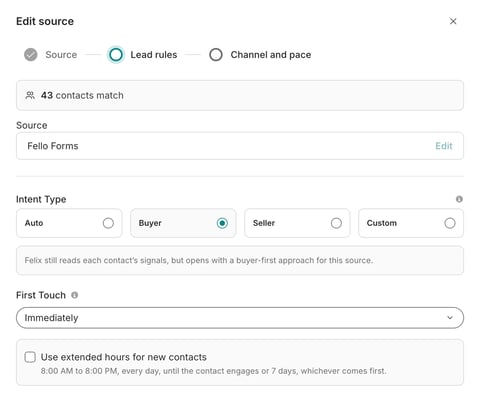
- Under Intent Type, choose the posture Felix should take:
- Auto: Felix reads each contact's signals and chooses the best posture.
- Buyer: Felix treats matching contacts as potential buyers.
- Seller: Felix treats matching contacts as potential sellers.
- Custom: Describe what these leads are in your own words. A description is required before you can save.
- Under First Touch, choose the delay before Felix first reaches out. Select Let Felix decide to leave the timing to Felix, Immediately, or a set delay from one hour up to seven days.
- If you chose anything other than Let Felix decide, you can select Use extended hours for new contacts to let Felix reach these contacts from 8:00 AM to 8:00 PM every day, until the contact engages or seven days pass, whichever comes first.
- Click Next to open Channel and pace.
- Under Channel, choose how Felix starts outreach with these contacts: Balanced (Felix calls and texts based on signals and time of day) or Text only (Felix never places an unprompted call).
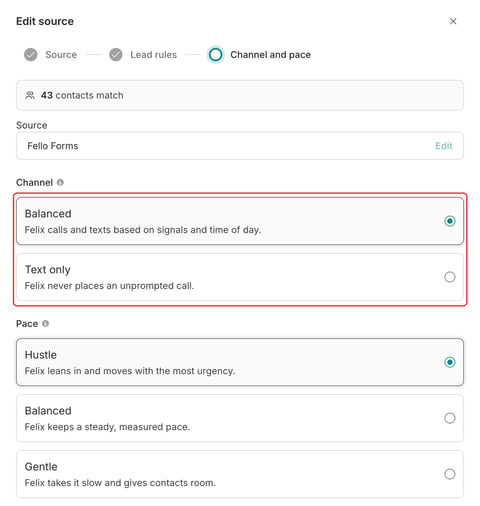
- Under Pace, choose how much urgency Felix brings to calls and texts after the first touch:
- Hustle (default): Felix moves with the most urgency.
- Balanced: Felix keeps a steady, measured pace.
- Gentle: Felix takes it slow and gives contacts room.
🗒️ Note: Pace doesn’t change when Felix first reaches out. First Touch controls that.
- Click Add source (or Save when editing a rule).
To change the source or the matching after moving on, select Edit beside the source name at the top of this step.
🗒️ Note: Make sure your call window follows federal and state regulations.
Edit or remove a source rule
Select a rule's name to reopen it, or click the 3-dot icon on its row and select Remove source.
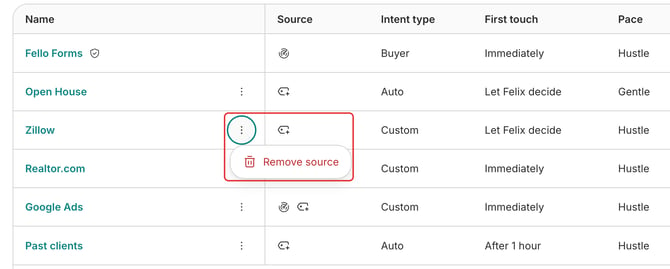
Removing a rule cannot be undone. First touches already scheduled for matching contacts still run.
Clearing the consent checkbox on a rule also removes that source's consent entry from your compliance guardrail, and Felix stops calling contacts from that source who match Do Not Call data. Fello asks you to confirm before either change takes effect.
Frequently asked questions
- What is the difference between a source rule and an exclusion source?
- A source rule describes how Felix should work contacts from a source. An exclusion source is a skip list, naming contacts Felix should never call or text. Exclusions always win. Learn more about who Felix works and who Felix skips.
- Can a rule match a tag instead of a source?
- Yes. Select Tags under Source Type and set Source Matching to Match what I pick. Tags are not available with Always match.
- Does the consent checkbox change my compliance guardrail?
- Yes. Selecting it records a consent entry for that source, and clearing it removes the entry. You can also manage the same entries from the guardrail itself.
- Does a source rule decide who Felix works?
- No. Enrollment decides who Felix works. A source rule shapes how Felix works the contacts it already has. Learn more about enrolling contacts in Sales Agent.
- Can Felix follow up on new buyer activity in my CRM, such as the “last activity” label in Follow Up Boss?
- Yes, through tags. Felix doesn’t read activity labels from your CRM, so the activity needs to reach Fello as a tag on the contact. In your CRM, tag contacts when the activity happens, using a separate tag for each type (for example, saved, viewed, or inquired). Then add a source rule for each tag. Choose Tags under Source Type and set Source Matching to Match what I pick. In the lead rules, choose the Custom intent type and describe what that activity means. A source rule shapes how Felix works these contacts but doesn’t put them in front of Felix. To do that, enroll them in Sales Agent, for example with a workflow that uses the Tag Added trigger. Felix doesn’t see which property the contact looked at, so it opens by asking what they’re looking for and qualifies from there.