
Parked numbers give you a place to hold Copilot phone numbers that no one is using, so you can reassign them later or release them when you no longer need them.
In this guide:
- What is a parked number?
- How a number becomes parked
- Reassign a parked number to a teammate
- Release a parked number
- Replace a teammate's number
- Phone number types and statuses
What is a parked number?
A parked number is a Copilot or Shared Inbox phone number that is not assigned to anyone. Instead of being released right away, it sits in a holding pool, so you can reassign it to a teammate or a Shared Inbox later, or release it once you are sure you no longer need it.
To see your parked numbers, go to Settings from the bottom-left corner, select Phone under Account, and open the Phone Numbers tab.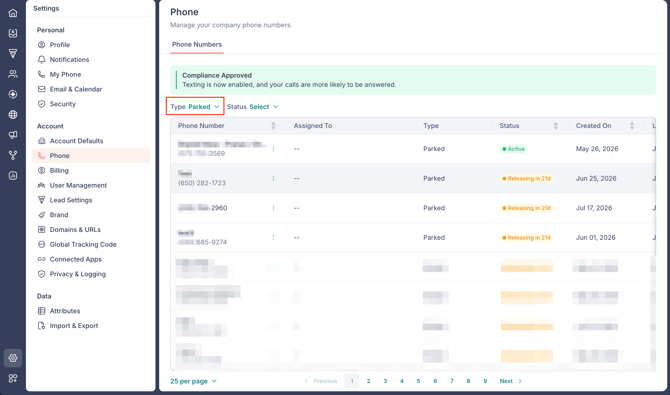
When to keep a number parked
Parking a number instead of releasing it lets you reuse a number that is worth keeping. For example:
- The number has been in use for a while and your contacts have it saved. Parking it keeps the number in circulation so you can reassign it to someone else.
- Numbers are in short supply for the area code you want. If a parked number already has that area code, you can reassign it instead of searching for a new one.
How a number becomes parked
A Copilot number moves to the parked pool when:
- You unassign it from a user or a Shared Inbox.
- You remove the user it was assigned to.
- You replace a teammate's number. The number being replaced is parked automatically (see Replace a teammate's number).
Reassign a parked number to a teammate
You reassign a parked number by giving the teammate a Copilot seat and choosing the parked number as theirs.
- Go to Settings > User Management and open the Users tab.
- Find the teammate, then click Assign in the Copilot Seat column.
- In the Assign Copilot Seat panel, select Existing Number.
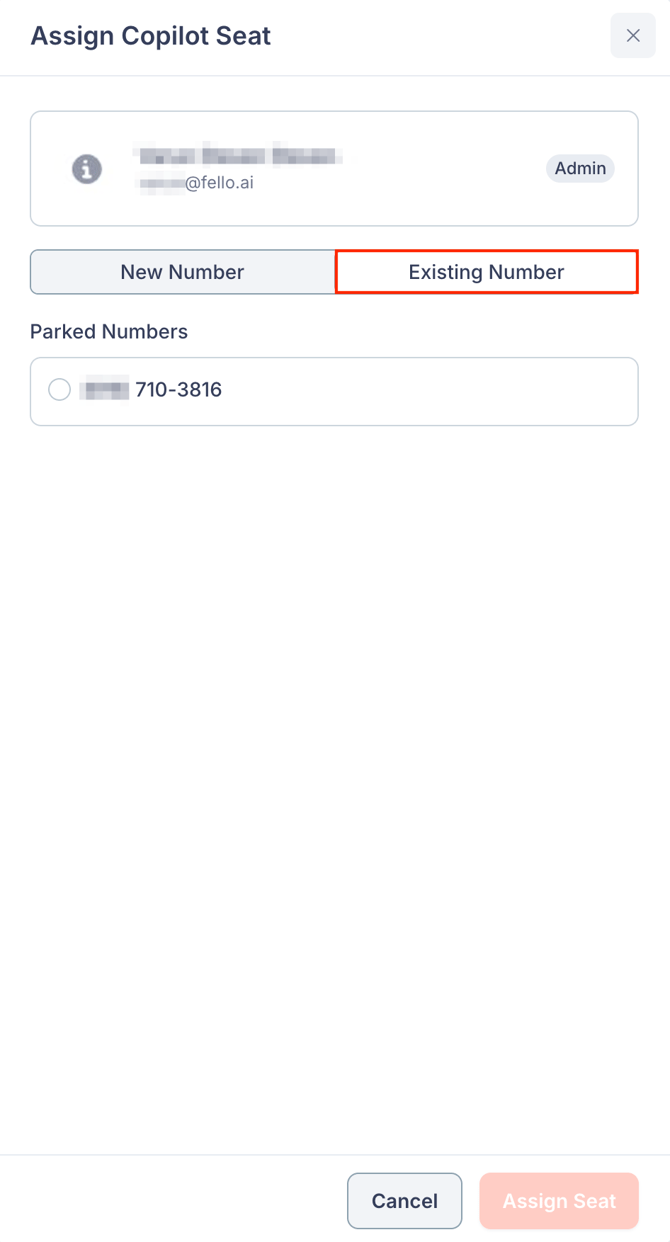
- Under Parked numbers, choose a number from Select a number.
- Click Assign Seat.
📑 Note: Reassigning a parked number gives the teammate a Copilot seat, so you need an available seat. To learn what a seat includes, see Phone numbers and Copilot seats in Fello (Complete Guide). To add seats, see Billing in Fello (Complete Guide).
If you have no parked numbers yet, the panel shows No parked numbers. Select New Number to generate a fresh one instead.
Release a parked number
If you no longer need a parked number, you can release it from your account. Releasing puts the number on a 21-day hold first, so you have time to change your mind.
Start the 21-day release
- On the Phone Numbers tab, open the parked number's 3-dot menu and select Release Number.
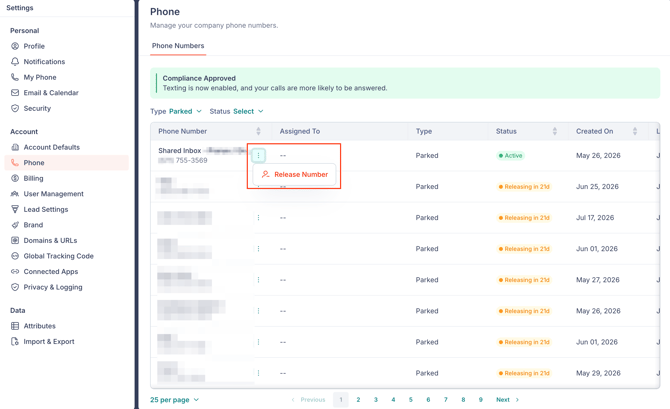
- In the Release Number panel, check the number under Number being released. A 21-day hold badge and a note confirm that the number stays in your account for 21 days and can be activated anytime before then to keep it.
- Click Start 21-Day Release.
The status changes to Releasing, and a message confirms the number will be released in 21 days. A releasing number cannot be reassigned until you activate it.
Keep a releasing number
To keep a number that is on hold, return it to active status before the 21 days are up.
- On the Phone Numbers tab, open the releasing number's 3-dot menu and select Activate Number.
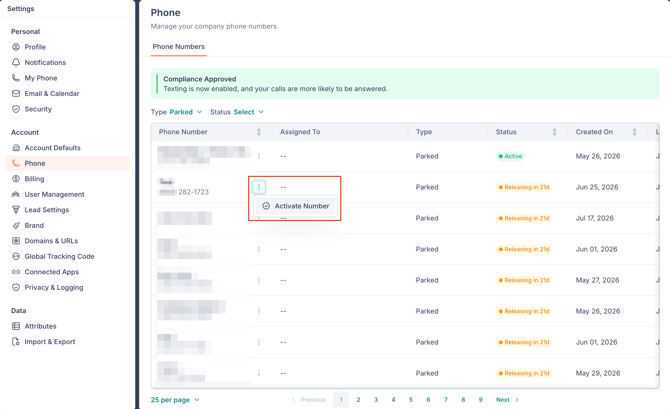
The number returns to the parked pool with the status Active, and a message confirms it is available to reassign.
When a number is released
If 21 days pass without activation, the status changes to Released and the number leaves your account.
📑 Note: A released number is final, and it cannot be reclaimed or reassigned.
Replace a teammate's number
Replacing swaps a teammate's current Copilot number for a different one and parks the old number automatically.
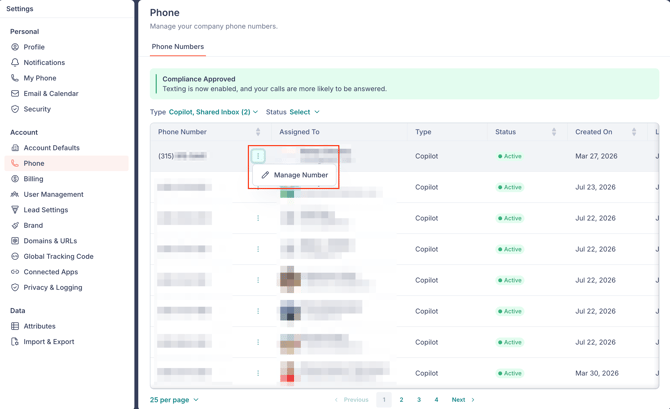
- On the Phone Numbers tab, open the assigned number's 3-dot menu and select Manage Number.
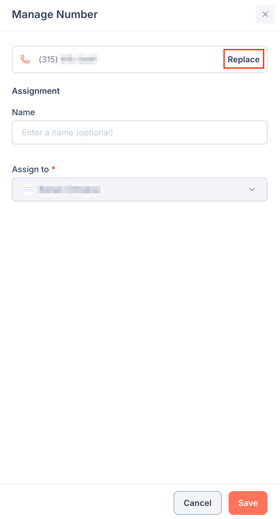
- In the Manage Number panel, click Replace next to the number.
- In the Replace Number panel, review the warning that the number will be parked and available for reassignment to a user or Shared Inbox.
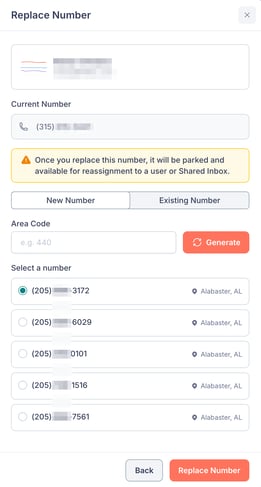
- Choose New Number to generate one by area code, or Existing Number to pick a parked number.
- Click Replace Number.
The teammate gets the replacement number, and the old number moves to the parked pool.
Phone number types and statuses
Every number on the Phone Numbers tab carries a type and a status, and you can filter by either.
Types:
- Copilot: Assigned to a teammate through a Copilot seat.
- Shared Inbox: Assigned to a Shared Inbox.
- Parked: Not assigned to anyone, held in the pool so you can reassign or release it.
Statuses:
- Active: In use, or parked and available to reassign.
- Releasing: On the 21-day hold, not reassignable until you activate it.
- Released: Removed from your account. This is final.