
The Billing page is where you manage your plan, usage, payment details, and invoices. This guide covers each part of the page and how to make changes.
🗒️ Note: You need the Configure Billing Settings permission to view and change billing details. Learn more about roles and permissions.
In this guide:
Where to find billing
- Go to Settings from the bottom-left corner.
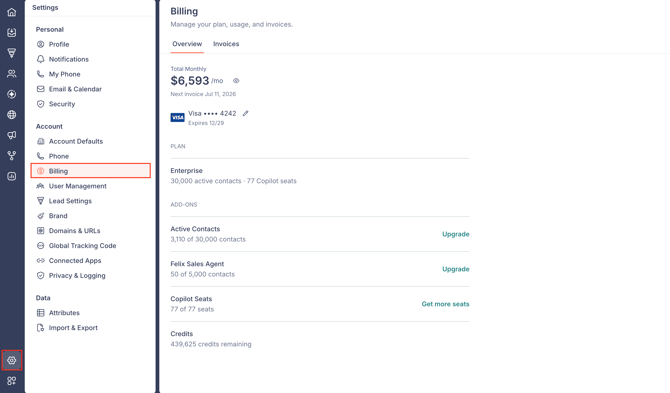
- Select Billing under Account.
The Billing page has two tabs. Overview shows your plan, add-ons, and payment details. Invoices lists your billing history.
What the Overview tab shows
The Overview tab summarizes your billing: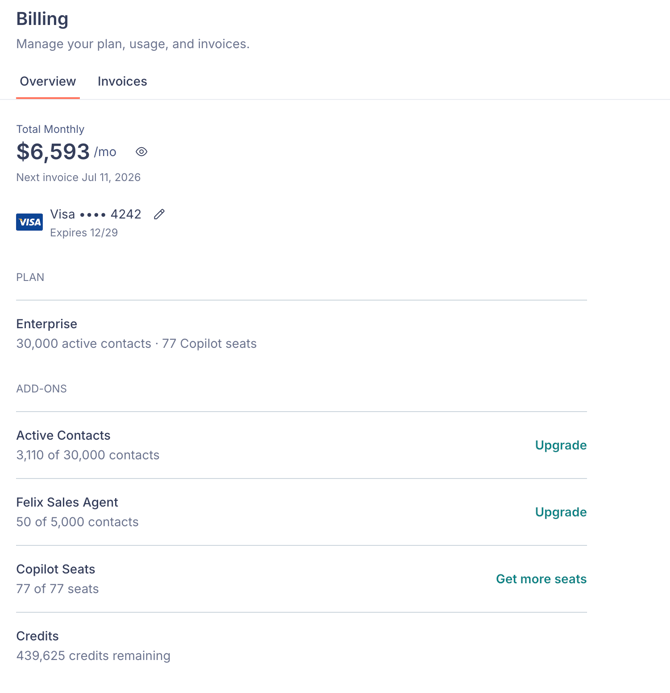
- Total: the recurring price of your Fello subscription, shown as monthly or annual depending on your billing cycle.
- Next invoice: the date of your next invoice, when payment is automatically collected from your saved payment method.
- Payment method: your saved card. To edit it, add a card, or set a primary and backup, see How to update your payment method.
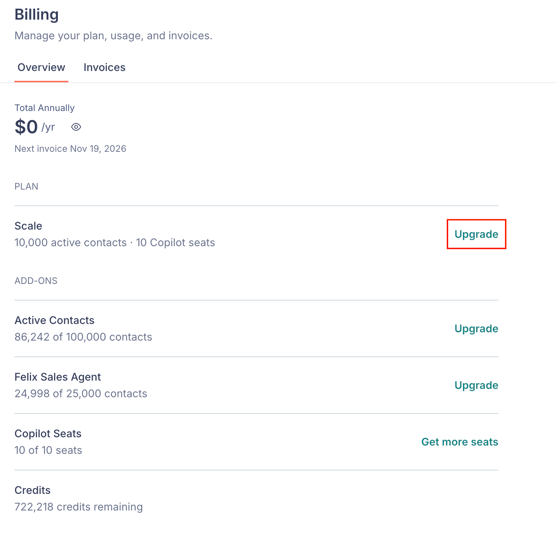
- Plan: your current plan, with an Upgrade option to change it.
- Add-ons: your usage of Active Contacts, Felix Sales Agent, and Copilot Seats.
- Credits: your remaining credit balance. To learn how credits work, see Credits in Fello (Complete Guide).
For plan and add-on pricing, visit the Fello pricing page.
View a full billing summary
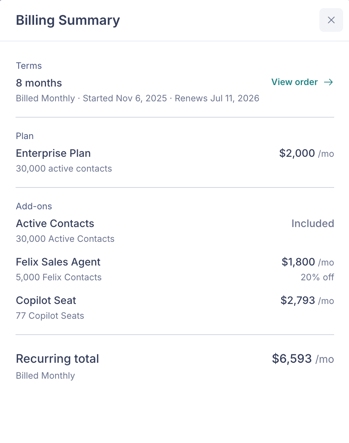
Click the eye icon next to the total to open the Billing Summary panel. It shows: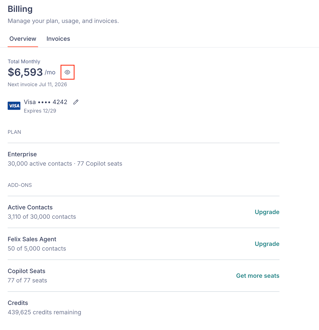
- Terms: your term length, billing cadence, and start and renewal dates, with a View order link that opens the Invoices tab.
- Plan: your current plan and its included active contacts.
- Add-ons: a breakdown of your Active Contacts, Felix Sales Agent, and Copilot Seats.
- Recurring total: your total per billing cycle.
Change your plan
- On the Overview tab, click Upgrade next to your plan.
- On the Details step, set your Billing Cycle to Monthly or Annual, then select a plan.
- Click Review Changes.
- On the Review step, check the billing summary, agree to the terms, then click Confirm & Pay.
🗒️ Note: When you click Confirm & Pay, the amount due is charged immediately to your saved payment method.
Adjust your add-ons
Add-ons expand what your account can do beyond your plan. Each one opens a panel with a Details step, where you set the amount, and a Review step, where you click Confirm & Pay.
Active contacts
Active contacts are the contacts Felix works: they can receive outreach, AI conversations, and campaigns. Monitored contacts stay free.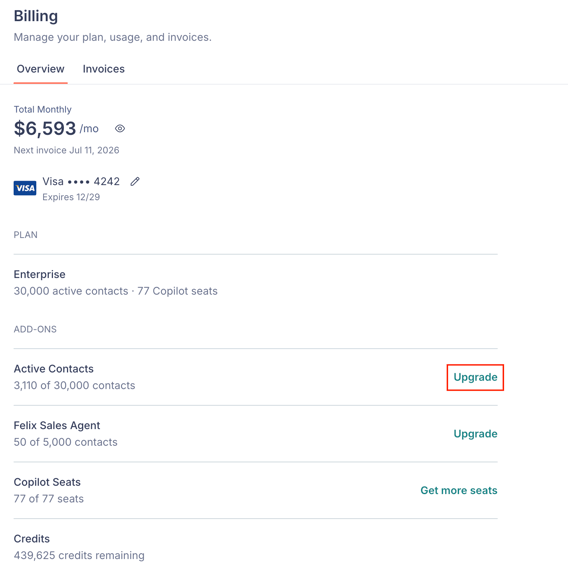
Open the panel with Upgrade next to Active Contacts, then set the number with the + and − controls.
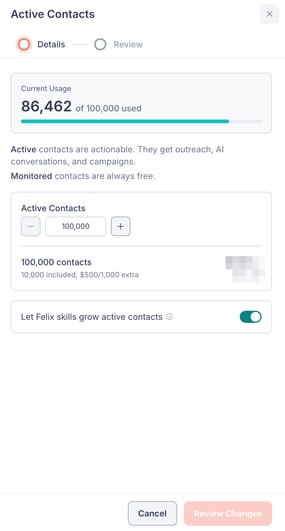
The same panel has a Let Felix skills grow active contacts setting, which controls whether Felix can activate Monitored contacts and add them to your Active contact count. For tips on managing this, see How to optimize your active contact usage in Fello.
Felix Sales Agent capacity
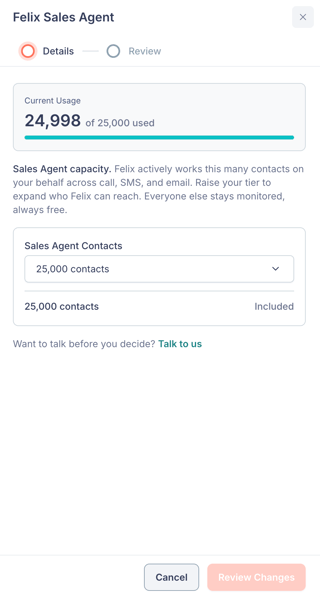
This sets how many contacts Felix Sales Agent actively works across call, SMS, and email. Everyone else stays monitored.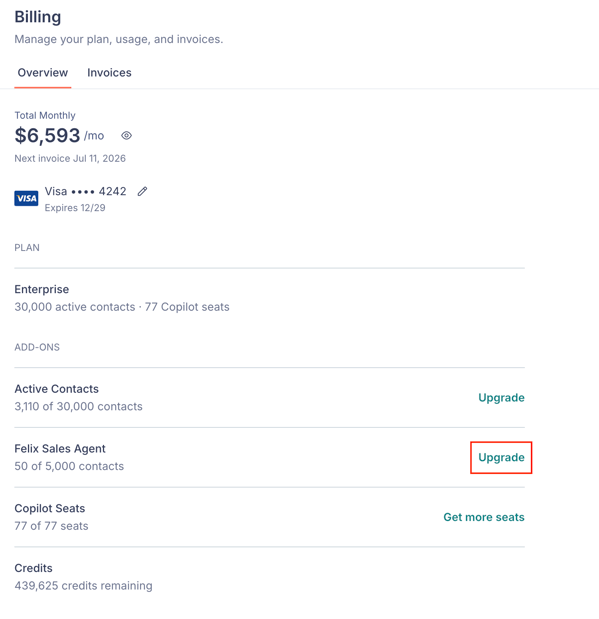
Open the panel with Upgrade next to Felix Sales Agent, then choose your capacity from the Sales Agent Contacts dropdown.
Copilot seats
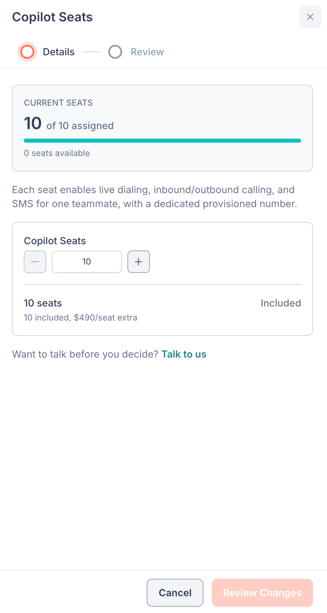
A Copilot seat gives one teammate a dedicated number in Fello. To learn what a seat includes, see Phone numbers and Copilot seats in Fello (Complete Guide).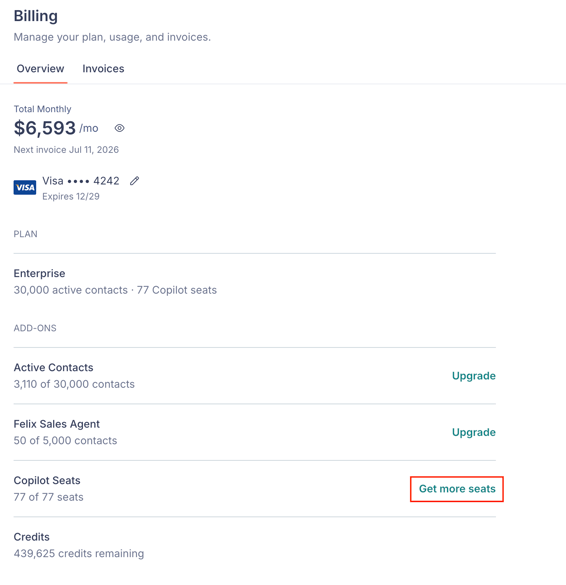
Open the panel with Get more seats next to Copilot Seats, then set the number of seats with the + and − controls.
View and download invoices
Open the Invoices tab to see your billing history. Each entry shows: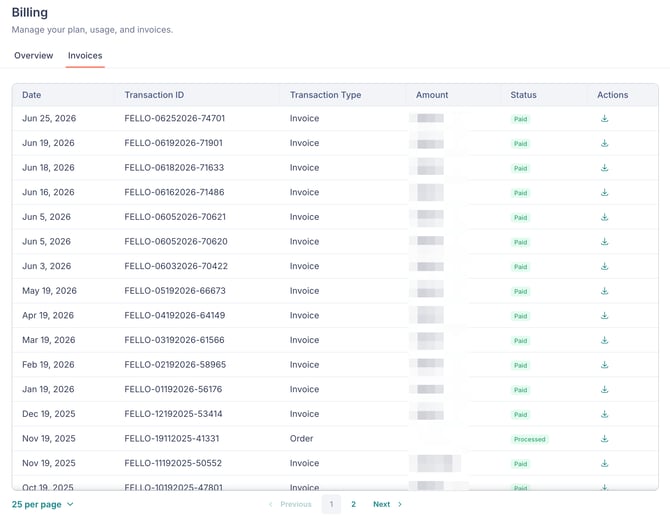
- Date: when the invoice or order was created.
- Transaction ID: the reference number for the transaction.
- Transaction Type: whether the entry is an invoice or an order.
- Amount: the transaction amount.
- Status: the current state, such as paid or processed.
- Actions: the download icon to save a copy.
Frequently Asked Questions
-
Can I pause my billing or put my account on hold?
-
Fello does not offer an option to pause billing. Your subscription continues to be billed through your contract term. If you have specific concerns about your account, write to support@fello.ai.
-