
Teams group users in your Fello account. Each team has admins and members, and you can assign a contact to a team instead of a single person, so everyone on that team can see it and pick it up.
🗒️ Note: Teams aren't available on every Fello plan. Creating, editing, and deleting teams requires the Configure Teams permission. Learn more about permissions.
In this guide:
- How teams work
- Create a team
- Edit a team
- Delete a team
- Assign a contact to a team
- Filter contacts by team
- FAQs
How teams work
A contact assigned to a team, rather than to a person, is an unclaimed team contact. What each person on the team can see depends on their place in it:
- Team admins: See every contact assigned to anyone on the team, plus the team's unclaimed contacts.
- Team members: See the team's unclaimed contacts. Their own permission set decides anything beyond that.
One user can be both a team admin and a team member of the same team. You can also add tags to group related teams, and search the Teams tab by team name, user, or tag.
Teams and shared inboxes
A team decides who owns a contact and who can see it. A shared inbox decides who responds right now: when Felix hands off a live call or message to a shared inbox, it goes to the whole group, and whoever is free first takes it. Learn more about shared inboxes.
Create a team
- Click Settings from the bottom-left corner.
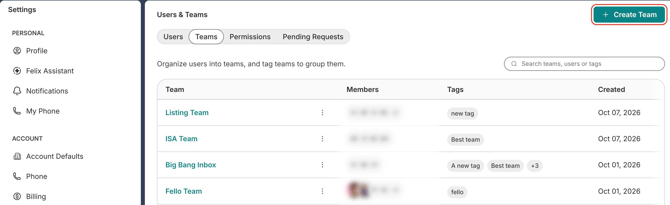
- Select Users & Teams under Account, then open the Teams tab.
- Click Create Team in the top-right corner.
- Enter a Team Name.
- Under Tags, select existing tags, or type a new tag and select Add "your tag".
- Under Team Admins, select the users who should see every contact assigned to anyone on the team.
- Under Team Members, select the users on the team.
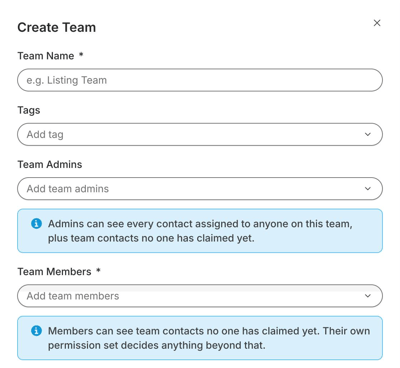
- Click Create Team.
Edit a team
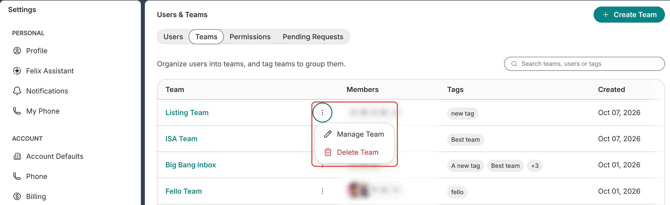
- On the Teams tab, click the team's name, or click the 3-dot icon next to it and select Manage Team.
- Change the name, tags, admins, or members.
- Click Save Changes.
Delete a team
When you delete a team, you choose where its unclaimed contacts go.
- On the Teams tab, click the 3-dot icon next to the team and select Delete Team.
- Under Move contacts to, select another team, or select Unassigned to leave the contacts unassigned.
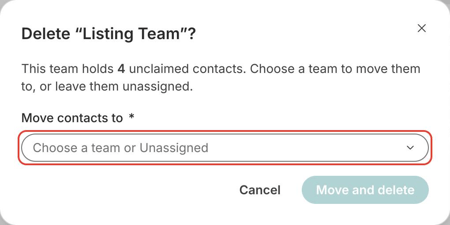
- Click Move and delete.
Assign a contact to a team
- Go to Contacts from the left sidebar and open the contact.
- In the Details section, click the Edit (pencil) icon next to Assigned to. If the contact has no assignee yet, click Assign instead.
- Select the team under Teams. Teams are listed above users, with their member counts.
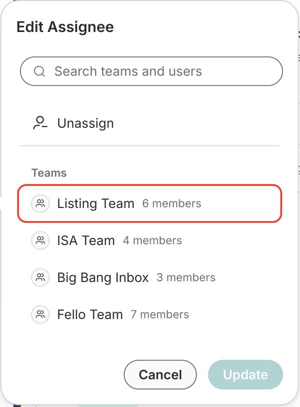
- Click Update.
The contact now shows the team under Assigned to and becomes one of the team's unclaimed contacts. To assign it to a person later, click the Edit (pencil) icon again and select a user. Learn more about changing a contact's assignee.
Filter contacts by team
In Contacts, add the Assigned Team filter and choose is any of or is none of. Select one or more teams, or Unassigned for contacts with no team. See all assignment filters.
FAQs
Who can create and manage teams?
Users whose permission set includes Configure Teams, which covers creating, editing, and deleting teams, and managing team members and admins.
Can Felix route handoffs to a team?
Not currently. Felix routing rules assign handoffs to individual users. Learn more about routing rules.
Can a contact be shared with specific people without changing who it's assigned to?
Yes. Add those users as collaborators on the contact. Learn more about collaborators.