
🗒️ Note: This article cover's Fello's new email builder, which is currently in beta. If you'd like to try it out, please write to support@fello.ai.
Fello's email builder gives you full creative control over your email marketing — without needing external tools. Design professional, branded emails using a drag-and-drop editor, choose from pre-built templates, personalize content with dynamic tokens, and leverage AI to write copy and generate images — all within Fello.
You can send emails directly to segments and lists as one-time sends, or use them in automations and workflows to nurture contacts on autopilot.
In this guide:
- Accessing Emails
- Creating a New Email
- Choosing a Template
- The Email Builder Interface
- Adding Content with Blocks
- Working with Sections
- Adding a Signature
- Customizing the Footer
- Setting Global Styles
- Optimizing Your Email
- Write with AI
- Personalize with Tokens
- Previewing and Testing Your Email
- Configuring Email Settings
- Saving an Email as a Template
- Managing Your Emails
- Managing Saved Templates
Accessing Emails
To access your emails:
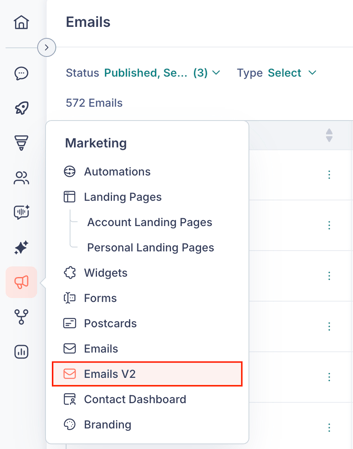
- Go to Marketing from the left sidebar.
- Click Emails V2.
This opens the Emails page, where you can view all your emails in a list. From here, you can see each email's name, status (Draft, Sent, or Published), type (Regular or Automated), delivery and engagement metrics, and creation and last updated dates.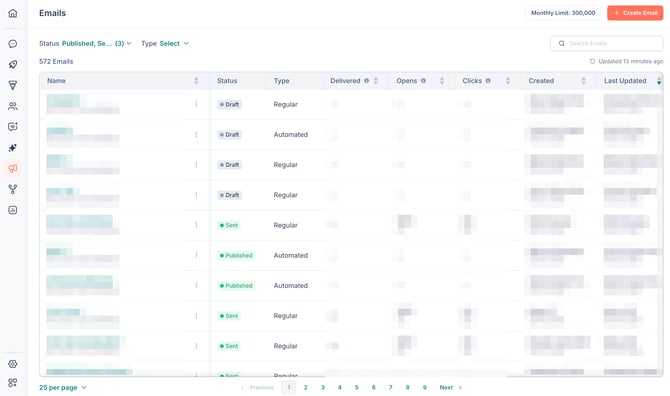
Your monthly email sending limit is displayed in the top-right corner. Click the Monthly Limit badge to view your Email Health status and usage details. Learn more about Email Health in Fello.
Creating a New Email
To create a new email:
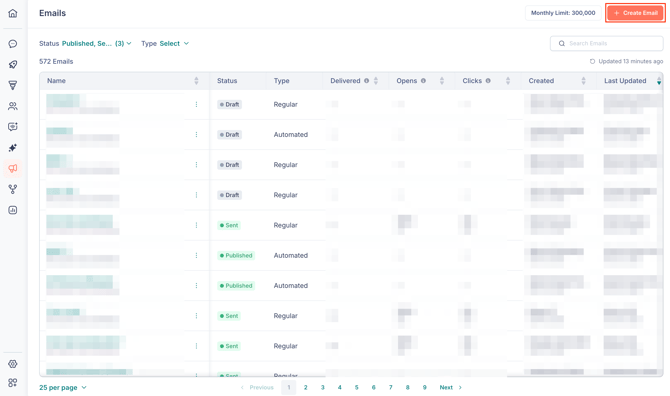
- Click + Create Email in the top-right corner of the Emails page.
- Select the type of email you want to create:
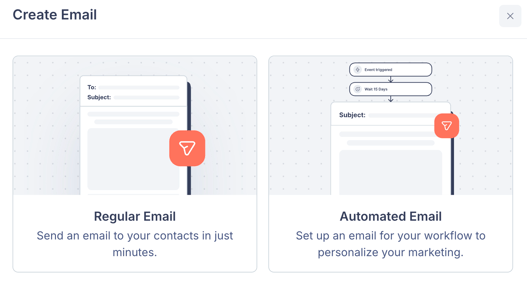
- Regular Email — A one-time email sent to a selected audience.
- Automated Email — An email used within automations or workflows.
🗒️ Note: You can change the email type later from the Send settings. You can also rename your email at any time by clicking the pencil icon next to the email name in the builder.
Choosing a Template
Fello offers Fully Designed and Basic Layout email templates to help you get started.
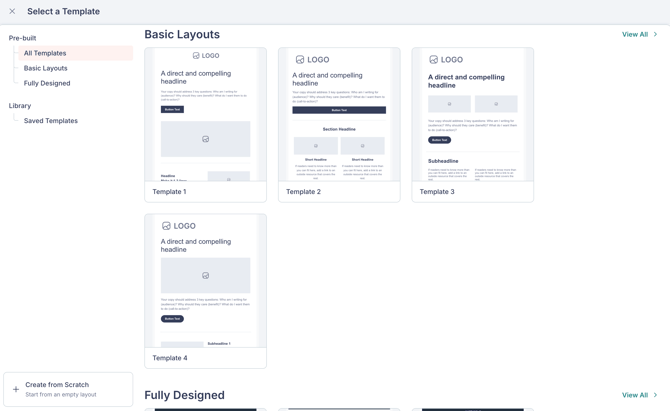
Pre-Built Templates
Pre-built templates are ready-made designs provided by Fello. They are organized into two categories:
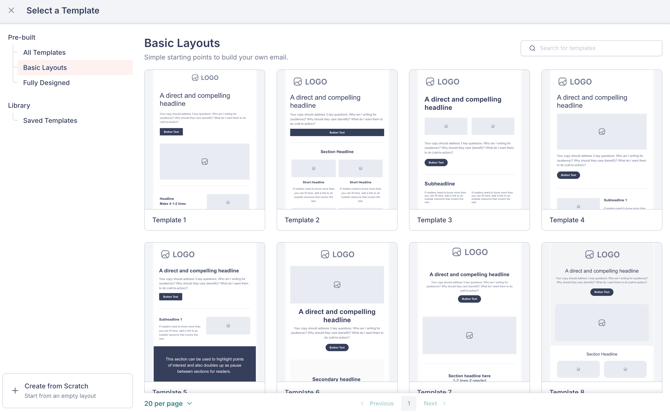
- Basic Layouts — Simple starting points with placeholder content that you can build on. These include single-column, multi-column, and other common email structures.
- Fully Designed — Professionally crafted templates designed for specific use cases. You can filter these by Industry and Purpose to find the right fit. These include real estate–specific templates such as Just Listed, Just Sold, and seasonal templates — many of which come with personalization tokens already built in.
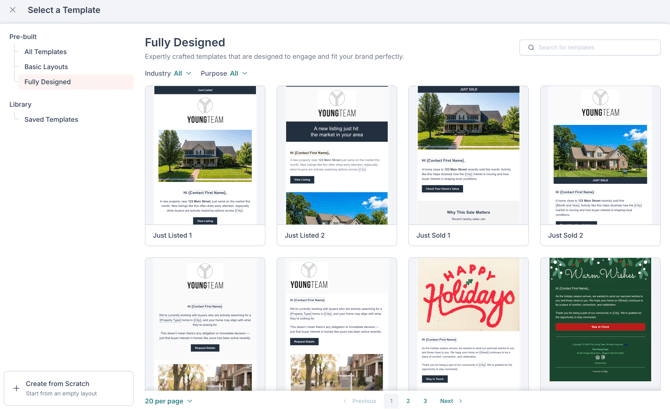
To use a pre-built template, hover over it and click Preview to see a full preview, or click Apply to load it directly into the builder.
Saved Templates
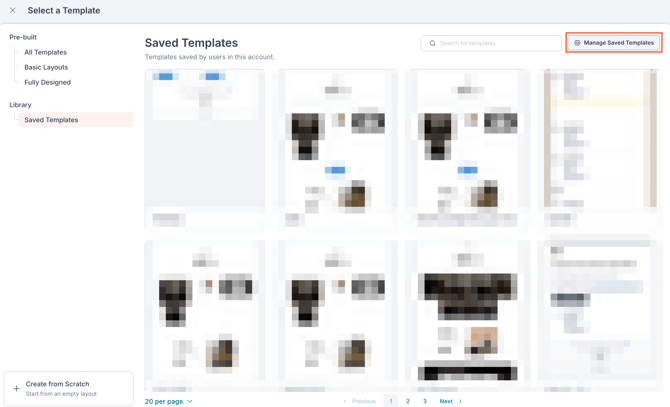
Saved Templates are designs that you or other users on your account have previously saved. These appear under the Library > Saved Templates section.
To manage your saved templates from the template selection screen, click Manage Saved Templates. Learn more about managing saved templates.
Starting from Scratch
If you prefer to build your email from a blank canvas, select Create from Scratch at the bottom of the template list.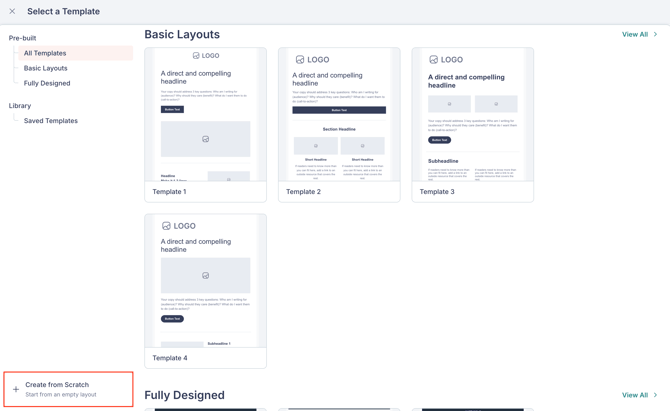
This opens the builder with an empty layout so you can design your email entirely from the ground up.
The Email Builder Interface
The Email Builder is where you design and build your email content. It consists of four main areas:
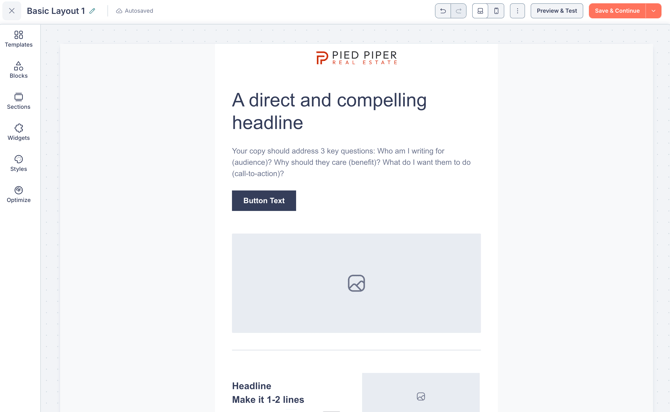
- Top bar — Displays the email name (editable), autosave status, undo/redo buttons, a save icon, desktop and mobile preview toggles, the Preview & Test button, and the Save & Continue button.
- Left sidebar — Contains six tabs for adding and configuring content: Templates, Blocks, Sections, Widgets, Styles, and Optimize.
- Central canvas — The main design area where you build your email by dragging and dropping content. Each section shows "Drop content here" placeholders where you can add blocks.
- Right editing panel — Appears when you select a block, section, or widget on the canvas. Shows Content and Style tabs with settings specific to the selected element.
Your work is autosaved as you build. You can also use the undo and redo buttons in the top bar to step backward or forward through your changes.
Adding Content with Blocks
Blocks are the building elements of your email. To add a block, open the Blocks tab in the left sidebar and drag the block you want onto the canvas.
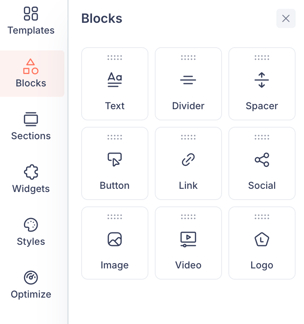
Fello's Email Builder includes 9 block types:
Text
Use the Text block to add headings, paragraphs, or any written content.
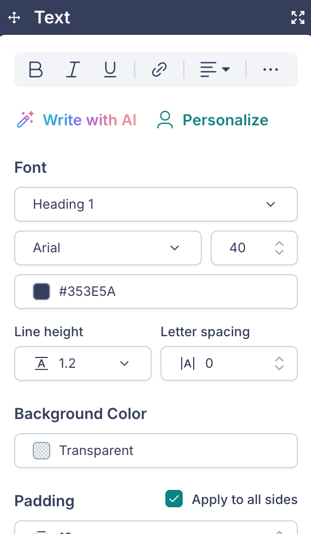
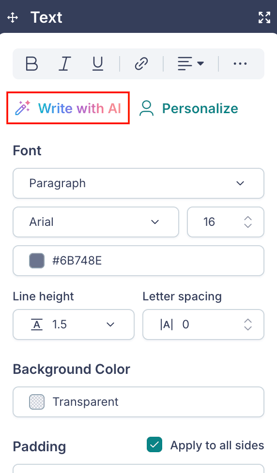
When you select a Text block on the canvas, the right panel shows:
- An inline formatting toolbar with options for Bold, Italic, Underline, links, alignment, and more.
- Write with AI — Generate or refine text content using AI. Learn more about Write with AI.
- Personalize — Insert personalization tokens to tailor content for each recipient. Learn more.
- Font settings — Choose the text type (Paragraph, H1–H4), font family, size, color, line height, and letter spacing.
- Background Color and Padding controls.
Divider
Use the Divider block to add a horizontal line between sections of content. Divider styling is managed globally from the Styles tab. Dividers can also have a Background Color and Padding set individually.
Spacer
Use the Spacer block to add vertical spacing between blocks. Spacers help you control the visual flow of your email without adding visible content.
Button
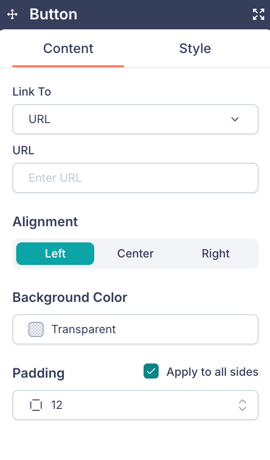
Use the Button block to add clickable call-to-action buttons. When you select a Button block, the right panel shows:
Content tab:
- Link To — Choose where the button directs recipients:
- URL — Link to any external URL.
- Contact Dashboard — Link to the recipient's personalized Contact Dashboard. When selected, you can also choose a Lead Type (Home Value Lead, CMA Lead, Cash Offer Lead, Callback Lead, Seller Lead, or Mortgage Lead) to determine how form submissions from this link are categorized.
- Unsubscribe Page — Link to the unsubscribe page.
- Alignment (Left, Center, Right), Background Color, and Padding.
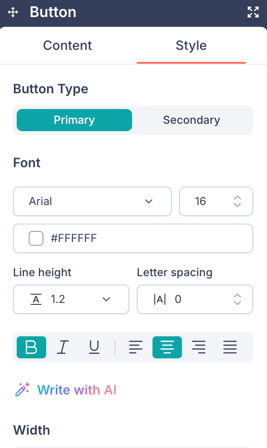
Style tab:
- Button Type — Switch between Primary and Secondary button styles (these inherit settings from your global Styles).
- Font, color, line height, letter spacing, and text formatting options.
- Write with AI — Generate button text using AI.
- Width — Choose between Content Width (button wraps to text) and Full Width (button spans the full column).
- Background Color, Border, and Border Radius controls.
Link
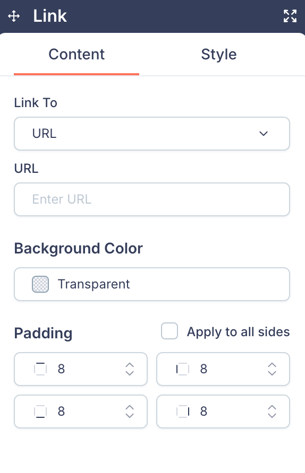
Use the Link block to add a standalone clickable text link. When you select a Link block, the right panel shows:
Content tab:
- Link To — Choose between URL, Contact Dashboard, or Unsubscribe Page.
- URL field (when URL is selected).
- Background Color and Padding.
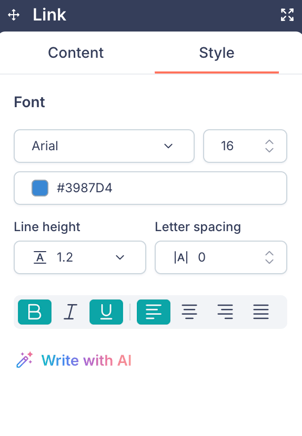
Style tab:
- Font, size, color, line height, letter spacing, and text formatting options.
- Write with AI — Generate link text using AI.
Social
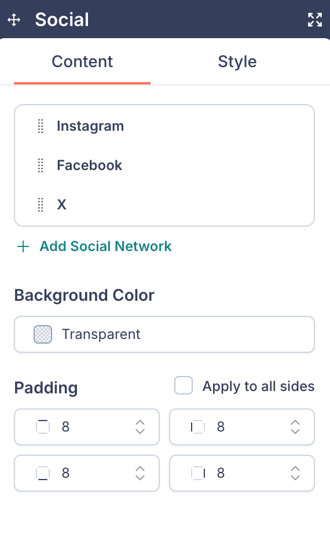
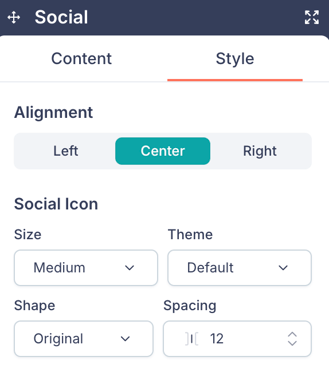
Use the Social block to add social media icons that link to your profiles. When you select a Social block, the right panel shows:
Content tab:
- A list of your social networks (e.g., Instagram, Facebook, X). You can reorder them by dragging, or click the pencil icon to edit or the trash icon to delete.
- + Add Social Network — Add a new social profile. Available platforms include Facebook, Instagram, LinkedIn, X, and YouTube. For each network, enter the Type and URL, then click Save.
- Background Color and Padding.
Style tab:
- Alignment — Left, Center, or Right.
- Social Icon settings — Size (e.g., Medium), Theme (e.g., Default), Shape (e.g., Original), and Spacing.
Image
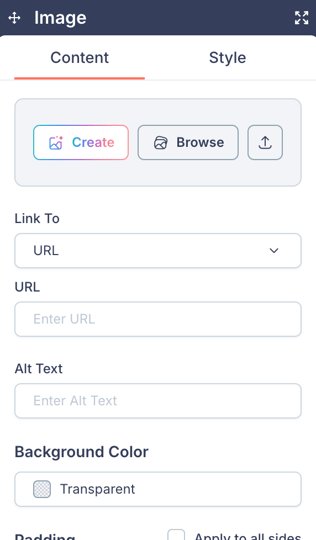
Use the Image block to add images to your email. When you select an Image block, the right panel shows:
Content tab:
- Create — Generate an image using AI. Learn more about creating images with AI.
- Browse — Select an image from your image library.
- An upload icon to upload an image directly from your device.
- Link To — Optionally link the image to a URL, Contact Dashboard, or Unsubscribe Page.
- Alt Text — Add descriptive text for accessibility.
- Background Color and Padding.
Once an image is added, the panel shows a thumbnail preview with Replace and Remove buttons.
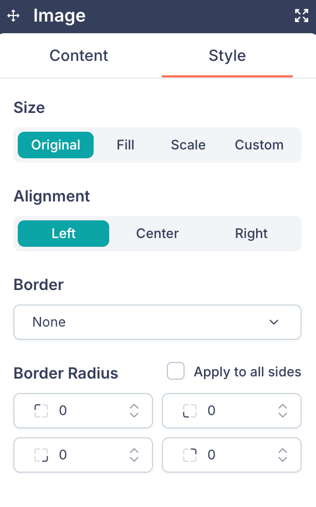
Style tab:
- Size — Original, Fill, Scale, or Custom.
- Alignment — Left, Center, or Right.
- Border and Border Radius controls.
🗒️ Note: Images are managed through Fello's image library, which is shared across the platform. Any image you upload or generate with AI is saved to your library and can be reused in other emails and across Fello. Learn more about the image library.
Video
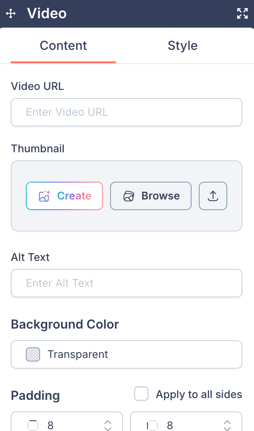
Use the Video block to embed a video in your email. When you select a Video block, the right panel shows:
Content tab:
- Video URL — Enter the URL of the video you want to embed.
- Thumbnail — Choose a thumbnail image for the video using the Create (AI), Browse (library), or upload options.
- Alt Text, Background Color, and Padding.
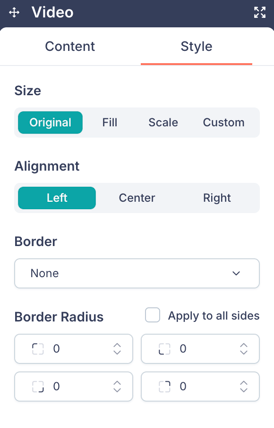
Style tab:
-
Size — Original, Fill, Scale, or Custom.
-
Alignment — Left, Center, or Right.
- Border and Border Radius controls.
Logo
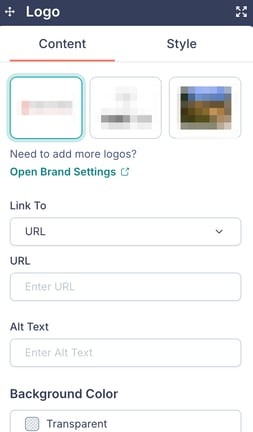
Use the Logo block to add your brand logo to the email. When you select a Logo block, the right panel shows:
Content tab:
- A selection of logos uploaded to your Brand Settings. Click a logo to use it.
- "Need to add more logos? Open Brand Settings" — Takes you to your branding configuration to upload additional logos.
- Link To — Optionally link the logo to a URL.
- Alt Text, Background Color.
Style tab:
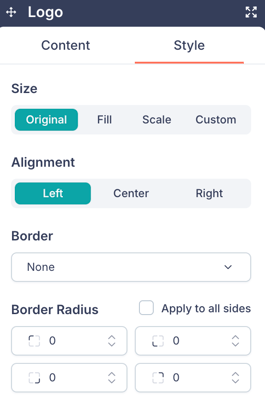
- Size — Original, Fill, Scale, or Custom.
- Alignment — Left, Center, or Right.
- Border and Border Radius controls.
💡 Tip: Adding a logo helps recipients quickly recognize your brand and improves engagement.
Working with Sections
Sections are layout containers that organize your blocks into rows and columns. To add a section, open the Sections tab in the left sidebar and drag a layout onto the canvas.
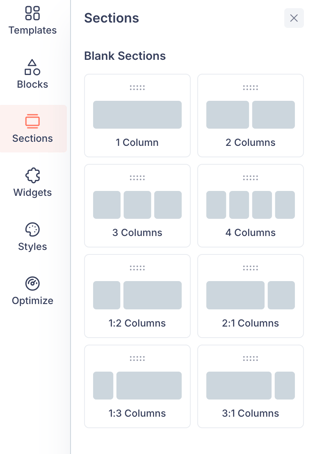
Available column layouts include:
- 1 Column
- 2 Columns
- 3 Columns
- 4 Columns
- 1:2 Columns (one narrow, one wide)
- 2:1 Columns (one wide, one narrow)
- 1:3 Columns (one narrow, one wide)
- 3:1 Columns (one wide, one narrow)
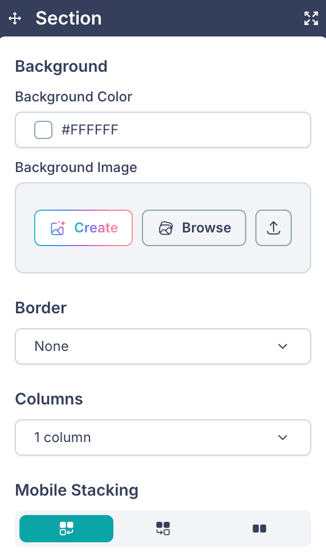
When you select a section on the canvas, the right panel shows:
- Create / Browse / Upload — Set a background image for the section using the image library.
- Border — Add a border around the section.
- Columns — Column sizing (Auto by default).
- Mobile Stacking — Choose how columns stack on mobile devices. Three layout options are available.
- Padding — Set padding for each side individually, or check Apply to all sides to use a single value.
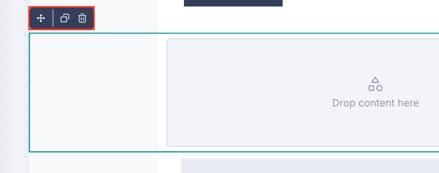
Each section also has a floating toolbar with three actions:
- Move (Click & Drag) — Reposition the section within the email.
- Clone — Duplicate the section.
- Delete — Remove the section from the email.
Adding a Signature
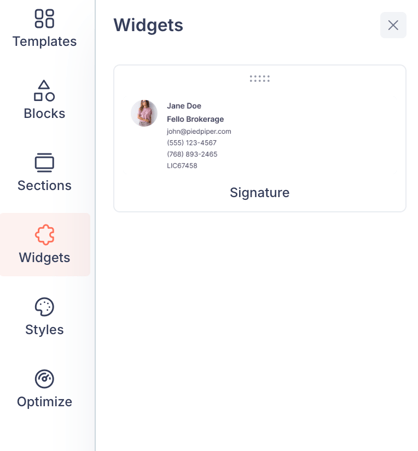
Use the Widgets tab in the left sidebar to add a Signature to your email. Drag the Signature widget onto the canvas to add a pre-configured email signature.
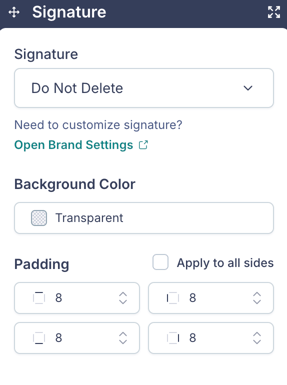
When you select a Signature on the canvas, the right panel shows:
- Signature dropdown — Select from your saved signatures. Options include Default Digital Signature, Brand Signature, User Signature, and any custom signatures you've created.
- "Need to customize signature? Open Brand Settings" — Takes you to Brand Settings to create or edit signatures.
- Background Color and Padding.
💡 Tip: The Signature widget automatically populates with dynamic fields like {Display Name}, {Brand Name}, {Email Id}, {Address}, {Phone}, {User Full Name}, and {User Phone}. These are filled in based on the sender's profile when the email is sent. Learn more about signatures in Fello.
Customizing the Footer
Every email includes a default footer section that contains your brand's copyright notice, company name and address, compliance logos, an unsubscribe link, and the "Powered by Fello" badge.
When you select the footer on the canvas, the right panel shows:
- "Need to customize disclaimer? Open Brand Settings" — Takes you to Brand Settings to update your footer disclaimer text.
- Background Color and Font color.
- Logo Theme — Choose between Dark and other theme options to match your email's design.
- Padding controls.
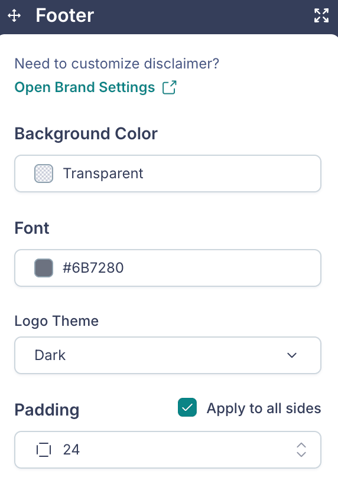
🗒️ Note: The footer is a required element for email compliance and cannot be removed. You can customize its appearance and disclaimer content through Brand Settings.
Setting Global Styles
The Styles tab in the left sidebar lets you set default styling that applies across your entire email. This ensures visual consistency without needing to style each block individually.
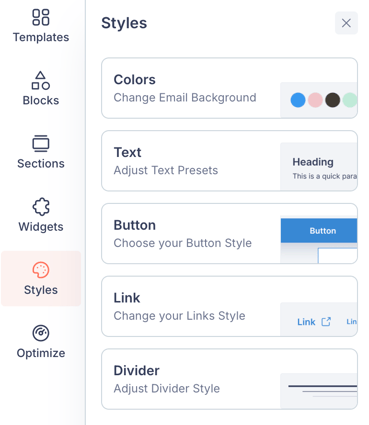
Available global style settings:
- Colors — Set the Email Background Color for the entire email. A "Used in this email" section shows colors currently in use.
- Text — Set default font, size, color, line height, and letter spacing for each text level: H1, H2, H3, H4, and P (Paragraph).
- Button — Configure default styles for Primary and Secondary buttons, including font, size, color, width (Content Width or Full Width), background color, border, and border radius.
- Link — Set default font, size, color, line height, letter spacing, and formatting for links.
- Divider — Set the default divider style (e.g., Solid), color, and thickness.
🗒️ Note: Global styles serve as defaults. You can override them at the individual block level using each block's Style tab.
Optimizing Your Email
The Optimize tab in the left sidebar analyzes your email in real time and provides feedback to help you improve it before sending.
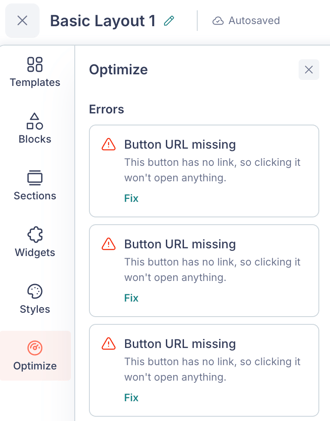
It includes two sections:
- Errors — Lists any issues that may prevent your email from displaying correctly or being sent. When no issues are found, it shows "No errors in this email."
- Suggestions — Provides recommendations to improve engagement, such as:
- "Add buttons" — Buttons make it easier for recipients to take action and improve outcomes.
- "Add logo" — Adding your logo helps recipients quickly recognize your brand.
- "Add personalization tokens" — Personalized content can improve engagement and response rates.
💡 Tip: Address all errors and review the suggestions before sending your email. Following these recommendations can help improve open rates and click-through rates.
Write with AI
Write with AI helps you generate or refine text content using AI. It's available in the Text block, Button block, Link block, Subject Line, and Preview Text.
To use Write with AI:
- Select a Text, Button, or Link block on the canvas.
- Click Write with AI in the right panel.
- Set your preferences:
- Content length — Auto, Expand, or Shorten.
- Content tone — Auto, Professional, Casual, Persuasive, Bold, or Friendly.
- Enter a description of what you want to create or edit in the prompt field (e.g., "Generate a headline" or "Make this more engaging").
- Click Generate.
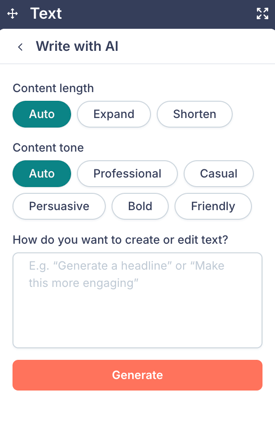
The AI will generate text based on your prompt and preferences, which you can then edit further as needed.
Personalize with Tokens
Personalize lets you insert personalization tokens into your email content. These tokens are placeholders that get automatically replaced with each recipient's actual data when the email is sent — such as their first name, city, or property address. If you've used merge tags in other email platforms, personalization tokens work the same way.
To insert a personalization token:
- Select a Text block on the canvas.
- Click Personalize in the right panel.
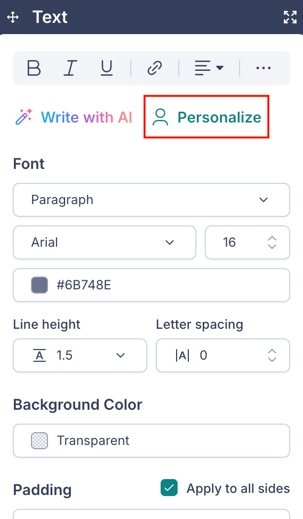
- Select a Variable from the dropdown.
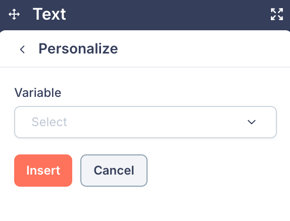
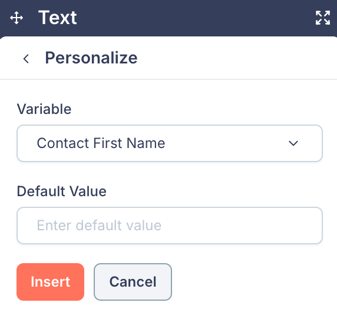
- Click Insert.
The token is inserted at your cursor position in the text. It appears as a placeholder (e.g., {Contact First Name}) in the builder and is replaced with the contact's real data when the email is delivered.
🗒️ Notes:
-
Personalization tokens are also available in the Subject Line and Preview Text fields. You can use them to personalize every aspect of your email for each recipient.
- If a token's value does not exist for a particular contact record, the default value will be used instead.
Previewing and Testing Your Email
Before sending, you can preview your email across devices and send a test version to verify how it looks in an actual inbox.
Desktop and Mobile Preview
Use the desktop and mobile toggle icons in the top bar to switch between desktop and mobile views of your email directly in the builder.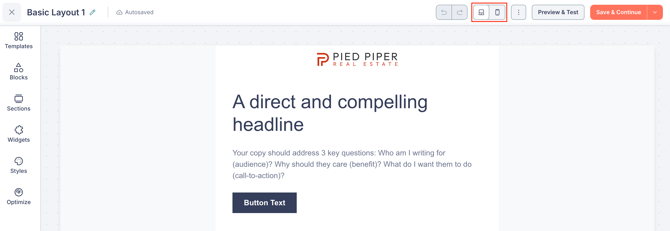
Preview & Test
To send a test email:
- Click Preview & Test in the top bar (or from the review page).
- The Preview and Test screen opens, showing a full preview of your email on the left.
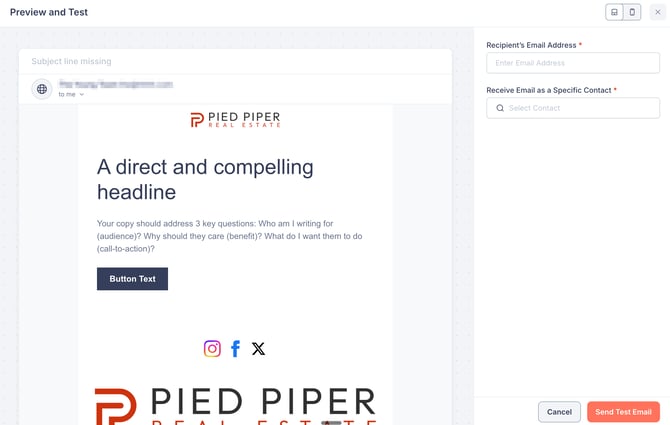
- On the right, enter the Recipient's Email Address where you want to receive the test.
- Under Receive Email as a Specific Contact, search for and select a contact. This determines which personalization token values will be populated in the test email.
- Click Send Test Email.
💡 Tip: Always send a test email before sending to your full audience. This lets you verify that personalization tokens populate correctly, links work, and the design looks right across different email clients.
Configuring Email Settings
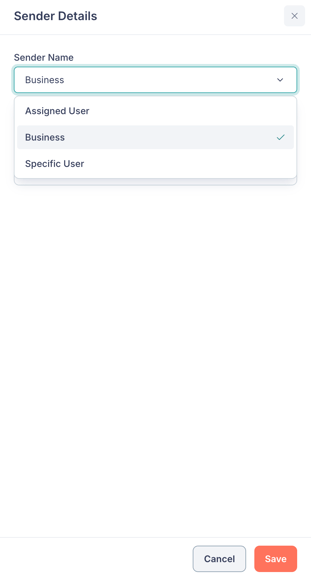
When you're done designing your email, click Save & Continue to move to the review page. This page presents a checklist of four settings that need to be configured before sending:
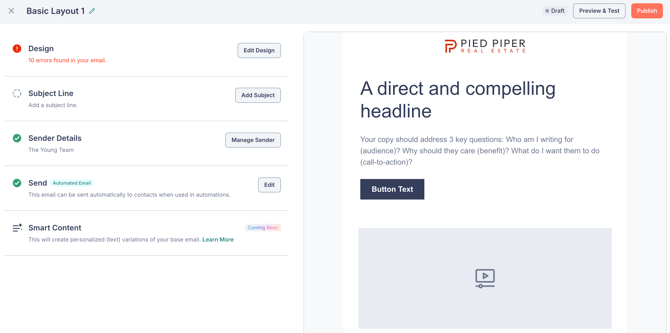
- Design — Shows the error count from the Optimize tab. Click Edit Design to go back to the builder and fix any issues.
- Subject Line — Configure your subject line and preview text.
- Sender Details — Choose who the email appears to come from.
- Send — Choose the send method and select your recipients.
Subject Line and Preview Text
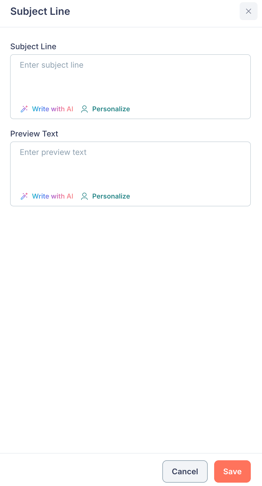
Click Add Subject to open the Subject Line panel.
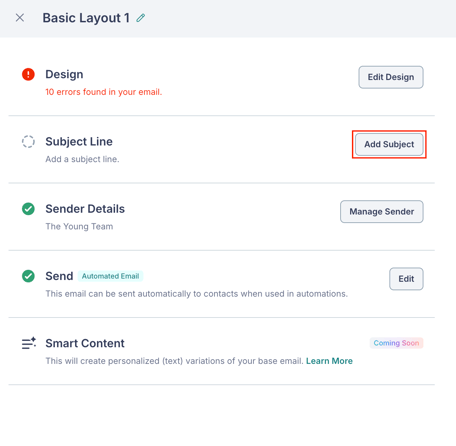
- Subject Line — Enter the subject line for your email. You can use Write with AI to generate a subject line or Personalize to insert personalization tokens.
- Preview Text — Enter the preview text that appears alongside the subject line in recipients' inboxes. This also supports Write with AI and Personalize.
- Click Save when you're done.
Sender Details
Click Manage Sender to open the Sender Details panel.
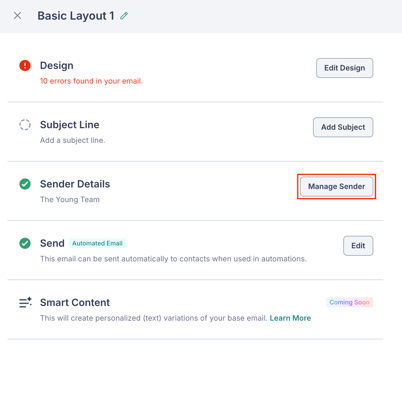
- Sender Name — Choose how the sender name appears to recipients:
- Assigned User — The email is sent from the name of each contact's assigned user.
- Business — The email is sent from your business name.
- Specific User — The email is sent from a specific user you select.
- A preview of the sender name and email address is shown below.
- Click Save when you're done.
Send Settings
Click Edit next to Send to open the Send panel.
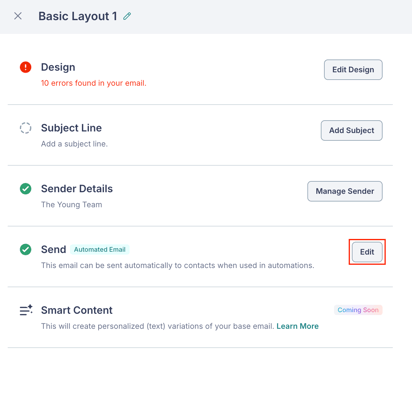
Choose your sending method: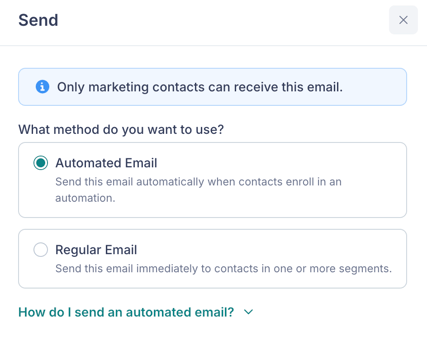
- Automated Email — Use this email within an automation or workflow. It will be sent automatically when contacts enroll. After selecting this option, you can link the email to an automation or workflow from within those features.
- Regular Email — Send this email immediately to contacts in one or more segments or lists.
When Regular Email is selected, additional options appear: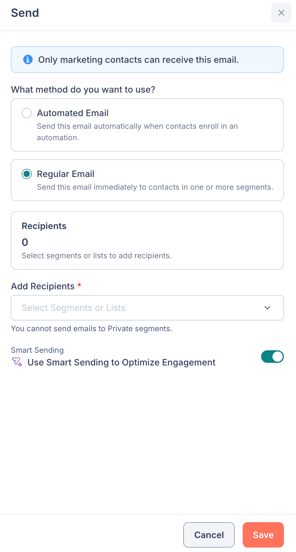
- Recipients — Shows the total count of recipients. Click Add Recipients and select one or more segments or lists from the dropdown. These are grouped into Lists and Shared categories. You can search to find specific segments or lists.
- Smart Sending — A toggle labeled "Use Smart Sending to Optimize Engagement" is enabled by default. When on, Fello optimizes deliverability by skipping emails to contacts who are unlikely to engage, based on various engagement factors. Learn more about Smart Sending.
🗒️ Note: You cannot send emails to Private segments. At least one segment or list is required to send a Regular Email.
-
Click Save when you're done configuring your send settings.
Once all four settings are configured, click Send Email in the top-right corner to send your email.
Saving an Email as a Template
You can save any email design as a reusable template. To do this:
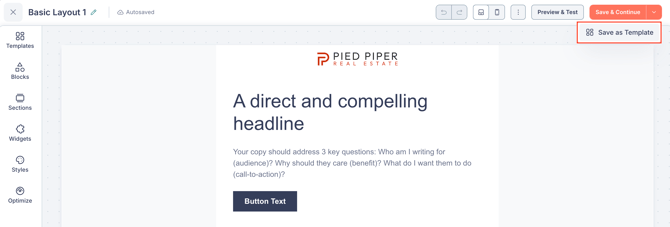
- In the builder, click the dropdown arrow next to Save & Continue in the top-right corner.
- Click Save as Template.
- Enter a Template Name in the modal that appears.
- Click Save.
Your template is now saved to the Saved Templates section and can be reused when creating future emails.
Managing Your Emails
Email List Actions
From the Emails page, you can manage your emails using the actions available on each row:
- Hover over an email to reveal the Preview & Test icon and the Edit (pencil) icon.
- Click the 3-dot menu icon for additional actions:
- Clone — Create a duplicate of the email.
- Rename — Change the email's name.
- Archive — Move the email to the archive.
- Delete — Permanently delete the email.
You can also filter your emails using the Status and Type dropdowns at the top of the list:
- Status — Filter by Draft, Sent, Published, or Archived.
- Type — Filter by Regular or Automated.
🗒️ Note: An email with a Published status means it has been published and is ready to be used in an automation or workflow — it does not necessarily mean it is currently active in one. Only Published emails can be selected for use in automations and workflows. Emails in Draft or Archived status cannot be used in automations or workflows.
Viewing Email Performance
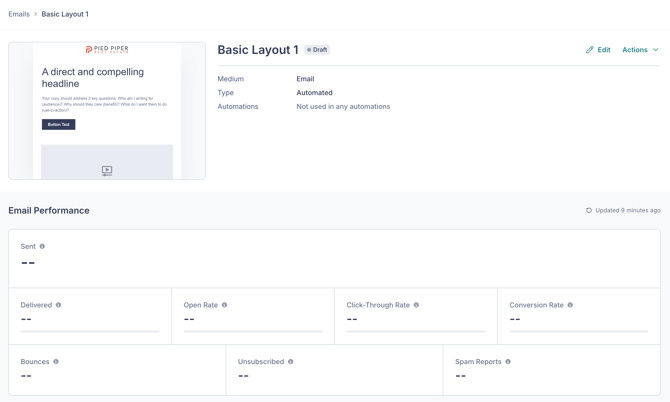
To view the performance of a sent email, click on the email name from the list.
This opens the email detail page, which includes:
- Key metrics: Sent, Delivered, Open Rate, Click-Through Rate, Conversion Rate, Bounces, Unsubscribed, and Spam Reports.
- Performance charts for Engagement, Click-Through Rate, and Submissions, with adjustable time periods and frequencies.
- An Actions dropdown with options to Clone, Preview & Test, View Details, or Archive the email.
Managing Saved Templates
You can manage your saved email templates from the template selection screen:
- When creating or editing an email, open the Templates tab in the left sidebar.
- Navigate to the Saved tab (or click Saved Templates in the full template selection screen).
- Click Manage Saved Templates to open the management view.
From here, you can:
- View all saved templates with their names and last updated dates.
- Search for a specific template.
- Click the 3-dot menu on any template to Rename or Delete it.
If you require further assistance, please don't hesitate to contact Fello support (support@fello.ai).