
After you suspend a user in Fello, any deals, such as buyer or seller transactions that take place after the suspension date, and are associated with that user's MLS details will be tracked under a separate section under the Property Intelligence report called Revenue Recovery.
🗒️ Note: By default, Revenue Recovery starts getting tracked from the date when a user was suspended, however, you can change the tracking date at any time. Learn More
Why track revenue recovery?
Tracking revenue recovery for suspended users in your team can help you resume or follow up on in-progress deals and monitor for signs that a former user may be engaging with your purchased/acquired leads.
In this article
To track revenue recovery:
- Suspend a user in Fello. Learn More
- Go to Reports from the left sidebar.

- Navigate to the Property Intelligence report.
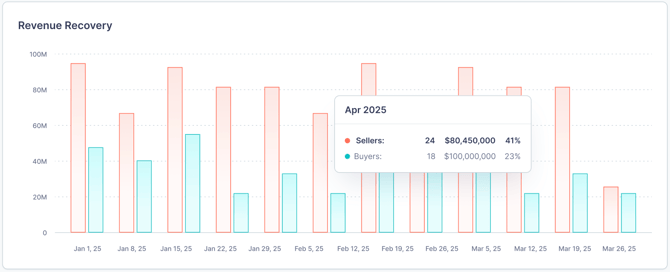
You can also change the date from which Revenue Recovery starts being tracked for suspended users. This can be useful in cases when someone has left your team or organization on a certain date, and their user profile in Fello is suspended at a later date, in which case you might want to correct the Revenue Recovery tracking date.
To change the revenue recovery tracking date:
- Go to Settings > User Management.
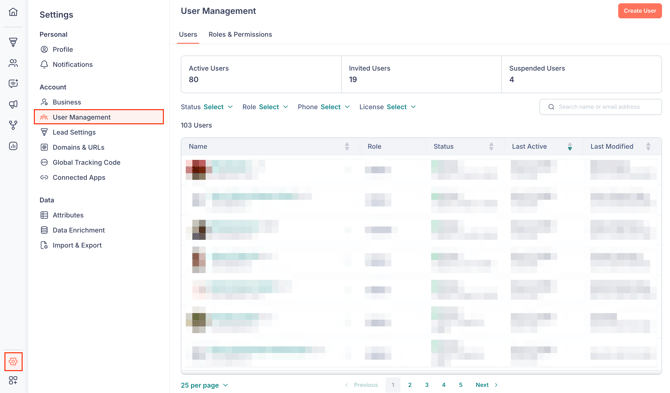
- Select a suspended user.
- Navigate to the MLS Details tab.
- Click Manage Tracking.
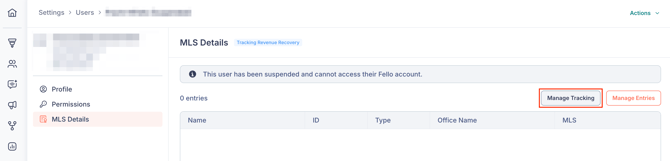
- Change the Tracking Start Date.
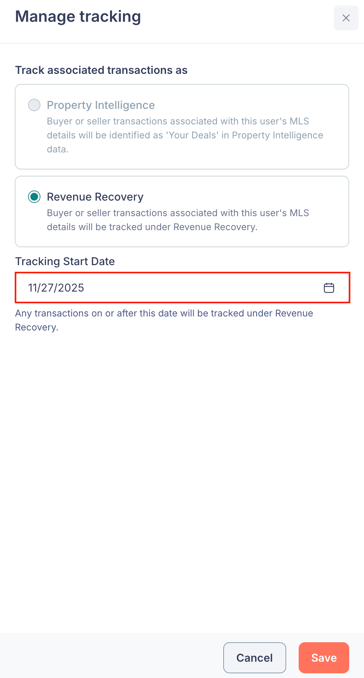
- Click Save.
Now, any transactions on or after this date will be tracked under Revenue Recovery.
Create & Watch Revenue Recovery Segments
The following filters are available for Revenue Recovery: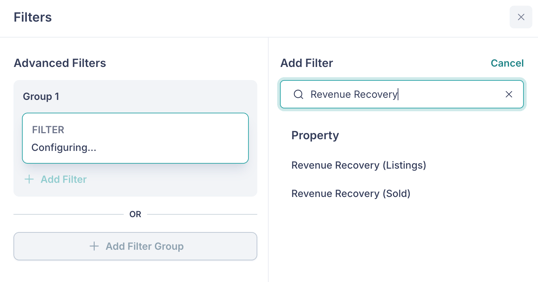
- Revenue Recovery (Listings) - Used to track revenue recovery related to listings in your database.
- Revenue Recovery (Sold) - Used to track revenue recovery related to sold properties in your database.
To create a segment for revenue recovery:
- Go to the Contacts module.
- Click the Filter icon.
- Search for Revenue Recovery and select Revenue Recovery (Listings).
(Later, you can create another similar segment for Revenue Recovery (Sold).) - Select the condition as is present.
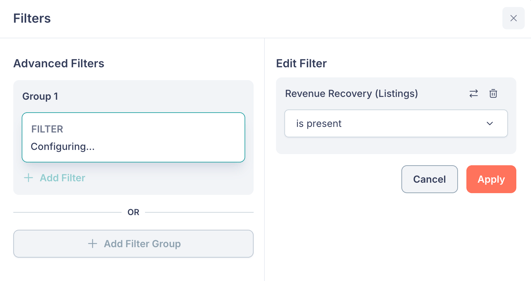
- Click Apply.
- Click the Clone Segment button above the list of contacts.
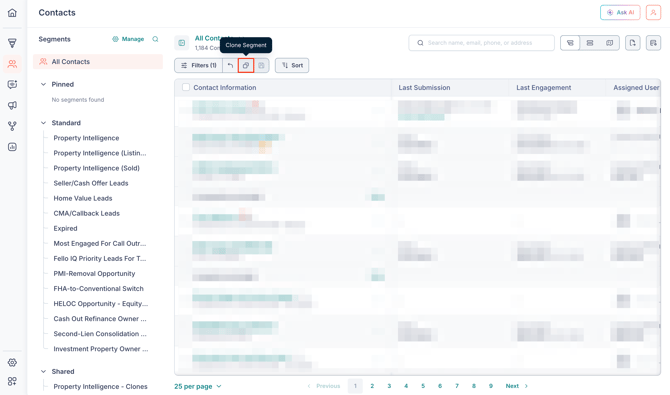
- Configure your segment as required and click Clone. Learn more about creating and configuring segments.
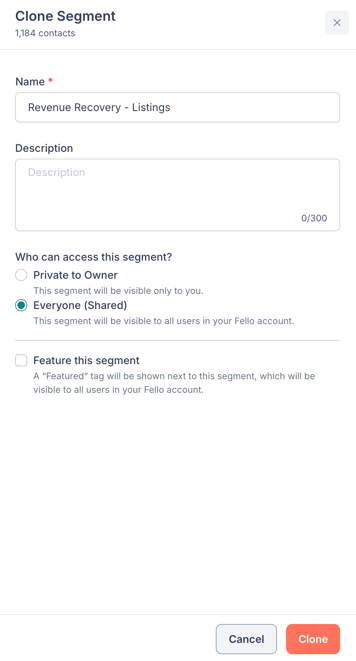
Now that you've created a segment for revenue recovery, you can enable Segment Watch to receive notifications whenever new contacts are added to the segment. Here's how:
- Click the 3-dot icon next to the segment in the Contacts module.
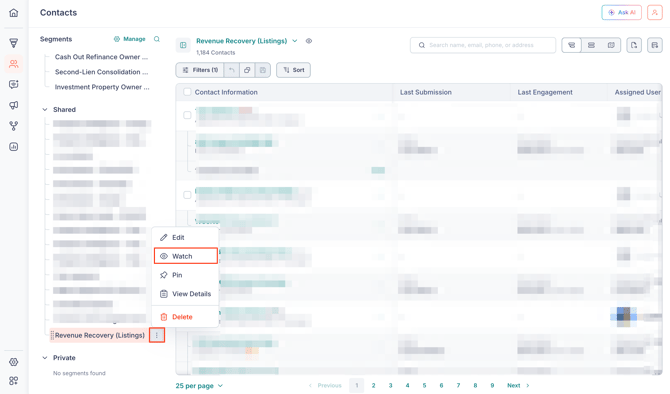
- Select Watch.
You will now receive in-app and email notifications whenever new contacts have been added to your segment.