
Segments are smart lists that display contacts based on filters that you set. Contacts will be added or removed from segments automatically as their details change.
You can use Segments to quickly follow up or check a particular set of contacts, instead of applying filters and searching for them each time.
🗒️ Note: You can also create static lists of contacts that don't update automatically. Learn More
In this guide:
Create/Clone Segments
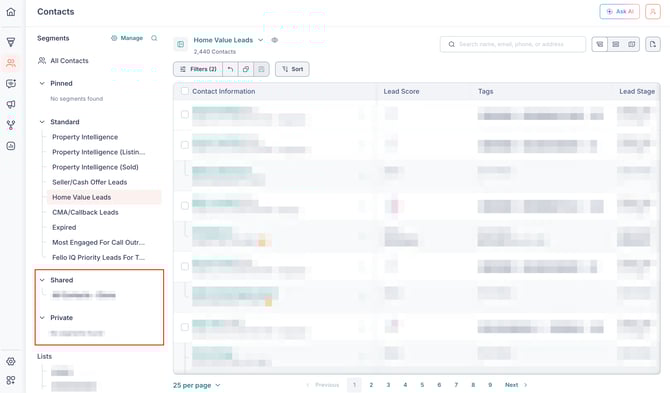
You can create new segments by cloning existing ones and making changes to them as required. To do this:
- Select the segment that you want to clone and click the Filter icon.
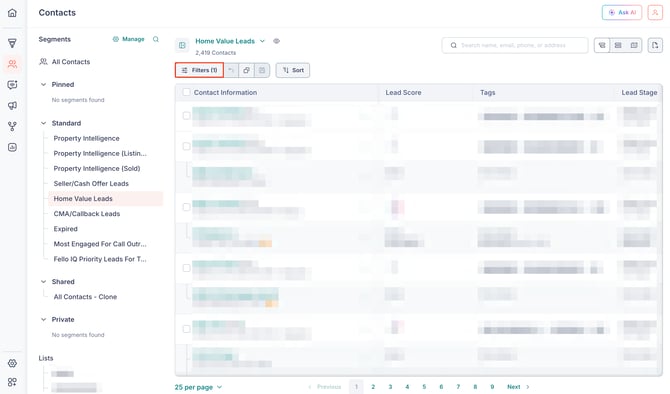
- Click Edit.
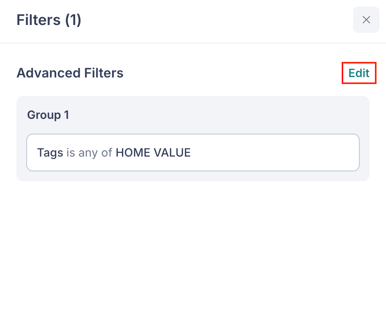
- Select the criteria by which you want to filter contacts. Learn more about filtering contacts.
- Make changes to your filters as required and close the filter editor.
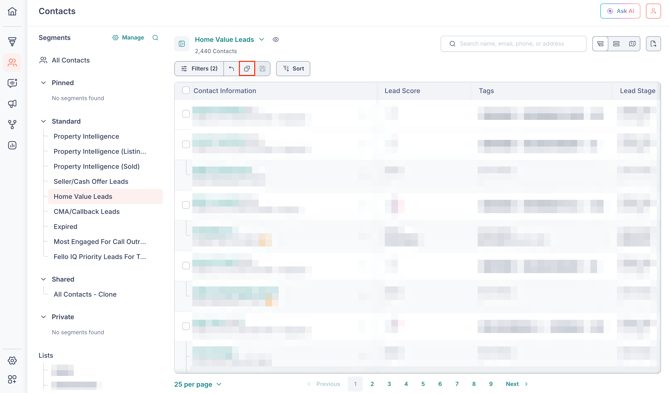
- Click the Clone icon.
- Edit any segment details as required.
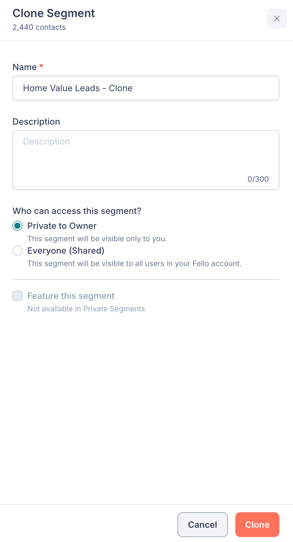
- Click Clone.
Your segment has been cloned. You can find it from the list of segments in the Contacts module.
Manage Segments
In this section:
- Edit Filters & Details
- Pin/Unpin Segments
- Watch/Unwatch Segments
- View Segment Details
- View/Hide Segments
- Delete Segments
You can make changes to your segments by clicking the More (3-dot) icon near a segment in the Contacts module: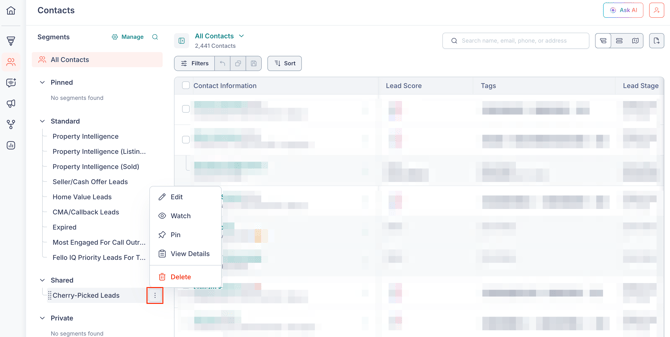
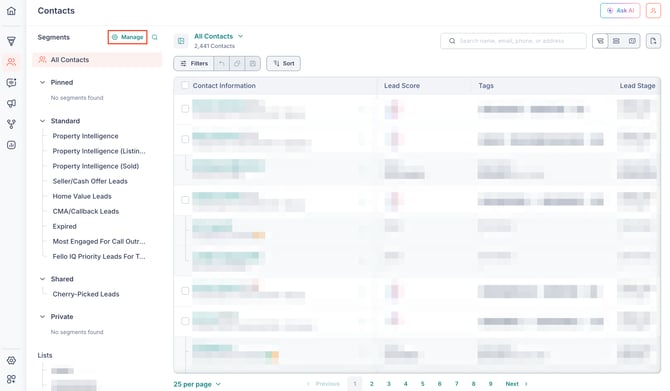
You can also click Manage near the Segments section to view all your segments and manage them from there. (You can use this method to manage hidden segments that aren’t visible in the Contacts list page.)
Edit Filters & Details
To edit filters for a segment:
- Select a Shared or Private segment and click the Filter icon.
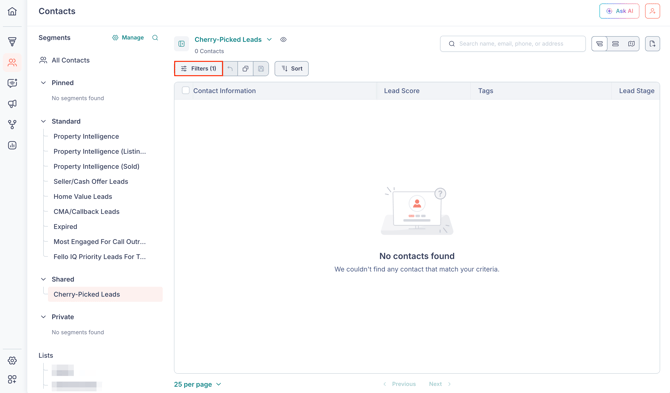
- Edit the filters as required and apply them.
- Click the Save Segment icon above the list of contacts to save the new filters for this segment.
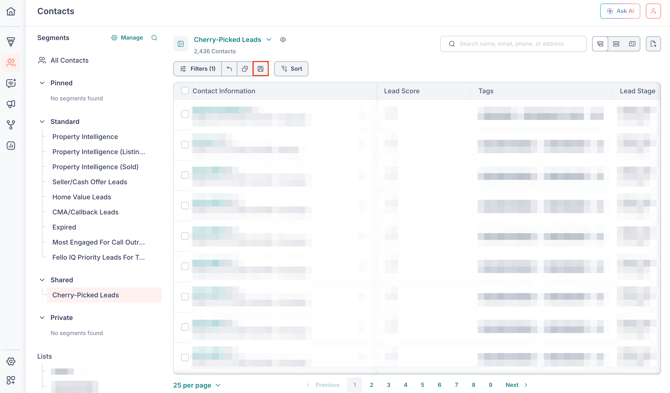
Now, your segment has been saved with the updated filters.
🗒️ Note: You cannot edit or save changes for Standard segments, including the All Contacts segment.
To edit details for a segment:
- Click the More (3-dot) icon near a segment that you want to edit.
- Select Edit.
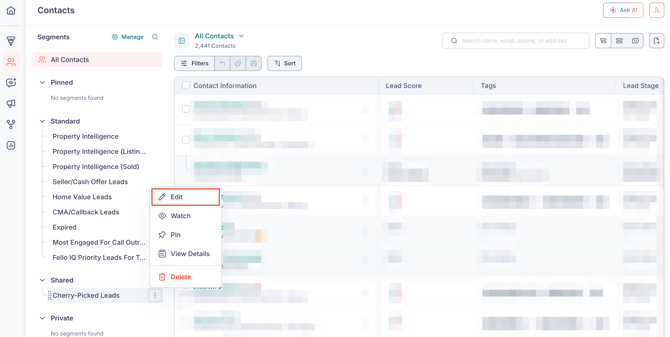
- Edit any segment details as required.
Here, you can edit the name, description, whether the segment is featured, and who can access the segment. To configure who can access the segment, select one of the following options:- Private to Owner: The segment will be visible only to you.
- Everyone (Shared): The segment will be visible to all users in your Fello account.
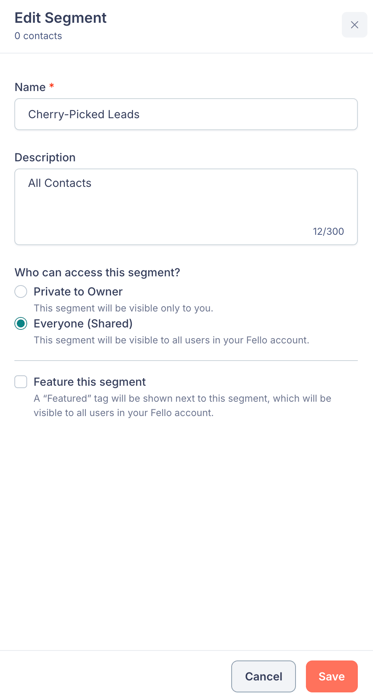
- Click Save.
Your segment has been updated.
Pin/Unpin Segments
If you have a lot of segments, you can pin the ones you use frequently to find them faster. Here’s how:
- Click the More (3-dot) icon near a segment that you want to pin.
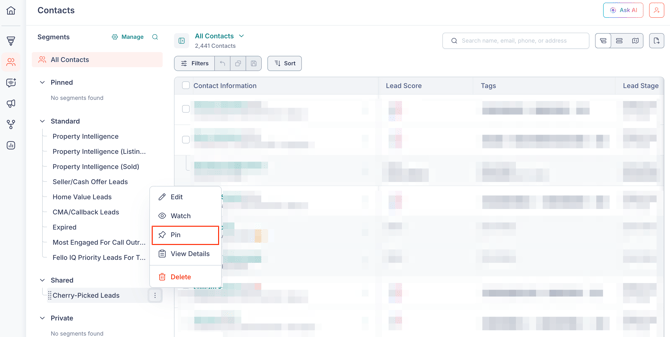
- Select Pin.
This segment will now be pinned at the top of the Segments section. To unpin the segment, follow the same steps as above and select Unpin.
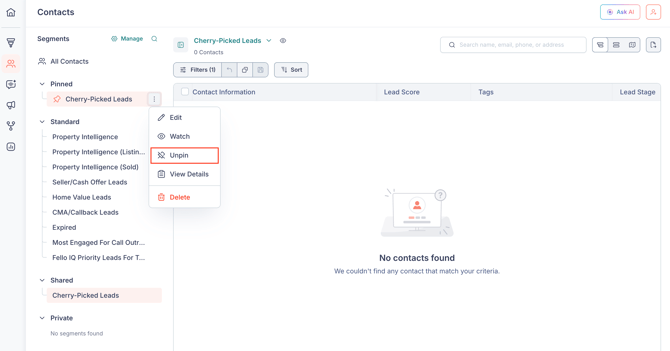
Note: When you pin a shared segment, it will only be pinned for you, and not for every user in your account.
Watch/Unwatch Segments
Segment Watch enables you to stay on top of your ever-changing contact database by receiving notifications whenever a contact is added to a segment.
Note: By default, Fello provides 1 free Segment Watch per user for Professional and Team plans. To watch more segments, you can contact support to purchase the Segment Watch addon.
To start watching a segment:
- Click the More (3-dot) icon near a segment.
- Select Watch.
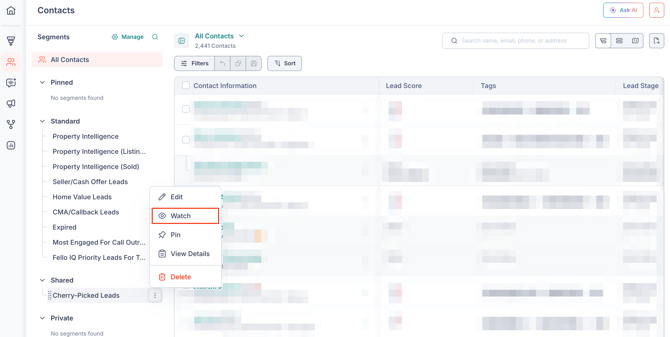
Tip: If you can’t find your segment from the left sidebar because it’s hidden, click Manage near the Segments section to view a list of all your segments and manage them from there.
You will now receive notifications inside Fello when contacts are added to this segment.
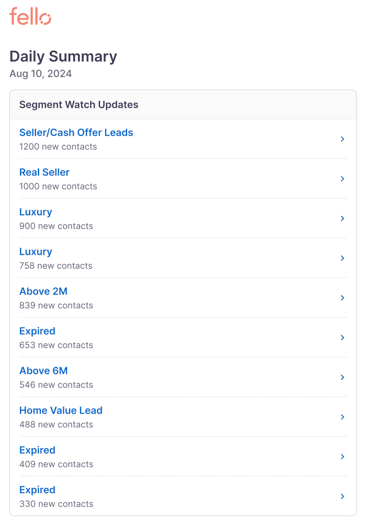
You will also receive a daily email summary of contact activity in this segment.
To unwatch a segment, follow the same steps as above and select Unwatch.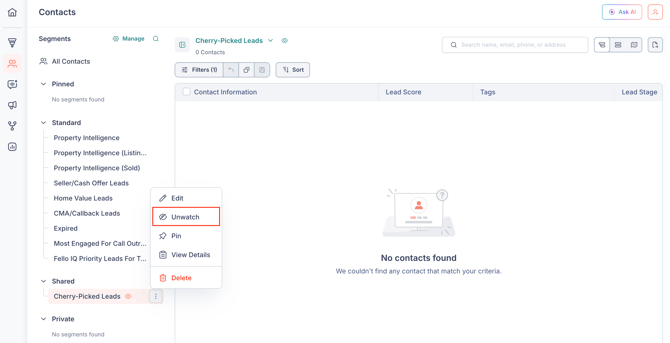
Note: Watching or unwatching segments is user-specific, and does not apply to all users in your account.
View Details
To view a segment’s details such as its filters and the amount of contacts that are in it:
- Click the More (3-dot) icon near a segment.
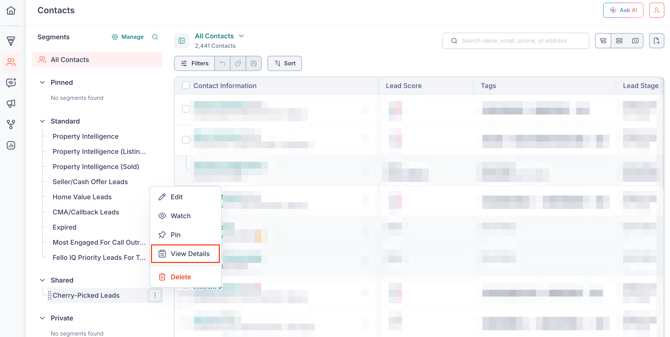
- Select View Details.
View/Hide Segments
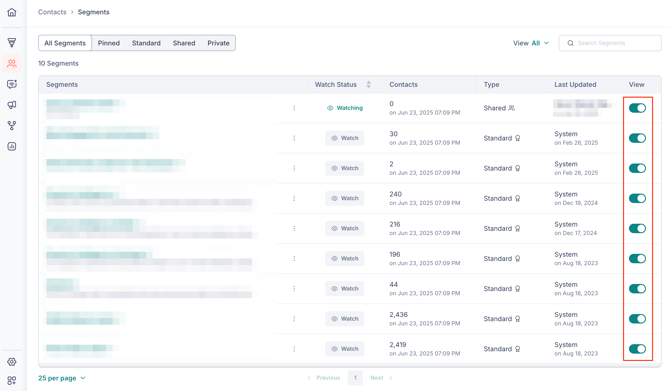
You can choose to hide segments that you don't want to appear in the Contacts list page. To do this:
-
Click Manage near the Segments section.
-
Toggle the View column as required.
Delete Segments
To delete a segment:
- Click the More (3-dot) icon near a segment.
- Select Delete.
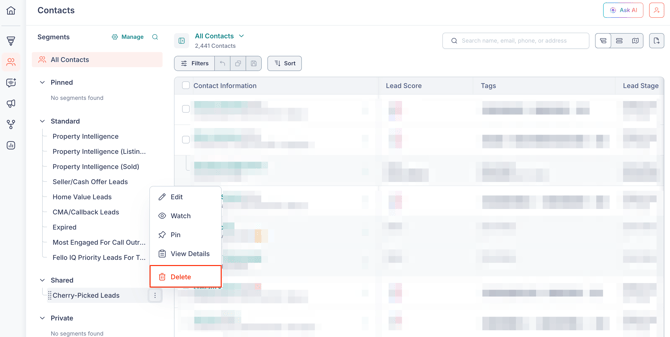
Warning: When a shared segment is deleted, it will be deleted for every user in your account.
- Click Delete again in the popup that appears to confirm.
Your segment has been deleted.
Note: You cannot delete Standard segments.