
Your company profile is where your business's core details live in Fello, including your company name, address, contact info, signatures, and compliance settings. This information is used across your marketing assets, such as email signatures, postcard return addresses, and legal disclaimers.
In this article:
Access your company profile
🗒️ Note: Only users with access to Account Settings can manage your company profile. Learn more about roles and permissions.
To access your company profile:
- Click the Settings (gear) icon from the bottom-left corner.
- Select Company Profile under Account.
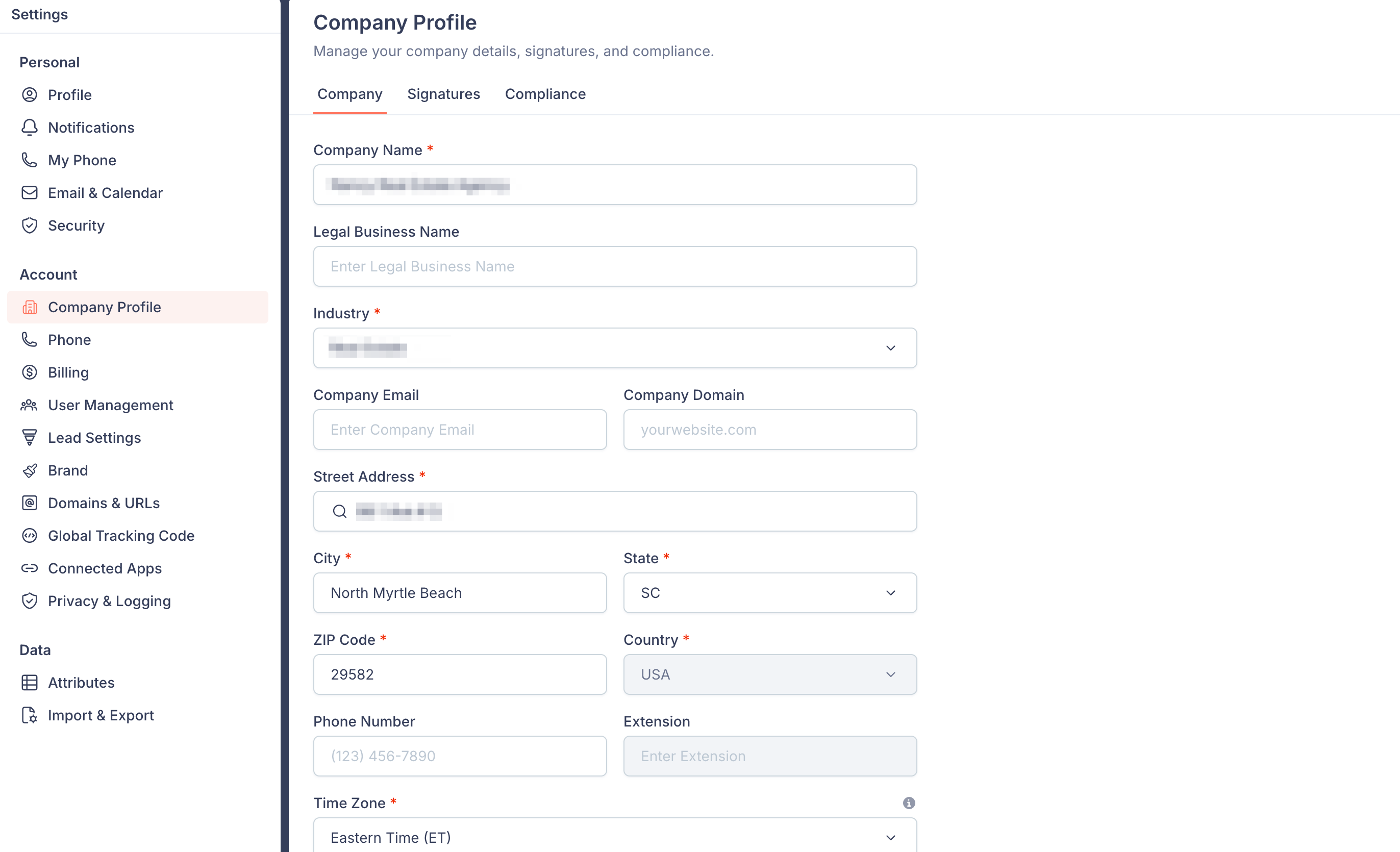
You'll see three tabs at the top of the page: Company, Signatures, and Compliance.
Update your company details
Under the Company tab, you can update the following:
- Company Name: Your business's name. This is used as your brand name across marketing assets, including your email signatures.
- Legal Business Name: Your registered business name exactly as it appears on your IRS records. This is used for carrier registration (10DLC), which enables texting from the numbers Felix uses, so it must match your EIN documentation exactly. Getting your EIN and legal business name
- Industry: Select the industry your business operates in.
- Company Email: Your business's primary email address. This is used as the default reply email for marketing emails sent to contacts without an assigned user, and is displayed across marketing assets where your email is referenced. It can also be pulled into your signatures via the Brand Email field.
- Company Domain: Your business's website URL. This is used across marketing and can be displayed in your signatures as a clickable link.
- Street Address, City, State, ZIP Code, Country: Your business's address. This is used on marketing assets where your address needs to be displayed.
- Phone Number: Your business's phone number. This can be displayed in your signatures and across marketing assets.
- Time Zone: Select your business's time zone. This is used to schedule marketing sends and display dates and times consistently across your account.
Click Save when you're done.
💡 Tip: Your company details feed directly into your signatures. When you add a Brand Name, Brand Email, Brand Address, Brand Phone, or Brand Website field to a signature, the values are pulled from the fields above, so keeping this page up to date ensures your signatures stay accurate.
Signatures
The Signatures tab is where you configure the default signatures that appear across your digital marketing (such as emails, contact dashboards, landing pages, and forms) and your print marketing (such as postcards). Learn how to configure signatures in Fello.
To learn more about when to use a brand signature vs. a user signature, check out our guide on brand signature vs. user signature in Fello.
Compliance
The Compliance tab is where you manage disclaimers, legal text, and compliance logos that are displayed across your marketing. This includes your Privacy Policy URL, Terms of Service URL, Consent to Communicate language, and the disclaimers shown on digital, email, and print marketing. Learn how to manage compliance settings in Fello.