
Signatures help your contacts recognize your brand and know how to reach you. In Fello, you can configure separate signatures for your digital marketing (emails, contact dashboards, landing pages, and forms) and your print marketing (postcards). Each signature can be customized with your own fields, display image, and template style.
In this article:
Access your signatures
🗒️ Note: Only users with access to Account Settings can manage signatures. Learn more about roles and permissions.
To access your signatures:
- Click the Settings (gear) icon from the bottom-left corner.
- Select Company Profile under Account.
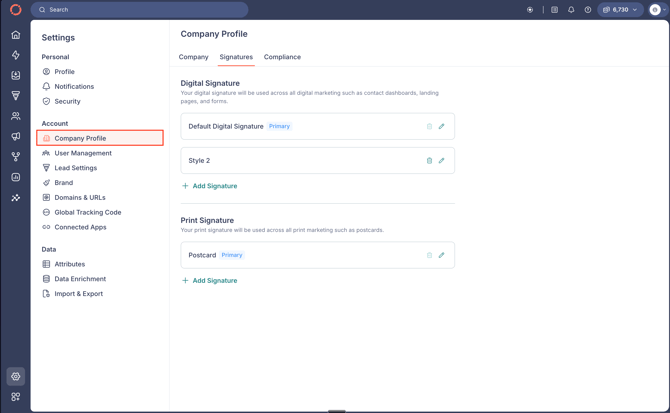
- Navigate to the Signatures tab.
You'll see two sections:
- Digital Signature: Used across all digital marketing such as emails and landing pages.
- Print Signature: Used across all print marketing such as postcards.
You can create multiple signatures in each section and choose which one to set as the primary.
Create a signature
To create a new signature:
- Click + Add Signature under either the Digital Signature or Print Signature section.
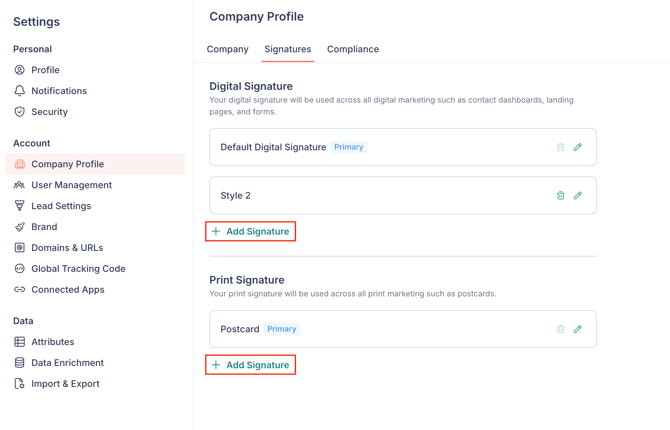
- Configure the signature using the options below.
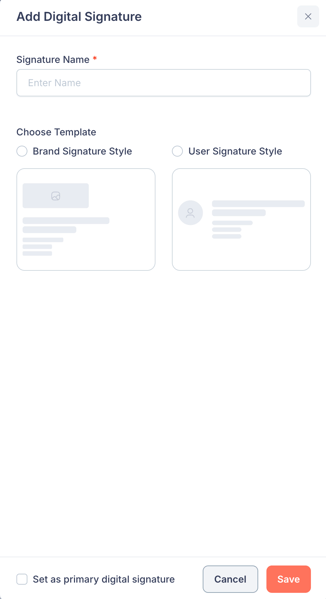
Signature name
Enter a Signature Name to identify this signature within Fello. This name is only used internally and won't appear in the signature itself.
Choose a template
Select the template style for your signature:
- Brand Signature Style: Displays your brand's signature on all marketing assets, regardless of whether a contact is assigned to a user.
- User Signature Style: Displays the assigned user's signature or contact card on marketing assets. Contacts without an assigned user will see the brand signature instead.
🗒️ Note: When using User Signature Style, each user's personal details (phone, license number, custom signature field, etc.) are pulled from their individual profile. Learn how users can set up their personal signature.
For more on choosing between these two styles, check out brand signature vs. user signature in Fello.
Display image
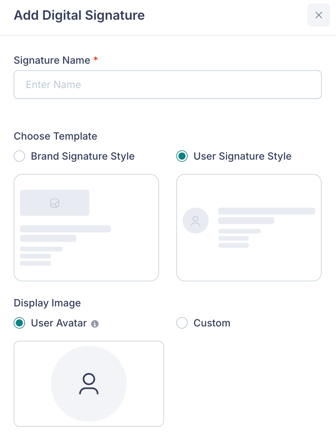
Choose the image that will appear alongside your signature:
- If you've selected Brand Signature Style, you can choose between your Brand Logo or a Custom image.
- If you've selected User Signature Style, you can choose between the assigned user's avatar or a Custom image.
Signature fields
This is where you customize what information appears in your signature. Click + Add Field to add a new field, then select a field type from the dropdown.
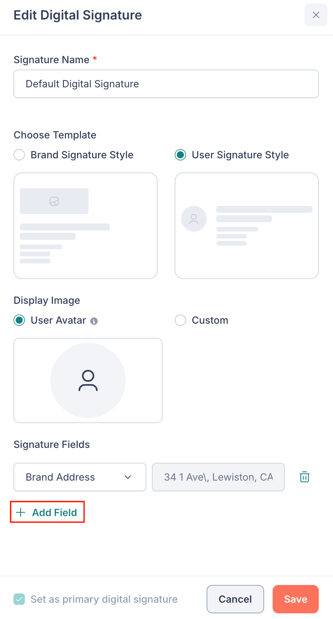
There are two categories of fields available:
1. Brand fields pull information directly from your company profile. Available fields include:
- Brand Name (pulls from Company Name)
- Brand Email (pulls from Company Email)
- Brand Address (pulls from your company address)
- Brand Phone (pulls from Phone Number)
- Brand Website (pulls from Company Domain)
💡 Tip: If a brand field appears empty in your signature preview, head to the Company tab of your company profile and fill in the corresponding field.
2. Custom fields let you add any other information you'd like to display. Available custom field types include:
- Text: For any plain text content, such as your brokerage name or a tagline.
- Phone: For a phone number that isn't already in your company profile.
- Email: For an email address that isn't already in your company profile.
- Bold Title: For text that should stand out with bold formatting, such as your name or a job title.
💡 Tip: You can add multiple fields of the same type. For example, if you need to display both a brokerage name and a license number, add two Text fields, one for each.
🗒️ Note: Signature fields accept plain text only. HTML, custom code, and inline styling are not supported, and any HTML you paste into a field will display as literal text. Use the Bold Title field type when you need emphasis, and the Display image option for logos or photos.
You can rearrange the order of signature fields by dragging and dropping them. To remove a field, click the Trash icon next to it.
Set a primary signature
Each section (Digital and Print) requires one primary signature, which is used by default across your marketing.
To set a signature as the primary:
- Click the Edit (pencil) icon next to the signature you'd like to set as primary.
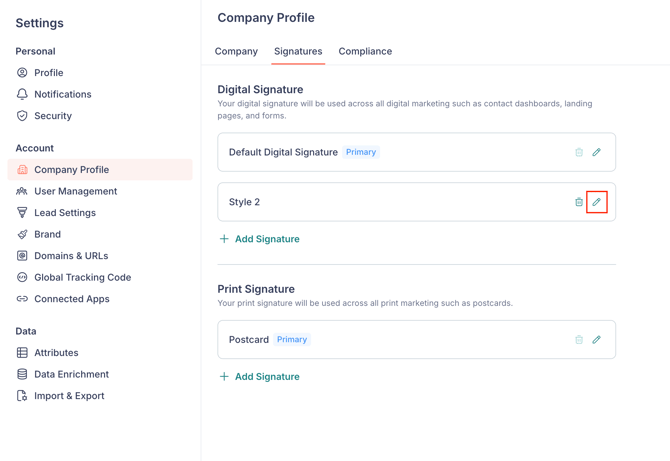
- Select Set as primary digital signature (or Set as primary print signature) at the bottom of the panel.
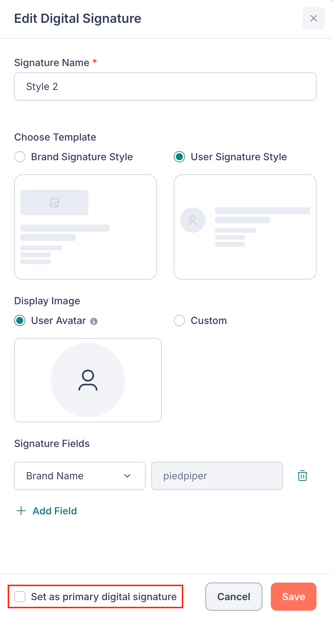
- Click Save.
The primary signature will be marked with a Primary label.
Edit or delete a signature
To edit a signature, click the Edit (pencil) icon next to it, make your changes, and click Save.
To delete a signature, click the Trash icon next to it.
🗒️ Note: You cannot delete a signature that is currently set as the primary. To delete it, first set a different signature as the primary.