
Your compliance settings control the legal text, disclaimers, and consent language that appear across your marketing assets, including emails, landing pages, forms, and postcards. Keeping these up to date helps protect your business and ensures your marketing meets legal requirements.
🗒️ Note: Your compliance settings are part of your company profile, alongside your company details and signatures.
In this article:
- Access your compliance settings
- Privacy Policy URL
- Terms of Service URL
- Consent to Communicate
- Digital Disclaimer
- Email Disclaimer
- Print Disclaimer
Access your compliance settings
🗒️ Note: Only users with access to Account Settings can manage compliance settings. Learn more about roles and permissions.
To access your compliance settings:
- Click the Settings (gear) icon from the bottom-left corner.
- Select Company Profile under Account.
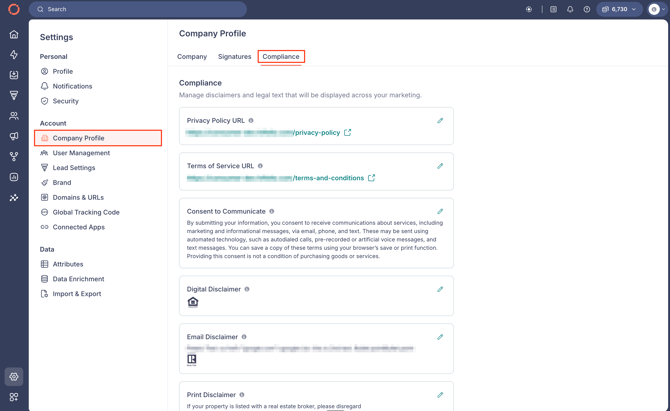
- Navigate to the Compliance tab.
To edit any field, click the Edit (pencil) icon next to it, make your changes, and click Save.
Privacy Policy URL
This is the link to your business's privacy policy, which is displayed across your marketing assets where a privacy policy is referenced.
You have two options:
- Use default privacy policy URL: Uses Fello's default privacy policy.
- Use custom privacy policy URL: Lets you enter your own privacy policy URL.
Terms of Service URL
This is the link to your business's Terms of Service document, which is displayed across your marketing assets where Terms of Service are referenced.
You have two options:
- Use default terms of service URL: Uses Fello's default Terms of Service.
- Use custom terms of service URL: Lets you enter your own Terms of Service URL.
Consent to Communicate
This is the consent language shown to your contacts or prospects before they submit a form. This language is also recorded on the Proof of Consent certificate generated for each form submission.
You have two options:
- Use default consent language: Uses Fello's default consent language, which is designed to help you stay compliant with TCPA requirements.
- Use custom consent language: Lets you enter your own consent language (up to 2,000 characters).
💡 Tip: We recommend using Fello's default consent language if possible, to ensure the best compatibility with Fello's current and future marketing tools. To learn more about collecting compliant consent from your contacts, check out how to obtain communication consent from your contacts using Fello.
Digital Disclaimer
The Digital Disclaimer is displayed on your digital marketing assets, such as forms and landing pages.
🗒️ Note: Emails have their own separate disclaimer. See Email Disclaimer below.
When editing the Digital Disclaimer, you can configure:
- Message: The disclaimer text to display (up to 2,000 characters).
- Legal Links: Toggle whether to display links to your Privacy Policy and Terms of Service alongside the disclaimer.
- Compliance Logos: Toggle whether to display the Equal Housing Opportunity, REALTOR®, and Equal Housing Lender logos.
💡 Tip: To revert any of your changes, click Reset to Default at the bottom-left of the edit panel.
Email Disclaimer
The Email Disclaimer is displayed on all marketing emails sent from your account.
When editing the Email Disclaimer, you can configure:
- Message: The disclaimer text to display (up to 2,000 characters).
- Compliance Logos: Toggle whether to display the Equal Housing Opportunity, REALTOR®, and Equal Housing Lender logos.
Print Disclaimer
The Print Disclaimer is displayed on all print marketing, such as postcards.
When editing the Print Disclaimer, you can configure:
- Message: The disclaimer text to display (up to 200 characters).
- Compliance Logos: Toggle whether to display the Equal Housing Opportunity, REALTOR®, and Equal Housing Lender logos.
🗒️ Note: Print Disclaimer messages are limited to 200 characters (shorter than digital and email disclaimers) due to space constraints on print marketing materials.