
Your brand is what gives your marketing a consistent, recognizable look. In Fello, you can configure your brand's logo, colors, and button style to ensure every email, landing page, form, postcard, and widget reflects your brand's design language.
🗒️ Note: To manage your company details, signatures, or compliance settings, see how to set up your company profile in Fello.
In this article:
- Access your brand settings
- Set up your brand with AI
- Brand Logo
- Brand Color
- Primary Color
- Secondary Color
- Button Style
Access your brand settings
🗒️ Note: Only users with access to Account Settings can manage brand settings. Learn more about roles and permissions.
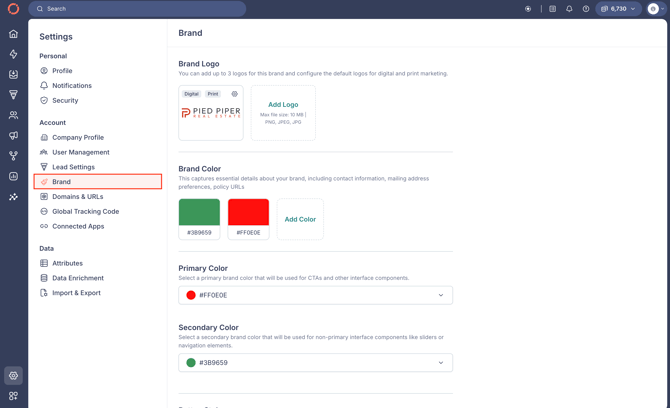
To access your brand settings:
- Click the Settings (gear) icon from the bottom-left corner.
- Select Brand under Account.
Set up your brand with AI
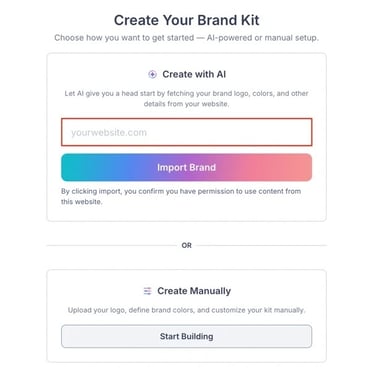
If you're setting up your brand for the first time, Fello's AI-powered branding tool can analyze your website and automatically extract key branding elements like your logo and brand colors. All you need is your website's URL.
To set up your brand with AI:
- On the Brand page, enter your website's URL.
🗒️ Note: You can also set up your brand manually at any time. The AI tool is meant to help you get started faster, but all branding elements can be edited manually afterward.
- Click Import Brand.
- Wait for a moment while your website is being analyzed. You'll see the branding details that Fello was able to fetch from your website.
🗒️ Note: Depending on your website, some or all of these details may not be available. You can always add or update them manually later.
- Review the details Fello fetched and select which ones you'd like to use:
- Brand Logo: Preview it on different backgrounds to check that all parts are clearly visible.
- Brand Colors: Select up to four brand colors to include in your kit.
- Click Continue to finish setting up.
You can now review and update your brand's details manually at any time.
Brand Logo
Your logo appears across your marketing assets, including emails, landing pages, forms, widgets, and postcards. You can add up to three logos, and set one as the default for digital marketing and one as the default for print marketing.
To add a new logo:
- Click Add Logo.
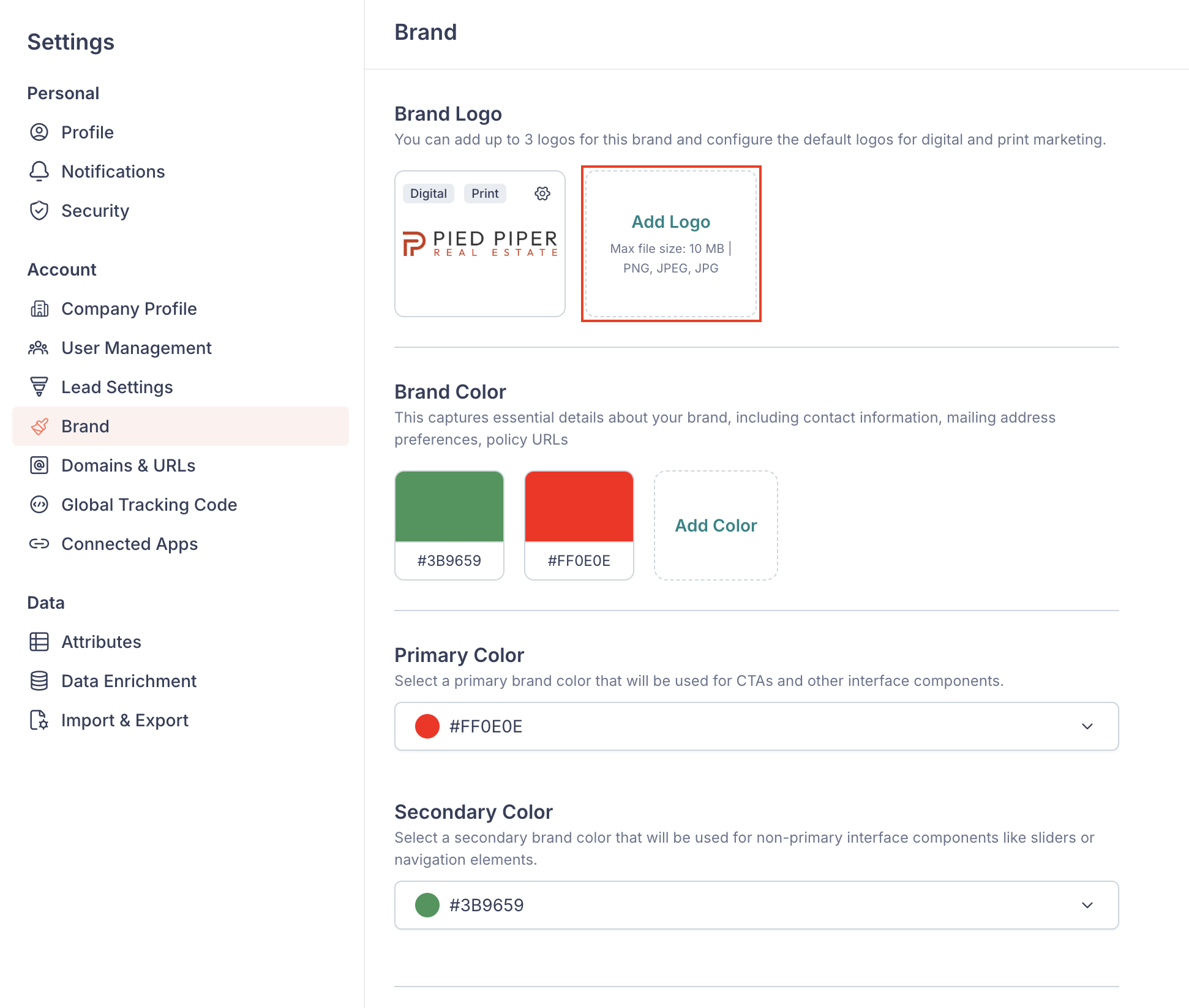
- Select a logo image from your device.
🗒️ Note: The maximum file size for brand logos is 10 MB. Supported formats are PNG, JPG, and JPEG.
- Crop the logo as required, then click Submit.
- Choose whether to set this logo as the default for digital marketing (emails, landing pages, etc.), print marketing (postcards), or both.
- Click Save.
🗒️ Note: You can only have one default logo for digital marketing and one default logo for print marketing at a time. Setting a new default will replace the current one.
To change which logo is used as the default for digital or print marketing, or to remove a logo, click the gear icon next to a logo.
💡 Tip: For the best results, use a sharp, high-quality logo image. Preview your logo on different backgrounds to ensure all elements are clearly visible.
Brand Color
These are the colors associated with your brand. You can add up to four brand colors, which can then be used as your primary or secondary color.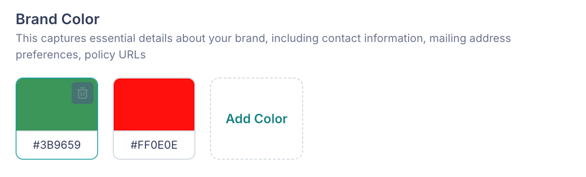
To add a color, click Add Color and enter a color value or use the color picker.
To remove a color, click the Bin icon over it.
Primary Color
Select a primary brand color that will be used for CTAs (call-to-action buttons) and other interface components across your marketing.

Secondary Color
Select a secondary brand color that will be used for non-primary interface components like sliders or navigation elements.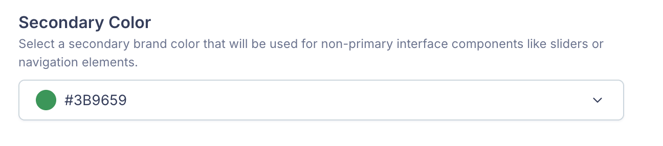
Button Style
The Button Style section lets you configure how CTAs look across your contact dashboards, landing pages, and other marketing assets.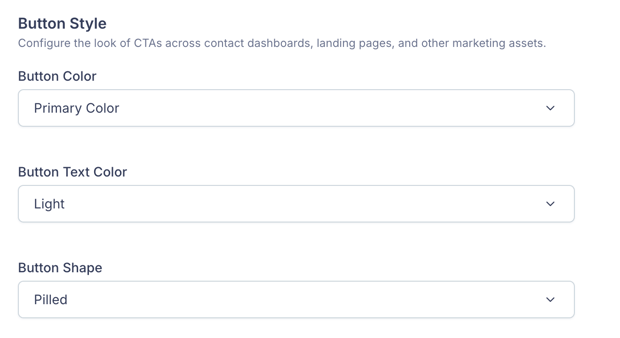
You can configure:
- Button Color: Choose whether to use your brand's primary or secondary color for CTAs.
- Button Text Color: Choose between Light or Dark button text.
💡 Tip: Choose a button text color that contrasts with your button color to ensure text is clearly visible. For example, use light text for darker buttons and dark text for lighter buttons.
- Button Shape: Select the shape of CTAs across your marketing. Available options are:
- Rounded Corners (8px)
- Rounded Corners (4px)
- Squared Corners
- Pilled
💡 Tip: If you're embedding Fello's widgets on your website, choose a button shape that matches the CTAs on the rest of your site so everything looks consistent.