
Each user in Fello manages their own notification preferences, so the settings you configure here apply only to you.
In this article:
- Where to find your notification settings
- Turning notification channels on or off
- Configuring notification topics
- Setting up notifications for other team members
Where to find your notification settings
To open your notification settings:
- Go to Settings from the bottom-left corner.
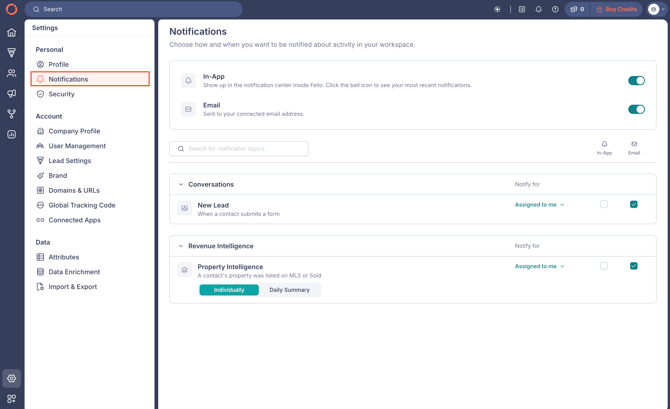
- Click Notifications under the Personal section.
Turning notification channels on or off
Fello supports two notification channels:
-
In-App notifications appear in the notification center inside Fello. Click the bell icon in the top-right to see your most recent notifications.
-
Email notifications are sent to the email address connected to your user account.
At the top of the Notifications page, you'll find master toggles for each channel.
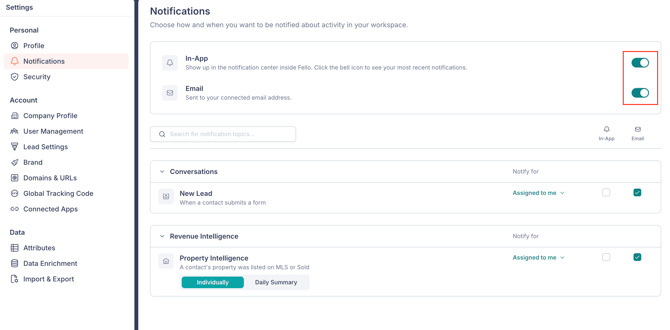
🗒️ Note: Turning off a channel here disables it for every notification topic. To turn off a channel for a specific topic only, use the per-topic checkboxes further down the page.
Configuring notification topics
Below the master toggles, you'll find your available notification topics organized into two sections: Conversations covers notifications about new contact activity, and Revenue Intelligence covers notifications about property and listing activity.
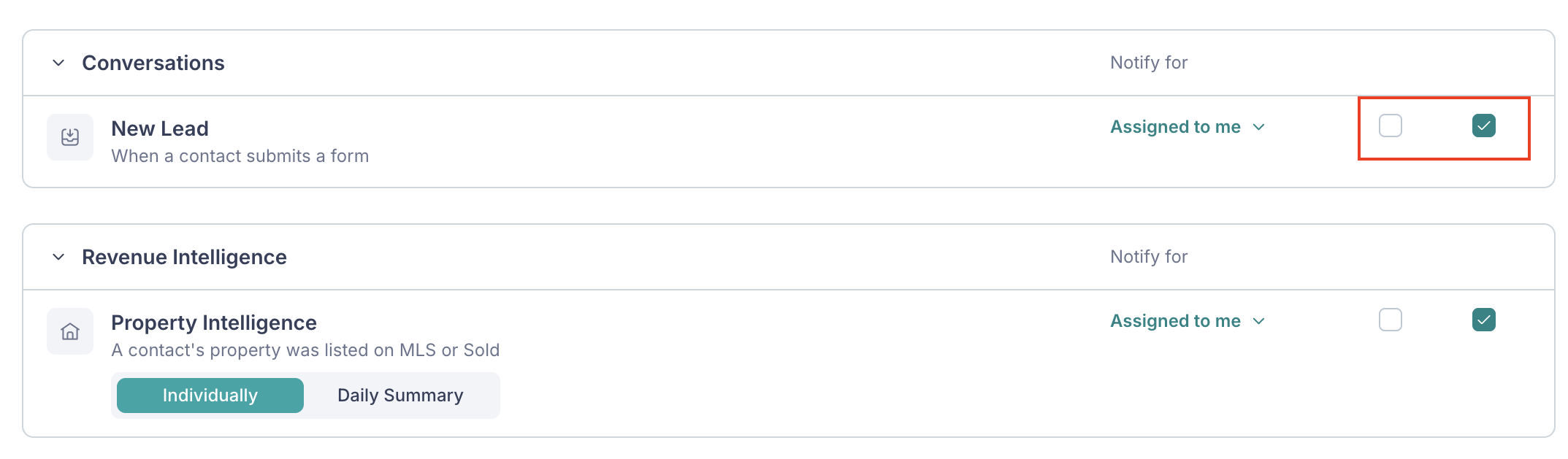
For each topic, you can independently choose:
- Whether to receive In-App and Email notifications.
- Which contacts to be notified about, using the Notify for dropdown. Choose Assigned to me for only contacts assigned to you, or All contacts for any contact in your account.
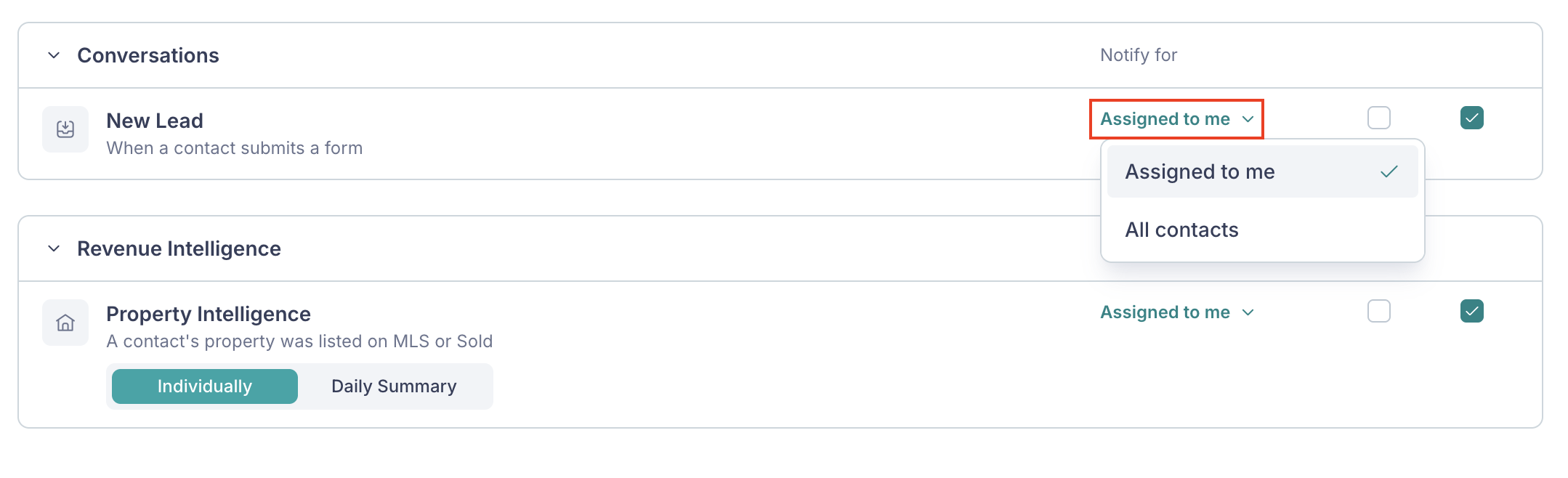
🗒️ Note: The All contacts option is only available to users whose role allows access to all contacts in the account. If you don't see this option, your role is restricted to assigned contacts. Learn more about roles and permissions.
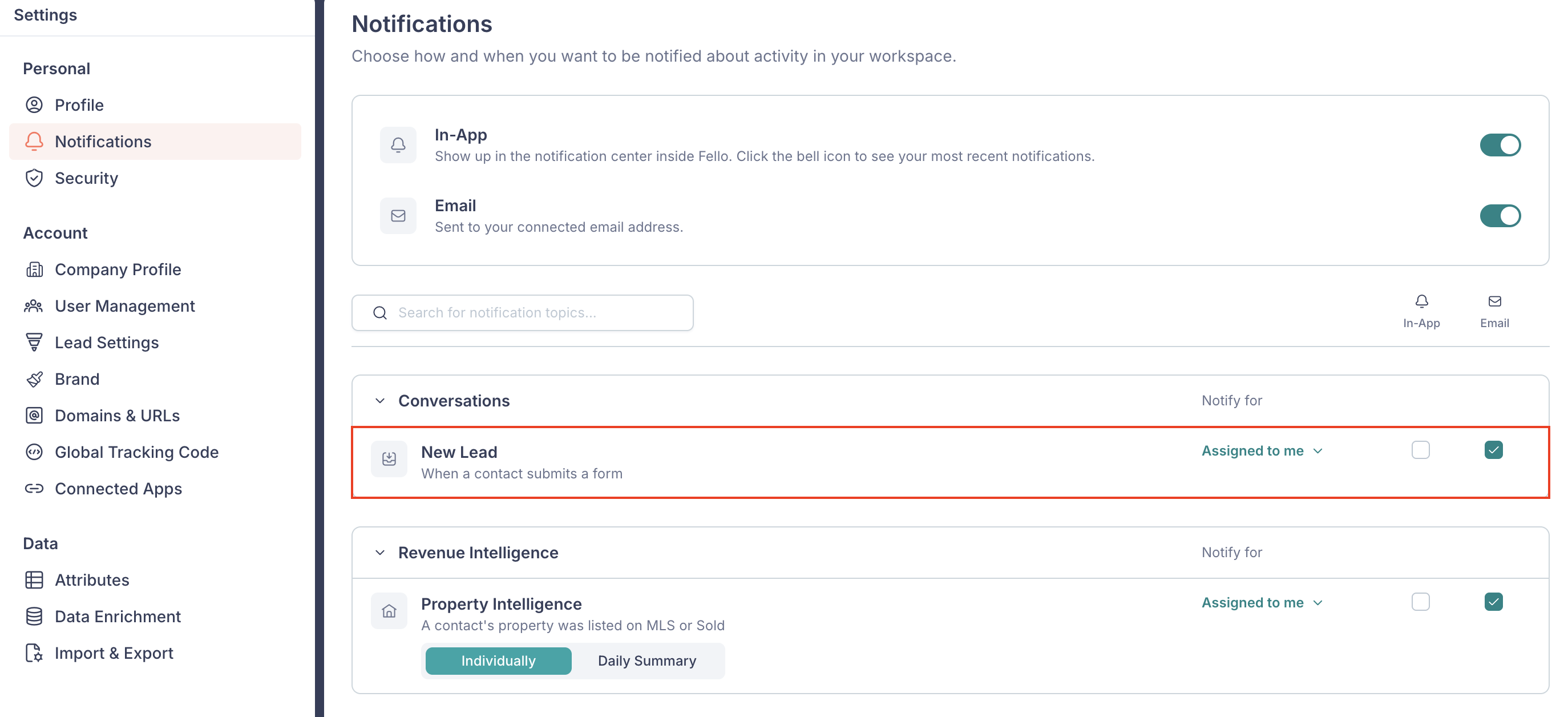
New Lead
The New Lead notification fires when a contact submits a form.
Property Intelligence
The Property Intelligence notification fires when a contact's property is listed on MLS or sold. In addition to scope and channel settings, Property Intelligence has a frequency control:
- Individually: You're notified each time a property is listed or sold.
- Daily Summary: You receive a single roll-up email per day with all the activity for that day.
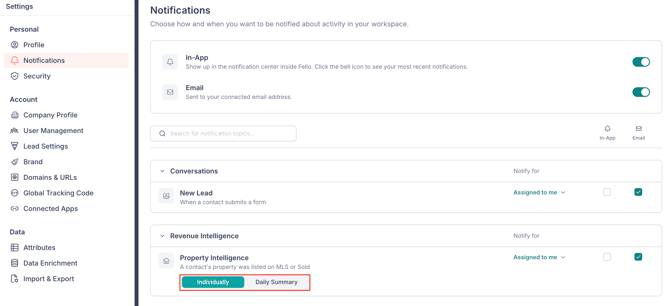
💡 Tip: If you find Property Intelligence notifications too frequent, switching to Daily Summary is a quick way to reduce volume without missing the activity.
Setting up notifications for other team members
If someone else on your team needs to receive Fello notifications, they'll need to be added as a user in your account. Once added, they can sign in and manage their own preferences from this page. Learn more about adding users.