
You can configure a daily limit for the maximum number of postcards that can be sent as part of your marketing worflows in Fello. You can also set a return address that will be displayed on all postcards sent from your account.
🗒️ Note: Only users with access to marketing settings can manage postcard settings. Learn more about roles and permissions.
In this article:
Access postcard settings
To access your postcard settings:
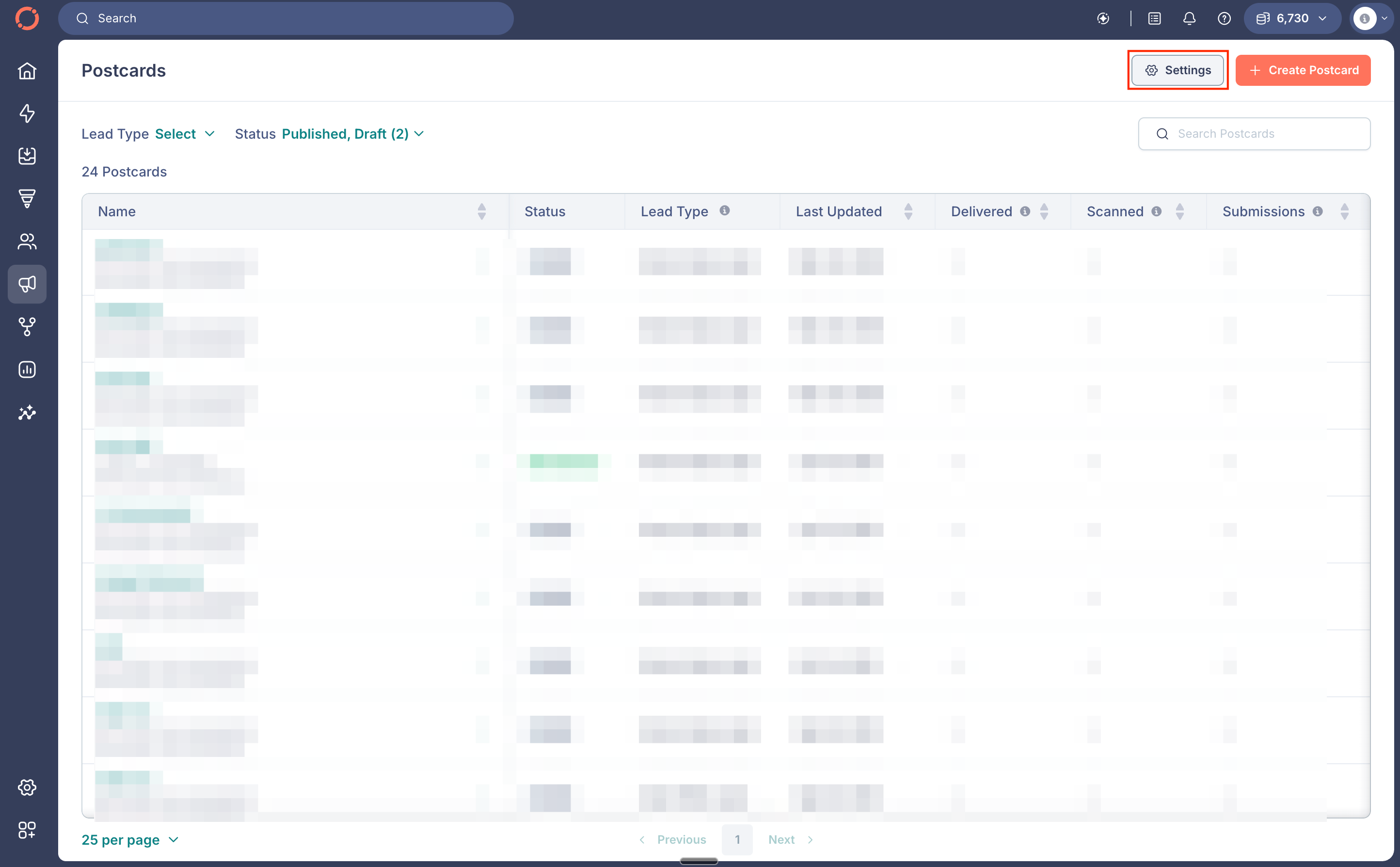
- Go to Marketing > Postcards from the left sidebar.
- Click Settings in the top-right corner.
Set a daily postcard limit
Setting a daily limit helps you optimize your credit usage and ensures that only a certain number of postcards go out each day, so you can align postcard volume with your team's size and requirements.
How it works:
- You set a daily limit for postcards.
- This limit applies to all postcards across all postcard workflows.
- When the limit is reached, postcards that are supposed to be sent out will be queued for the next day.
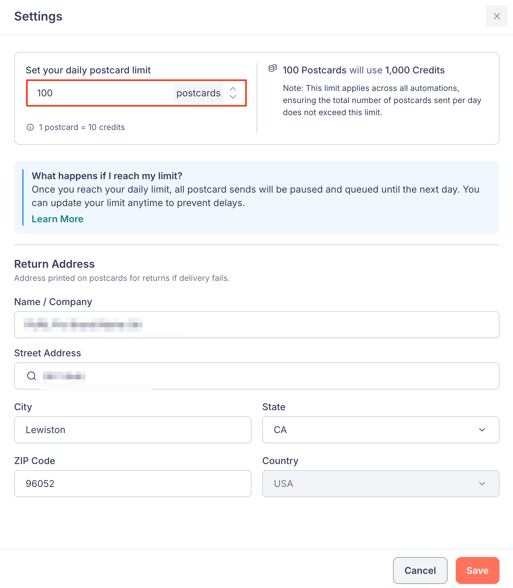
To set a daily postcard limit:
- Open your postcard settings.
- Under Daily Limit, enter the maximum number of postcards you want to send per day.
💡 Tip: If you're not sure about what limit to set, we recommend observing your existing postcard workflows for a period of time to identify your team's requirements.
- Click Save.
Your daily postcard limit has been set. Remember to assess your postcard workflows periodically and adjust your limit as required.
Set your return address
Your return address is displayed on all postcards sent from your account. This is typically your business or brokerage's physical mailing address.
To set your return address:
- Open your postcard settings.
- Under Return Address, fill in the following fields:
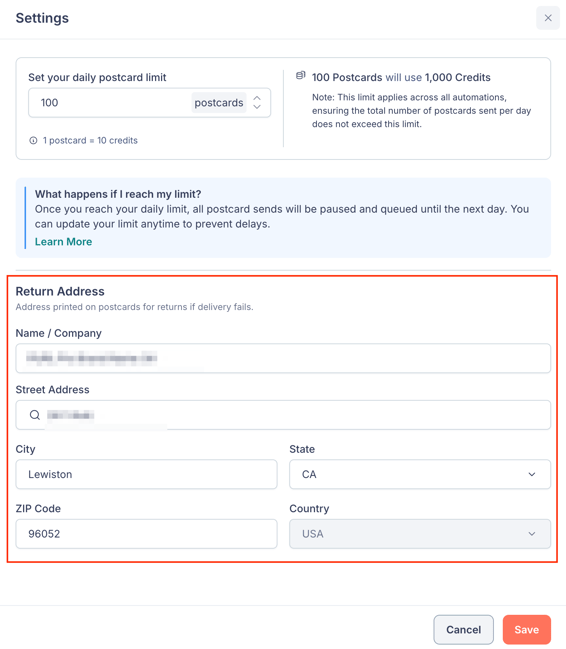
- Name/Company: The name of your business or brokerage.
- Street Address: Your mailing street address.
- City
- State
- ZIP
- Country
- Click Save.
Your return address will now appear on all postcards sent from your account.