How to add MLS details to enable Property Intelligence data
Learn how to add your team's MLS details in Fello, which enables Property Intelligence data.
00:02: Fellow fellow.
00:06: In this video, you will learn how to navigate user settings and manage your MLS entries.
00:12: Start by clicking on your profile icon located in the top right-hand corner.
00:18: A drop-down menu will appear. Click on settings?
00:23: Once you're on the settings page, click on user management.
00:28: On the user management page, click on your profile name to edit.
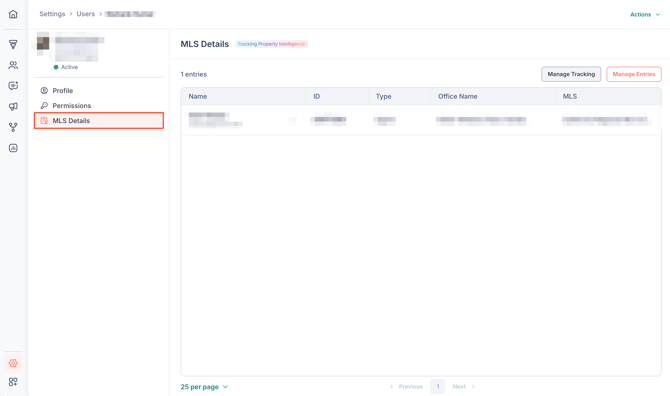
00:34: Now that you're in your profile, click on MLS details, located on the left-hand side.
00:41: Now that you are on the MLS Details page, you can review all of the current entries.
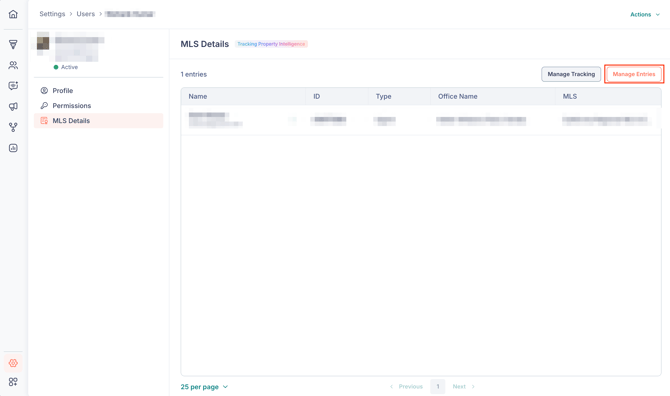
00:49: If you would like to add or edit, MLS details, click on manage entries.
00:56: You can search for MLS details by agents or by offices.
01:01: In the search bar, you may enter by Name ID or email addresses.
01:08: You can quickly select all by checking the box next to agent name.
01:14: Once you've selected all of your preferred, MLS details, click confirm and add located in the top right-hand corner.
01:24: A confirmation window will appear, click confirm and add.
01:30: You can return to the MLS Details page to review all of your entries.
01:36: If you would like to delete an entry, click on the three dots located to the right of the entry name.
01:43: After you click on the three dots, select delete.
01:48: You will confirm your request by clicking delete on the confirmation window.
01:54: And that's it. You've now learned how to add and delete MLS details.
02:02: Fellow fellow fellow.
For accurate reporting in Fello that includes Property Intelligence, it's essential to set up your MLS details correctly. Here's how you can do this:
🗒️ Note: Fello automatically adds MLS details if possible for new users when they enter the platform. You can always check or remove these details and even add any missing MLS details for users.
- Go to Settings > User Management.
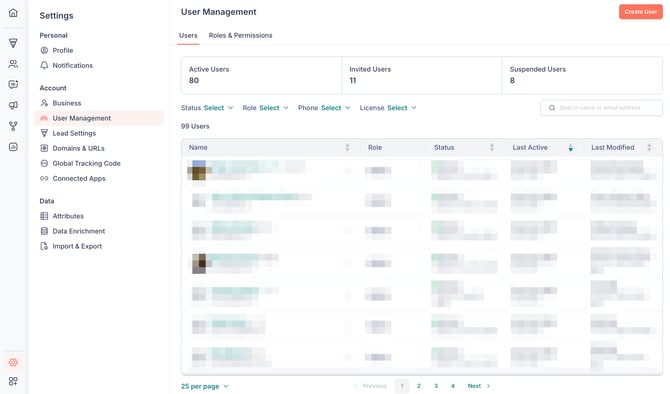
- Click on the user for whom you want to update MLS details.
- Navigate to the MLS Details section.
- Click Manage Entries.
- Choose whether you're searching based on Agents or Offices, and type either a name, ID, or email address in the search bar.
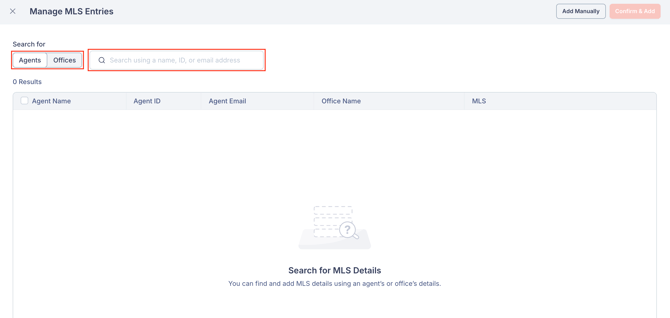
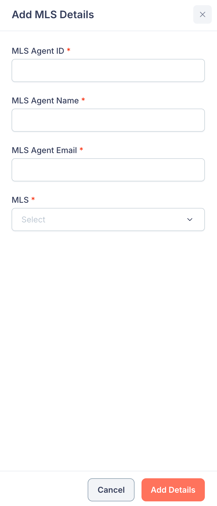
💡 Tip: If you cannot find your MLS details via search, you can add them manually instead.

- Select the record(s) that apply to you.
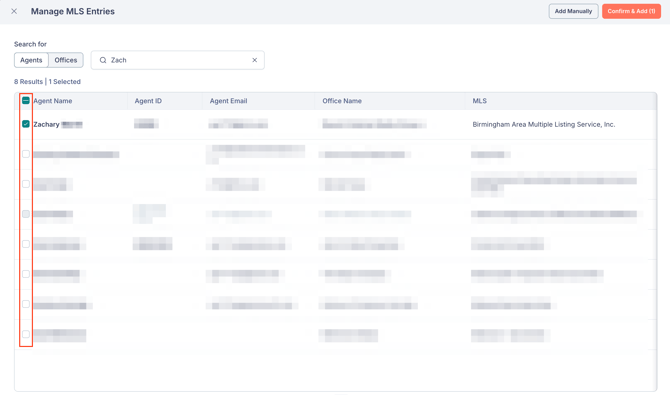
- Click Confirm & Add.
Your MLS details have now been added, and you will soon start seeing Property Intelligence data in your account.
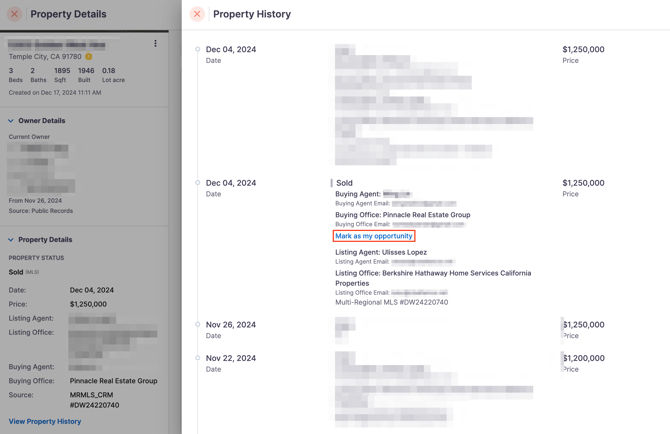
💡 Tip: You can also add your team's MLS details directly from a property's history if it's a property that your team is listing. This can be done by clicking Mark as my opportunity shown in the image below.