
Contacts in Fello can have 1 primary phone number and up to 4 additional phone numbers. The primary number is used for all calls and texts sent from Fello, including outreach from Felix. You can make any additional number the primary at any time.
In this article:
- Viewing a contact's phone numbers
- Adding a phone number
- Changing the primary phone number
- Deleting a phone number
- Importing and syncing phone numbers
Viewing a contact's phone numbers
The primary phone number appears under the contact's name, followed by a badge showing how many additional numbers are stored (for example, +4). Hover over the badge to see the full list.
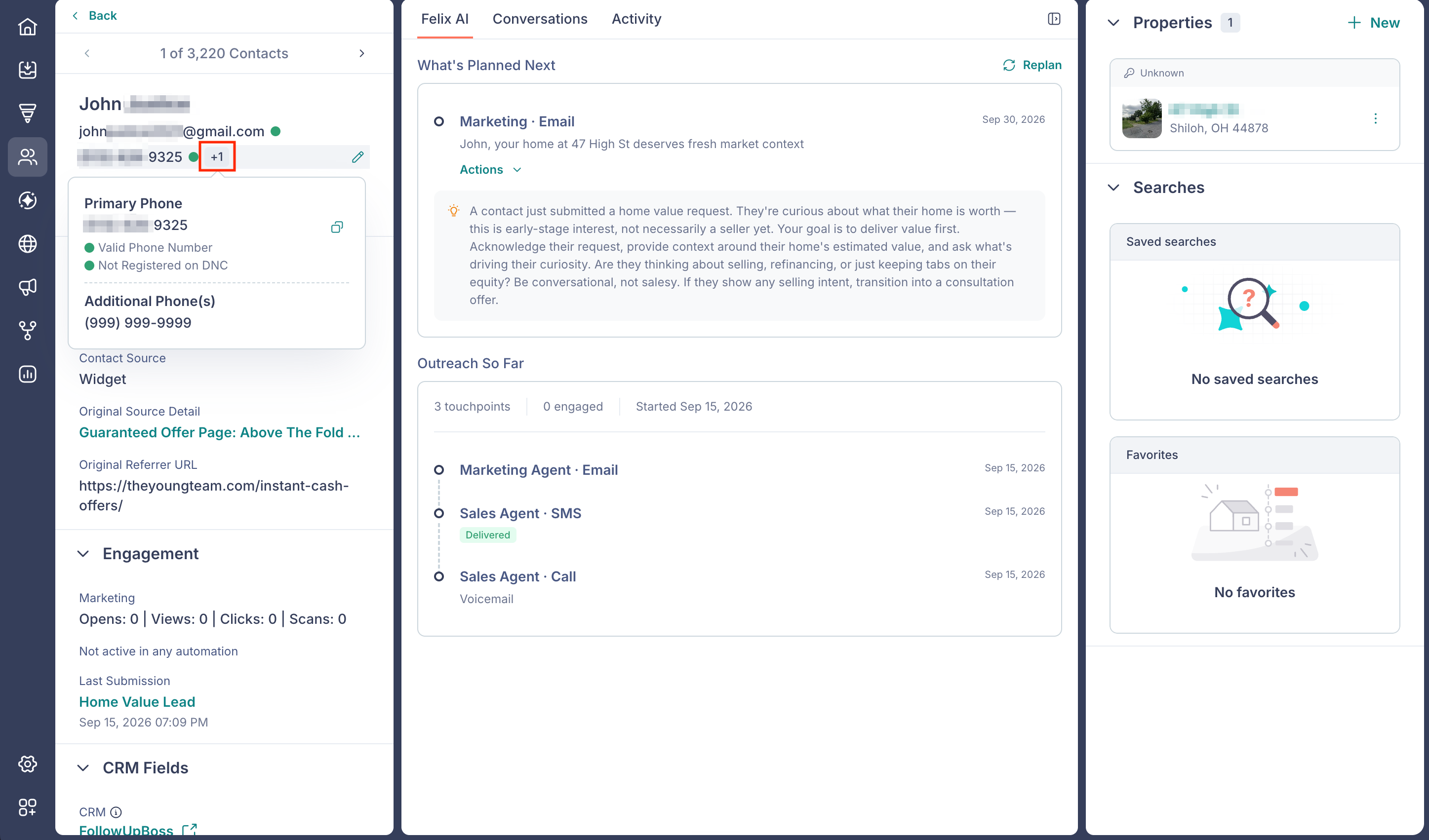
- Primary Phone: the number used for calls and texts, shown with its validation status and DNC registration status.
- Additional Phone(s): every other number stored on the contact.
The same list is available under Contact Phone when you view all attributes for a contact.
Adding a phone number
- Go to the Contacts module from the left sidebar.
- Select a contact.
- Hover over the phone number and click the Edit (pencil) icon next to it.
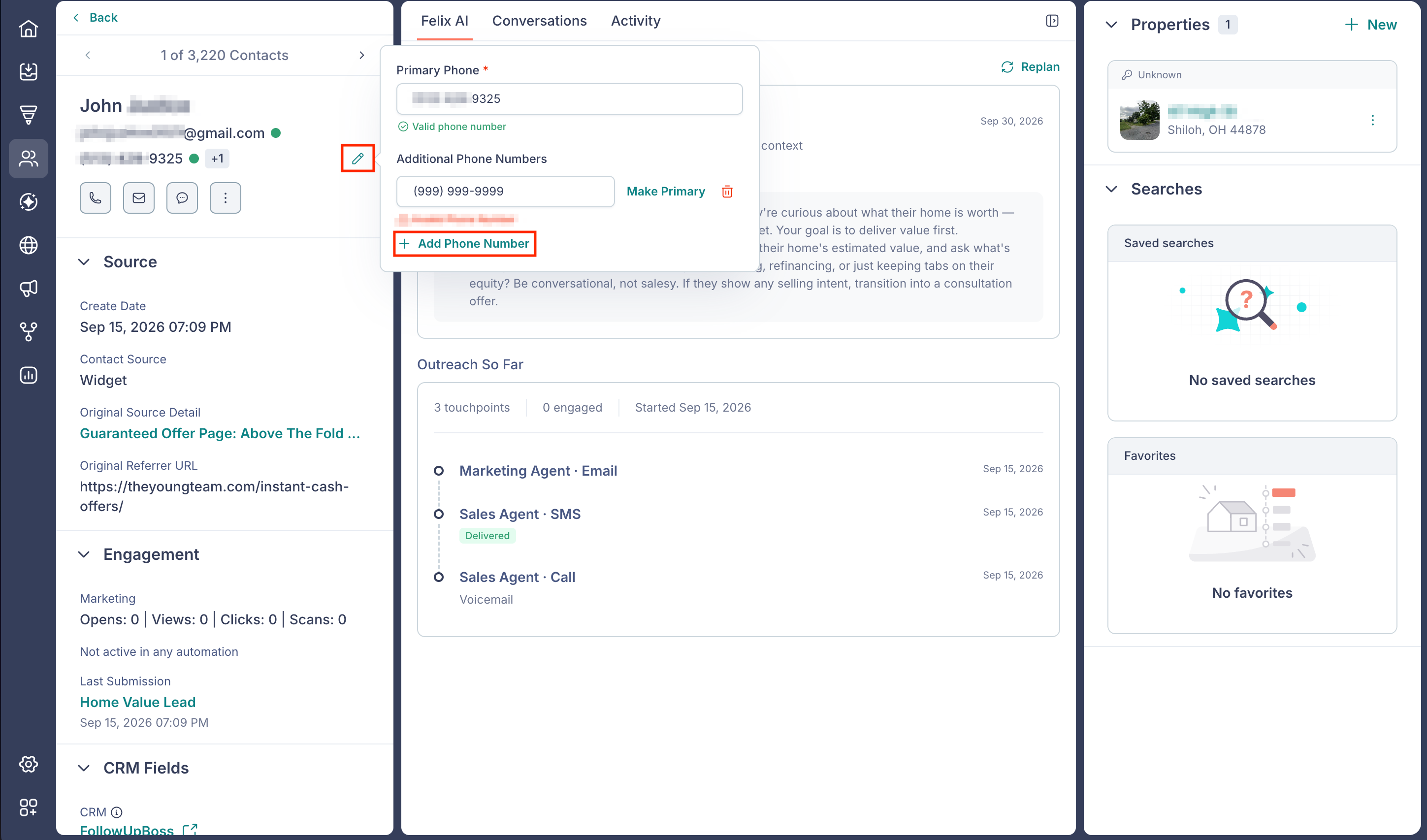
- Click + Add Phone Number.
- Enter the phone number.
Each number displays its status below the field: Valid phone number, Invalid Phone Number, or Validation Pending while the check is still running.
📗 Note: Once a contact has 4 additional numbers, + Add Phone Number no longer appears. Delete one of the existing numbers to make room for another.
Changing the primary phone number
- Hover over the phone number on the contact's record and click the Edit (pencil) icon.
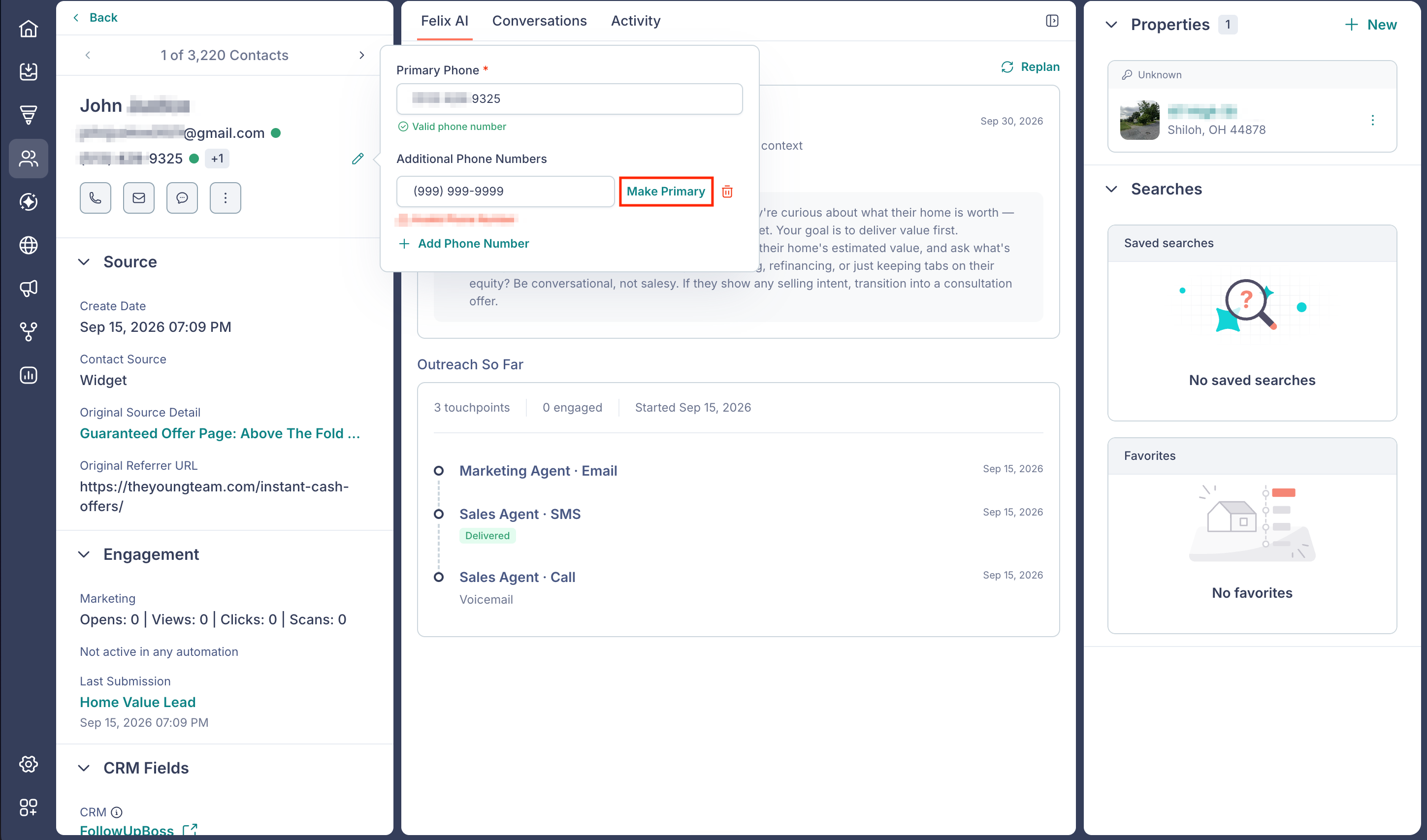
- Click Make Primary next to the number you want to use.
That number becomes the primary, and the previous primary moves into the additional numbers list.
Deleting a phone number
- Hover over the phone number on the contact's record and click the Edit (pencil) icon.
- Click the Delete (trash) icon next to the number you want to remove.
- Click Delete to confirm.
📗 Note: Deleting a phone number cannot be undone. The primary number can't be deleted directly. To remove it, make another number primary first.
Importing and syncing phone numbers
The sample import file includes a Primary Phone column and Additional Phone 1 through Additional Phone 4 columns. Map the phone columns in your file to these fields during import. Learn more about importing contacts.
Phone numbers that arrive through a CRM integration or the API are stored the same way, so numbers beyond the primary are kept on the contact record instead of being dropped.
💡 Tip: To add numbers for many contacts at once, export your contacts, fill in the additional phone columns, and import the file back into Fello.