How to start setting up your user account
Learn how to accept your invite and set up your account in Fello.
00:02: Fellow fellow.
00:06: Hi there. In today's video, you'll learn how to set up your user profile.
00:10: Here you can add a profile picture and enter your contact information.
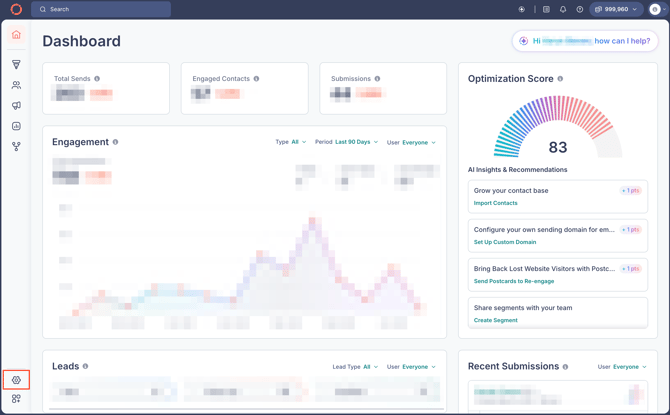
00:16: Starting from the home page, locate the settings at the bottom left hand side
00:20: marked as a gear icon.
00:24: You can also find your settings by clicking the profile icon at the top
00:28: right corner. Yours may show as the letter of your first name until
00:32: you add a photo.
00:34: Once you click on the profile icon, a drop-down will appear click on
00:38: settings.
00:41: You can now upload an image of yourself by clicking upload photo.
00:47: Once you upload your photo, you can adjust the image to fit.
00:52: Once you're satisfied with the image, click submit.
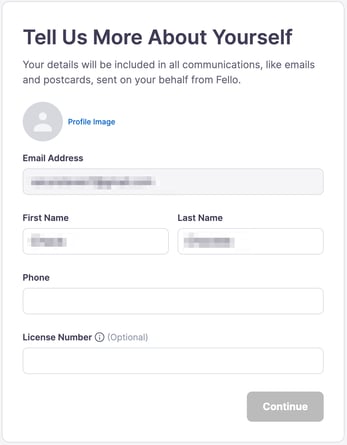
00:58: Enter your first name.
01:01: Then, enter your last name.
01:04: And to your phone number.
01:07: And now, enter your license number.
01:12: You can also add a custom signature.
01:16: Finally, End by clicking save and that's it.
01:19: You've successfully set up your user profile.
01:26: Fellow fellow fellow.
To get started with your user account:
- Go to you email inbox and find your Fello invite.
- Click Accept Invite in the email.
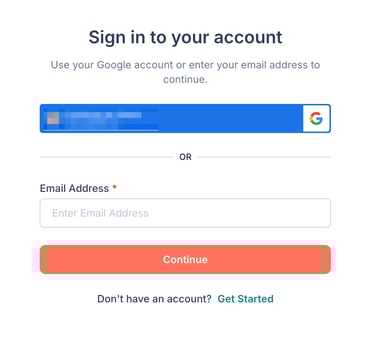
- Sign in to your account. You can continue with your Google account, or enter your email address to sign in using a one-time code.
00:02: Fellow fellow.
00:05: Hi there, welcome to fellow in today's video.
00:08: You will learn how to log into the fellow platform website to begin, go
00:13: to fellow.in
00:18: Sign into your account with the email address that you will registered with.
00:21: If you have a Google email address, click on the Google email, login.
00:27: If you registered with an email address, that is not Gmail, click on email
00:31: address and enter it here.
00:35: Click on continue in a few moments, you'll receive an email from
00:39: fellow.
00:41: Check your email for the necessary, verification code for your login
00:46: Authentication.
00:49: Open the email and copy the verification code.
00:53: Return to the fellow website and input the verification code in
00:57: the input field.
01:00: Now, click continue.
01:03: Well done. You're now logging to your fellow account.
01:05: Now, you'll be brought to your homepage here.
01:08: You can see your account summary engagement, statistics, optimization
01:13: score, and much more.
01:19: Fellow fellow fellow.

- Enter the following details such as phone number, license number, and upload a profile picture. Click Continue when done.
You will then be taken to your dashboard, and can start exploring Fello.