There are two types of contacts in Fello: Active and Monitored. The number of Active contacts you can have in Fello depends on your current plan. If you exceed your current limit of Active contacts, then you will be upgraded to the next Active contact tier limit automatically and billed for the additional cost.
💡 Tip: To view your plan's Active contact limit, go to Profile > Billing.
When a contact's status is set to Monitored, they become non-actionable. Fello continues to enrich them with property and contact data, but they cannot be enrolled in new workflows or included in outreach. Active workflows skip them on sends. Some data points, like AVM (home value), are not viewable until activation and are indicated by a lock icon. You can activate a Monitored contact at any time to resume outreach, and Felix activates one on its own when its signals are strong enough.
🗒️ Note: If Let Felix decide is on, marking a contact as Monitored does not permanently keep them out of outreach. Felix can activate a Monitored contact whose signals are strong enough. To stop this, turn off Monitored contact activation or add the contact to a Sales Agent exclusion source.
In general, we recommend marking any eligible contacts as Active in order to make full use of your contact base for workflows. However, you may have Active contacts that don't necessarily qualify to be in that status. This could be due to various reasons, such as a missing email address or contacts that are outside your business's region.
Marking these contacts as Monitored helps clear space in your database for potential contacts that are more likely to engage and frees up credits used on workflow sends. To do this:
- Go to the Contacts module.
- Click the Filter icon above the list of contacts.
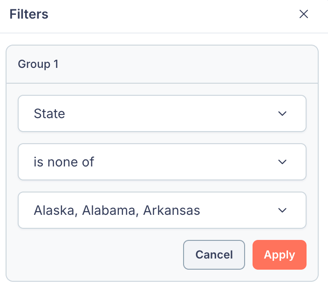
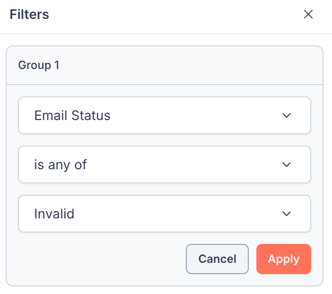
- Select the criteria by which you want to filter contacts. View suggested criteria
- Click Apply.
- Select the filtered contacts that you'd like to mark as Monitored.
- Click the More dropdown and select Edit Record Status.

- Select Monitored from the dropdown.
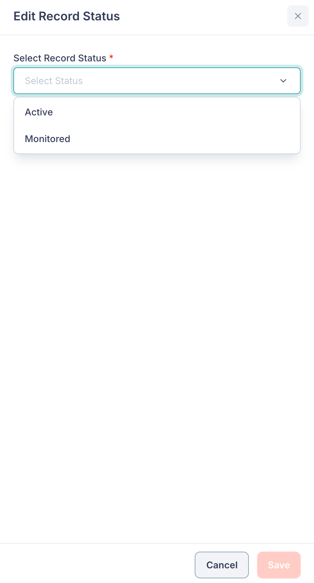
- Click Save.
Now, the selected contacts will be marked as Monitored.
Control whether Felix can activate Monitored contacts
When Let Felix decide is on, Felix can activate a Monitored contact whose signals are strong enough, which adds it to your Active contact count. Turn this off to keep those contacts Monitored.
- Go to Settings from the bottom-left corner.
- Go to Billing under Account.
- Click Upgrade next to Active Contacts.
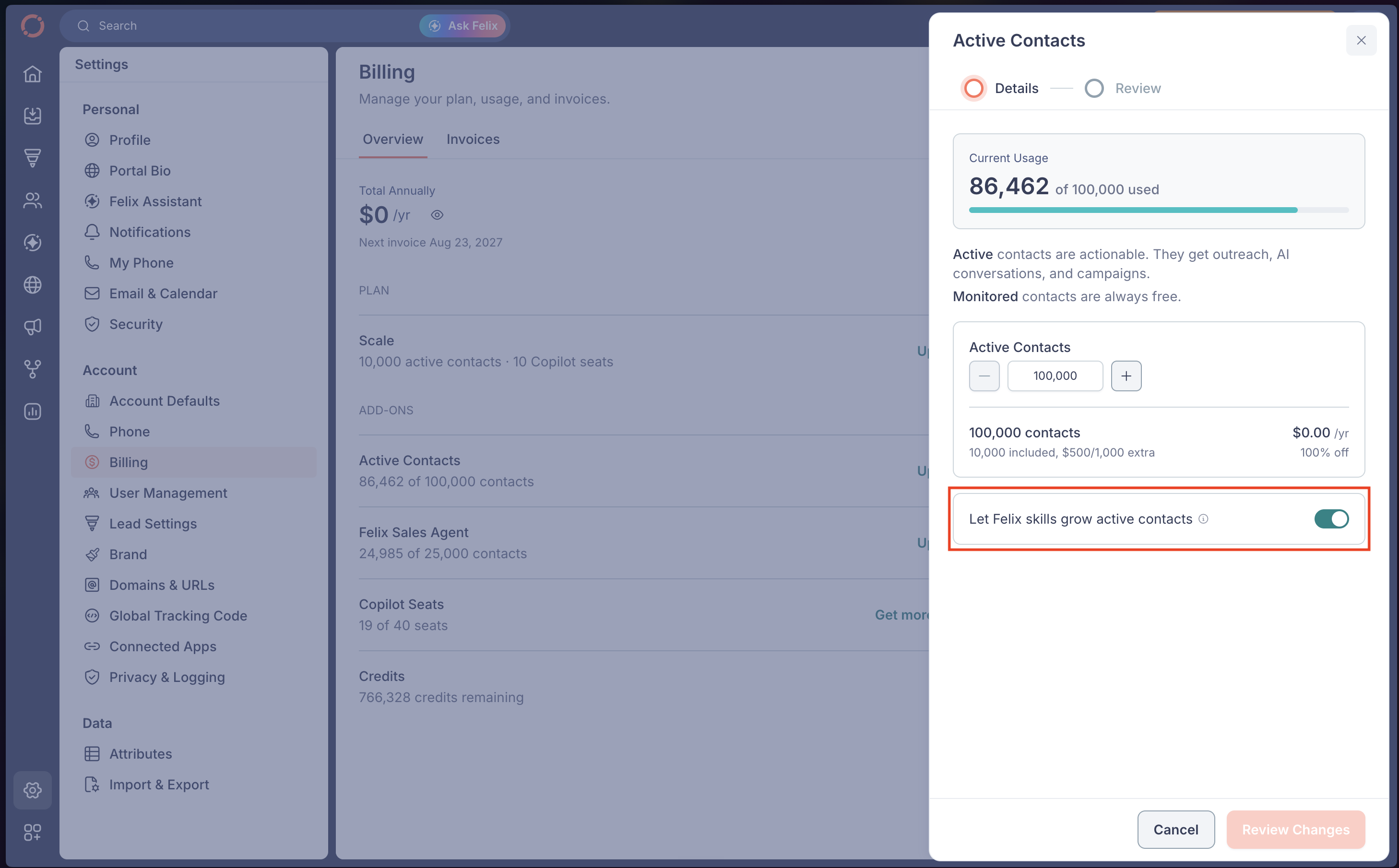
- Turn off Let Felix skills grow active contacts.
- Click Review Changes, then confirm on the Review step.
🗒️ Note: This setting only controls activation by Felix. Contacts added to Fello are set Active or Monitored by their source settings, which this setting does not change.
Example filter criteria
Here are a few example criteria that you can use to filter Active contacts:
- Invalid Email Address: Prevent contacts with invalid email addresses from using up your Active contact limit.
- Out-of-State Contacts: Filter out contacts that are outside of your business's operating region.