
Fello supports multiple ways to log in to your account. You can manage your login preferences and set up a passkey from the Security page in your settings.
In this article:
- Login Methods in Fello
- What is a Passkey?
- How to Add a Passkey
- How to Log In with a Passkey
- How to Rename a Passkey
- How to Delete a Passkey
Login Methods in Fello
Go to Settings > Security to view the Login Methods available on your account. 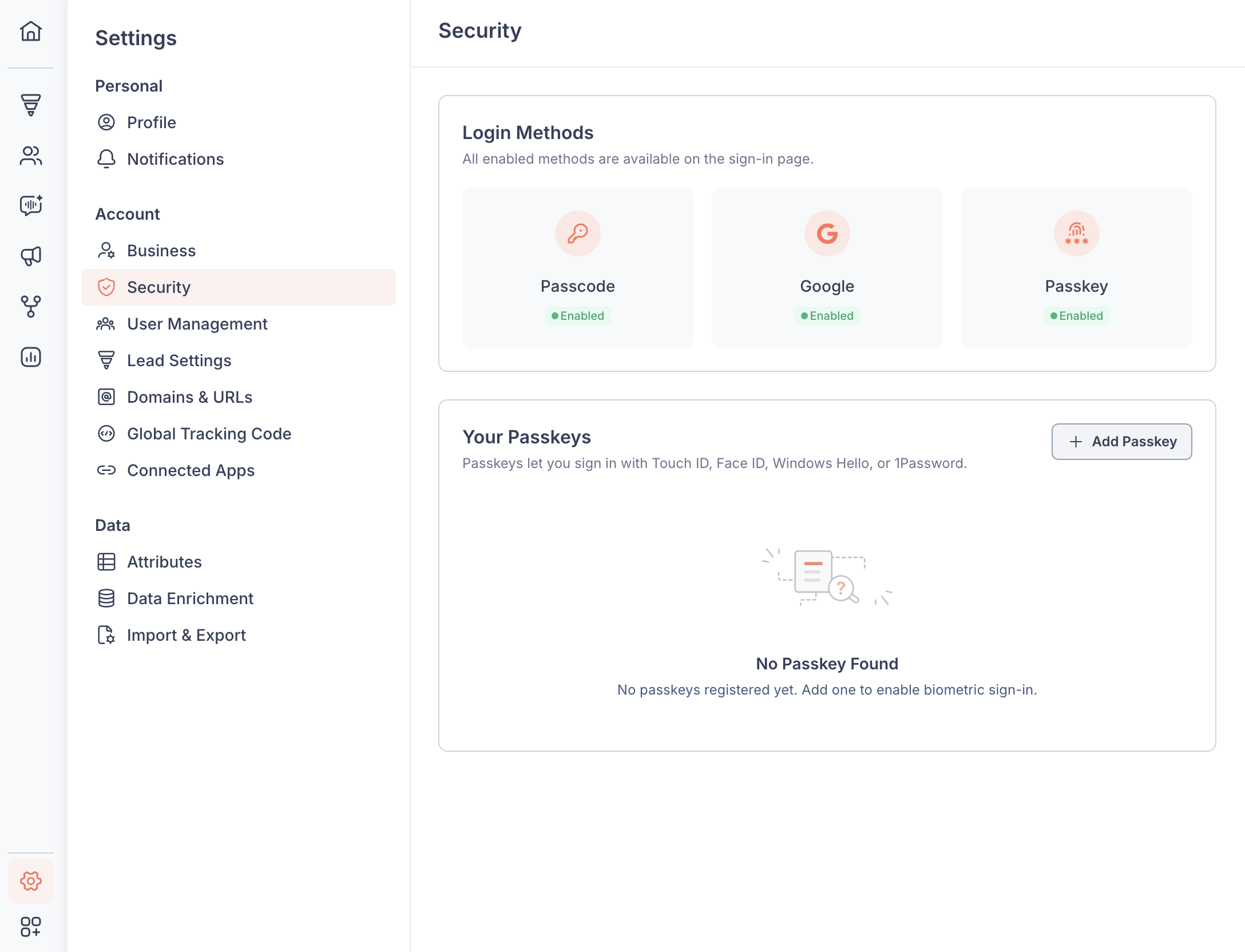
Fello currently supports three login methods:
- Passcode — Enter your email address on the log-in page and Fello will send a one-time code to your inbox. Enter the code to log in — no password required.
- Google — Log in using your Google account with one click.
- Passkey — Log in using biometrics such as Touch ID, Face ID, Windows Hello, or a password manager like 1Password.
What is a Passkey?
A passkey is a password-free way to log in that uses your device's built-in biometrics — like your fingerprint, face, or device PIN — to verify it's really you. It's faster than waiting for a one-time code, and can be used across multiple devices.
🗒️ Note: Passkeys are saved on the specific device or password manager you register them with. If you want to log in on a new device, you can either register a new passkey on that device or use your existing passkey via QR code on the log-in page.
How to Add a Passkey
- Go to Settings from the left sidebar.
- Click Security under the Personal section.
- Click + Add Passkey in the Your Passkeys section.
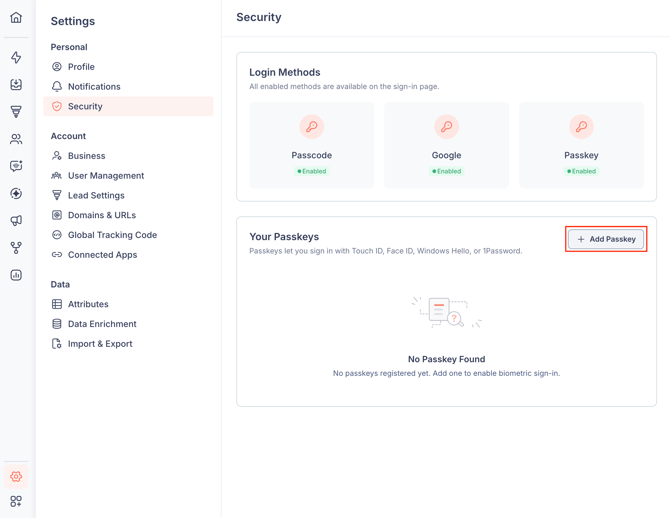
Your browser or device will prompt you to create a passkey. Click Continue to confirm.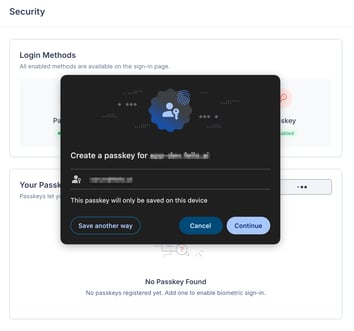
Complete the biometric verification step on your device (e.g., Touch ID, Face ID, or Windows Hello).
Your passkey has been added. It will appear in the Your Passkeys section, showing the device or password manager it's saved to along with the date it was created.
💡 Tip: The default name Fello assigns to a passkey is based on your browser and the time it was created, which can be hard to read at a glance. After adding a passkey, consider renaming it to something more recognizable — like MacBook or iPhone — so you can easily tell them apart if you have multiple. Learn how to rename a passkey.
How to Log In with a Passkey
To log in with your passkey:
- Go to the Fello sign-in page.
- Click Sign in with passkey.
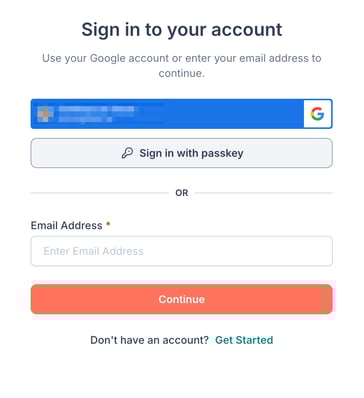
- If your passkey is saved on the same device, your browser will prompt you to verify using biometrics or your device PIN.
- If your passkey is saved on a different device (such as your phone), a QR code will appear — scan it with your phone's camera to complete sign-in.
How to Rename a Passkey
- Go to Settings > Security.
- Click the More (3-dot) icon on the passkey you want to rename.
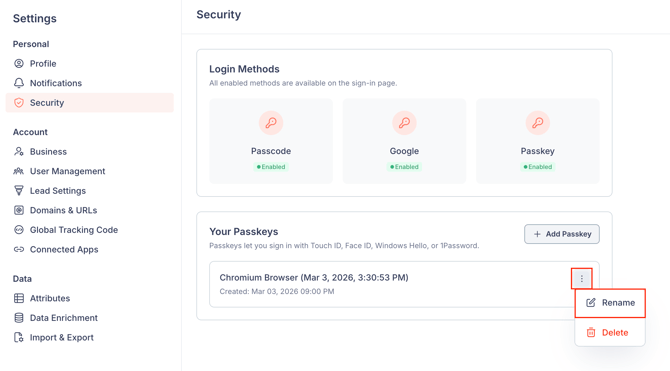
- Click Rename.
- Update the Passkey name field with a new name.
- Click Save.
Your passkey has been renamed.
How to Delete a Passkey
- Go to Settings > Security.
- Click the More (3-dot) icon on the passkey you want to remove.
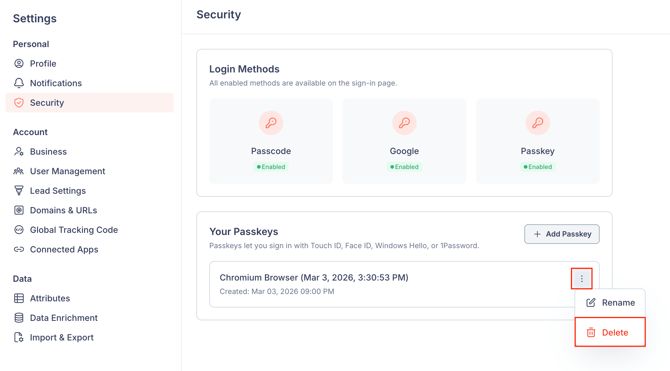
- Click Delete.
- Click Delete again in the confirmation dialog to confirm. [Screenshot: "Delete this passkey?" confirmation dialog with Cancel and Delete buttons]
Your passkey has been removed and can no longer be used to sign in to your account.
🗒️ Note: Deleting a passkey in Fello removes it from your account, but it may still be saved on your device or password manager. To fully remove it, also delete it from your device's passkey settings.