
What the Fello iOS app is
The Fello iOS app brings the parts of Fello you need on the go to your phone. You can see your contacts and their signals, follow and manage what Felix is doing, take and place calls, send texts and emails, and get real-time notifications the moment a lead needs you. It's built for when you're away from your desk, between showings, appointments, and everything in between.
The app is for existing Fello customers. You sign in with your Fello account and your database comes with you, so there's no separate setup. It works alongside the web app rather than replacing it: the web app remains where you configure and build, and the iOS app is where you stay on top of activity and act in the moment.
Download and sign in
To get started on iOS:
- Download the Fello AI from the App Store.
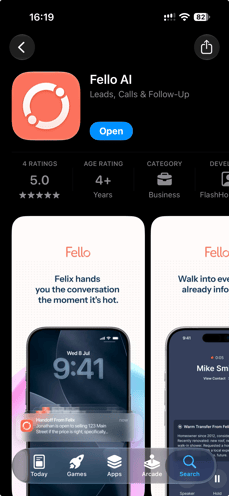
- Open the app and sign in with your existing Fello account, the same way you log in on the web app.
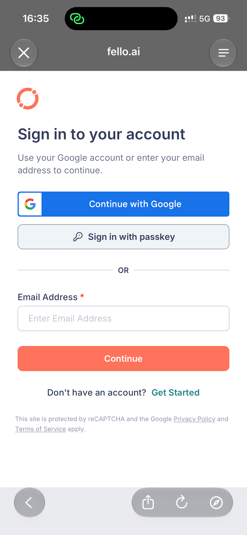
🗒️ Note: You need an existing Fello account to use the app. It isn't a way to create a new Fello account.
Manage your account
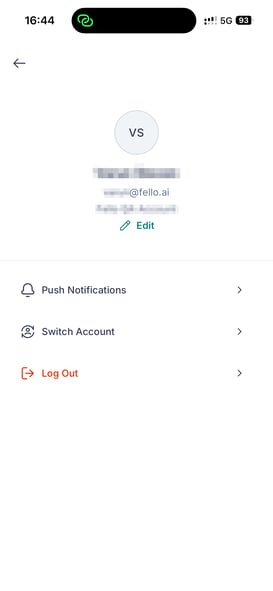
Tap your profile in the top-right corner to edit your personal information (name, photo, phone, license number, and signature), turn push notifications on or off, switch between Fello accounts you belong to, or log out.
What you can do on the iOS app
The iOS app covers the day-to-day work you do away from your desk:
- Contacts: View your contacts and open a contact to see the Info, Felix AI, Conversations, and Activity tabs. Add a contact, delete a contact, and copy a contact's URL or details.
- Find contacts: Filter, sort, and search your contacts.
- Signals and intent: See a contact's signals and intent level, along with property, contact stage, tag, source, communication preference, engagement, and CRM field details. View all attributes and attribute history.
- Felix outreach: Follow what Felix has planned and what it has done so far, and adjust the plan (replan, do now, skip, or change time). Enroll or unenroll a contact in Sales Agent, disable Sales Agent, unenroll from Nurture, and take over from Felix.
- Properties: Open a property to see its overview, activity, offers, and notes. Edit home details, preview the contact dashboard, copy the dashboard URL, and delete a property.
- Offers: Build and manage offers, including adding traditional listing details, creating an offer, previewing it, and notifying the contact.
- Conversations: Use the inbox (My Inbox, Unassigned, Starred, and Sent), follow Felix Outreach (Attempting, Engaging, Handoff, and Pending), and sort, filter, star, snooze, or close conversations.
- Call, text, and email: Call (including calling back from your recent call log), text, email, and add notes from a contact. These require a Copilot seat.
- Activity: View a contact's full activity timeline and filter it by type.
- Notifications: Get in-app and push notifications for new leads, messages, and handoffs, and configure the notifications that you want to receive.
🗒️ Note: Calling, texting, and one-to-one email require a Copilot seat. Without one, those actions are disabled and you'll see a prompt to request a seat, the same as on the web app.
What to use the web app for
Setup, configuration, and content creation stay on the web app. Use the web app for:
- Settings and admin: All account, admin, and configuration settings.
- Workflows and automations: Building and editing workflows and automations.
- Felix setup: Setting up and configuring Felix, training Felix on the Knowledge page, and configuring Felix skills. (On iOS you can enroll and manage contacts, but not configure Felix itself.)
- Ask Felix: Ask Felix is available on the web app, not yet on iOS.
- Editing a contact's details: Editing an existing contact's own fields, such as name and email. (You can edit a property's home details on iOS, but not the contact's fields.)
- Marketing content: Creating and editing emails, postcards, landing pages, forms, and widgets, and managing the image library.
- Contact dashboards: Customizing, configuring, and sharing contact dashboards. (On iOS you can preview a property's dashboard and copy its URL.)
- Domains and deliverability: Domain setup and email deliverability configuration.
- Integrations: Setting up and managing connected apps and integrations.
- Reports: Reports, analytics, the Home dashboard, and Felix reports.
- Segments and lists: Creating, watching, and managing segments and lists.
- Data management: MLS setup, DNC checks, enrichment configuration, and importing or exporting contacts.
- Billing and users: Billing, credits, users, and roles and permissions.